App governance and OAuth app risk
What it is
App governance is the part of Defender for Cloud Apps that deals with OAuth apps rather than SaaS sessions. Learn defines it as "a set of security and policy management capabilities designed for OAuth-enabled apps registered on Microsoft Entra ID, Google, and Salesforce". In practice it answers four questions about every non-Microsoft app in the tenant: which permissions it holds, which users consented, what data it actually moves through Microsoft Graph and EWS, and whether its behaviour looks like consent phishing, token abuse or a compromised line-of-business app.
It is not the Entra enterprise apps blade with a new skin. Entra tells you what was granted. App governance adds what was used: API calls per day, GB uploaded and downloaded, services touched, sensitivity labels read, whether granted permissions have been exercised in the last 90 days, and a 1 to 100 risk score. On top of that sit two kinds of detection: user-defined and predefined policies you can read, and built-in machine learning threat detections you cannot edit.
It also is not the consent framework. Who may consent, to what, and whether blocked users can ask an admin are Entra settings. App governance watches the result. This article covers both halves because you cannot run one without the other: tight consent settings reduce the inflow of new apps, and app governance handles the ones already in, plus the ones admins approve. See the MDCA overview for where this sits next to the SaaS connectors, and policies and alerts for the wider policy engine.
Licensing and prerequisites
- Licence: Learn says app governance "requires a valid Defender for Cloud Apps license", standalone or in a bundle, and points at the Microsoft 365 licensing datasheet for the bundles. TODO: confirm the exact bundle list against the datasheet rather than memory.
- Billing region: not available when the billing address is in Singapore, Poland, Italy, Qatar, Israel, Spain, Mexico or Taiwan. Other regions can hit capacity limits and land on a waitlist.
- Roles to turn it on: Global Administrator, Security Administrator, Compliance Administrator, Compliance Data Administrator or Cloud App Security Administrator. Cloud App Security Administrator can switch it on but cannot see or manage anything afterwards.
- Roles to run it: Security Operator and Security Administrator can read and change policies, alerts and settings. Security Reader and Global Reader are read-only. Only Global Administrator holds the Update remediation capability in the role table.
- Microsoft 365 connector: recommended. Without it the activities and resources an OAuth app touched do not show in advanced hunting, which hurts investigation of several threat detections.
- Google Workspace and Salesforce: their app connectors must be connected before the Google apps and Salesforce apps tabs populate.
- Portal provisioning: alerts do not flow to the Defender portal or to app governance until both the Defender for Cloud Apps portal and the Defender portal have been opened at least once.
- Time to data: up to 10 hours after enabling.
- Entra consent settings: Privileged Role Administrator to change user consent settings. Global Administrator to turn on the admin consent workflow. Graph scopes
Policy.ReadWrite.AuthorizationandPolicy.ReadWrite.ConsentRequestrespectively. - Workload identity risk (one paragraph later): all tenants get the detections, full detail and risk-based Conditional Access need Workload Identities Premium.
How it works
Coverage
Three app platforms feed the inventory. Entra-registered apps are the main one: every non-Microsoft service principal in the tenant, registered locally or in another tenant. For those, app governance reads Graph and EWS traffic, so data usage, API access, services accessed and sensitivity label signals exist only for apps that call Graph or EWS. Apps on non-Graph APIs still appear, but conditions marked Graph only are skipped for them. Google Workspace and Salesforce apps come in through their app connectors with a smaller column set: authorised-by count, permission level High, Medium or Low, community use, last used, risk score, and approve or ban actions. For Salesforce the inventory includes both Connected Apps and External Client Apps.
The inventory
The Microsoft 365 tab is a grid of service principals. Key columns: risk score, permission type (Delegated, Application, Entra roles, Mixed or None), origin, consent type with the number of users whose data the app can reach, publisher verification, certification, last used (tracked back to June 2022), permission usage in the last 90 days, data usage in the last 30 days, privilege level, community use, and a preview column for AI agents using the identity. Saved queries such as Apps authorized by admins sit above the grid, and New policy from search turns a filter into a policy.
Opening an app gives tabs for Summary, Risk score with its factors, Graph (identity graph into Attack Map, Entra apps only), Data usage per workload, Users with priority account flags, Permissions, and Sensitivity labels. The Permissions tab lists each Graph and legacy permission with consent type, privilege level and in-use state, plus directly assigned Entra roles. Roles inherited through groups and Azure RBAC are not shown. With admin consent, Total consented users equals every user in the tenant.
Policies
Policies evaluate app attributes, not individual events. Predefined policies are on by default and Microsoft changes their conditions over time. User-defined policies combine conditions with AND. Conditions include registration age, risk score, certification, publisher verified, application or delegated Graph permissions from a list, highly privileged, overprivileged (granted but unused Graph permissions), non-Graph API permissions, data usage and API access with their trends, number and growth of consenting users, priority account consent, named users or Entra roles of consenting users, sensitivity labels accessed, services accessed, error rate, last used, and origin. Severity on the policy becomes the alert severity. The only automated action is Disable app. Status is Active or Inactive. Templates cover unused app, new app with high data usage, increase in users, overprivileged app, new highly privileged app, new app with non-Graph API permissions, new high risk app, and new uncertified app.
Threat detections
Separate from policies, and not listed on the Policies tab, are 45 built-in detections mapped to MITRE tactics. Initial Access is the consent phishing set: suspicious reply URLs, bad URL reputation, encoded or lookalike app names with mail scopes, new apps from new publisher tenants with mail permissions and a low consent rate, and apps reading or sending bulk mail shortly after consent. Persistence covers apps that add credentials then make anomalous Exchange calls, create inbox rules, or share metadata with a known phishing campaign. Collection covers unusual mail search, OneDrive and SharePoint enumeration, Teams reads, and EWS application permissions reading many mailboxes. Smaller groups cover Graph PowerShell enumeration, failed Key Vault reads through ARM, dormant Graph apps suddenly calling ARM, and bulk VM creation. Most are Medium; the High ones are the two suspicious OAuth app email activity alerts (Graph and EWS) and the unusual user agent on EWS. For Google and Salesforce there are four anomaly policies: misleading app name, misleading publisher name, malicious OAuth app consent, and suspicious file download.
Learn warns that these detections run on transient data, so an alert may show counts and spikes rather than a full activity record. For full Graph call history you need Graph activity logs in Log Analytics or Sentinel.
The dashboard
App governance > Overview has a card for Entra connected OAuth apps (total, unused in 90 days, possibly overprivileged, highly privileged, high risk score), an incident summary split into threat incidents and policy incidents with the latest ten, top alerts, data accessed through Graph and EWS over the current and previous three months, apps accessing SharePoint, OneDrive, Exchange Online or Teams in the last 30 days, and apps that touched sensitivity-labelled content in the same window.
Where the consent framework fits
A user hits an app's consent prompt. Entra checks the user consent setting: none, verified publishers with low-impact permissions only, legacy allow-all, or a custom consent policy. If the setting blocks the grant and the admin consent workflow is on, the user files a request, reviewers get mail, and someone with the right role approves, which creates an AllPrincipals grant. If the setting allows it, a Principal grant is written for that user. Either way a service principal now exists, and app governance picks it up, scores it, runs the policies and starts watching its traffic. Consent settings affect future consents only; existing grants stay until revoked.
Entra workload identity risk
ID Protection also scores applications and service principals, independently of app governance. Its detections are offline: Entra threat intelligence, suspicious sign-ins against a 2 to 60 day baseline, leaked credentials, malicious application (apps Microsoft disables for terms of service violations, shown as DisabledDueToViolationOfServicesAgreement), suspicious application, anomalous service principal activity, suspicious API traffic, and admin confirmed compromised. Managed identities are out of scope. Everyone gets the detections; Workload Identities Premium unlocks the detail and risk-based Conditional Access, which can block at-risk single-tenant service principals. Risk is viewed under ID Protection > Risky workload identities or through riskyServicePrincipals and servicePrincipalRiskDetections in Graph. App governance sees what the app does to data; ID Protection sees how the app authenticates.
Configure
- Portal
- PowerShell
- Graph API
Enable app governance:
- Defender portal > Settings > Cloud apps > App governance (
security.microsoft.com/cloudapps/settings). - Select Use app governance. If the option is missing, join the waitlist; Microsoft turns it on by mail when capacity or region allows.
- Open both the Defender for Cloud Apps portal and the Defender portal at least once, then wait up to 10 hours.

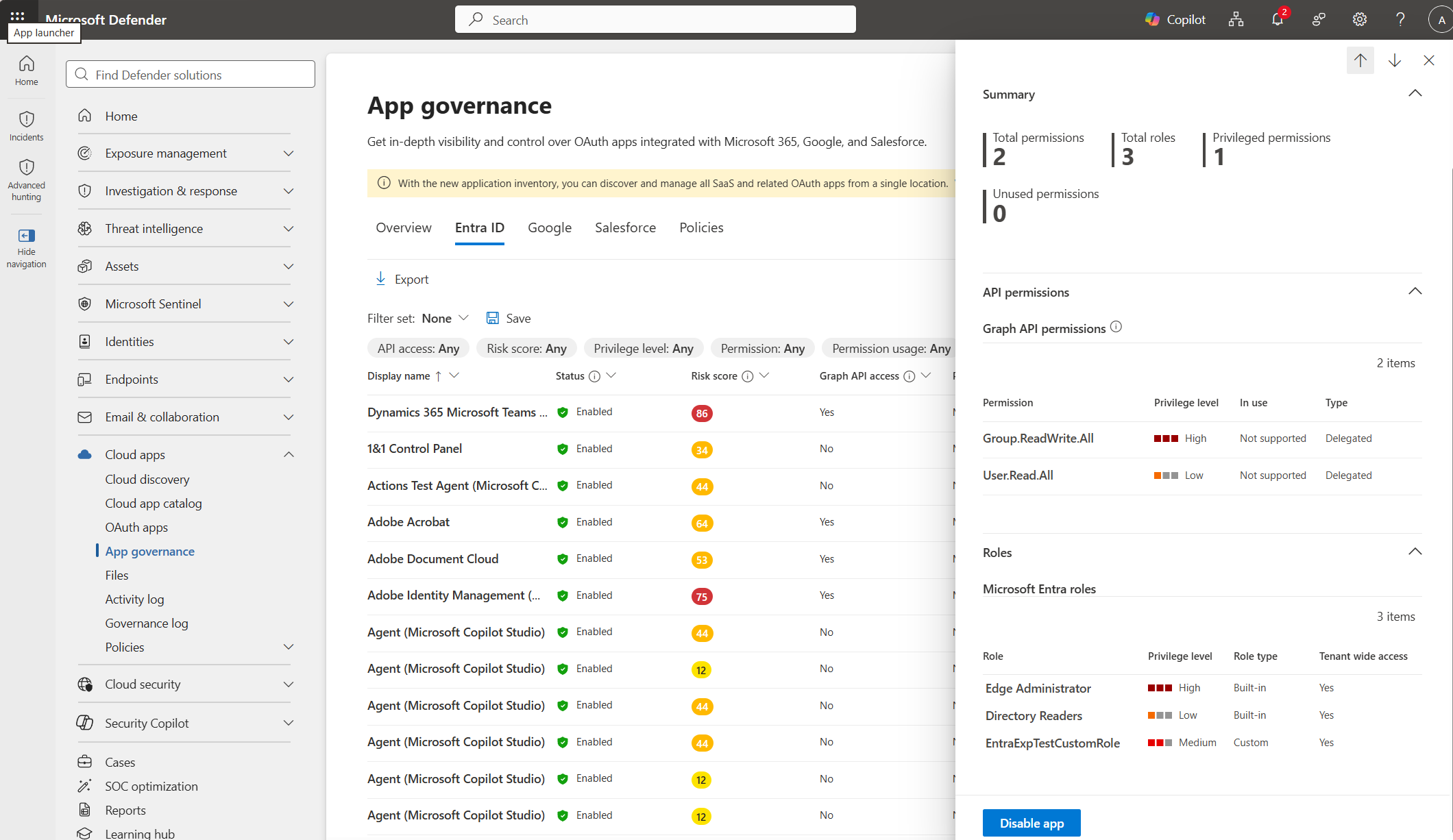
Review an app's permissions:
- Cloud apps > App governance > Microsoft 365 tab.
- Sort by Risk score or load the Apps authorized by admins query. Filter on Permission usage or Publisher.
- Select the app. Summary gives first consent date and app ID, Users gives who consented and priority account flags, Permissions gives each scope with consent type, privilege level and 90-day use.
- View in Microsoft Entra ID opens the enterprise app for the raw registration.

Create a policy for a new app with high-privilege mail permissions and few users:
- App governance > Policies > Microsoft 365 > Create New Policy.
- Category Custom > template Custom policy > Next.
- Name it, give it severity High. Severity becomes the alert severity.
- Policy settings: All Apps.
- Edit conditions > Add condition. Add Registration age within last 7 days. Add Application permissions and pick mail scopes such as
Mail.Read,Mail.ReadWrite,Mail.Send; add Delegated permissions with the same scopes if you want both consent types. Add Number of consenting users less than 5. Save each rule. Conditions are AND. - Policy actions: leave Disable app off for the first weeks. Check alert volume on the Policies page, then switch the action on if the hits are clean.
- Status Active > Submit.
The nearest template is New highly privileged app. The custom version narrows it to mail and adds the low user count typical of consent-phishing apps.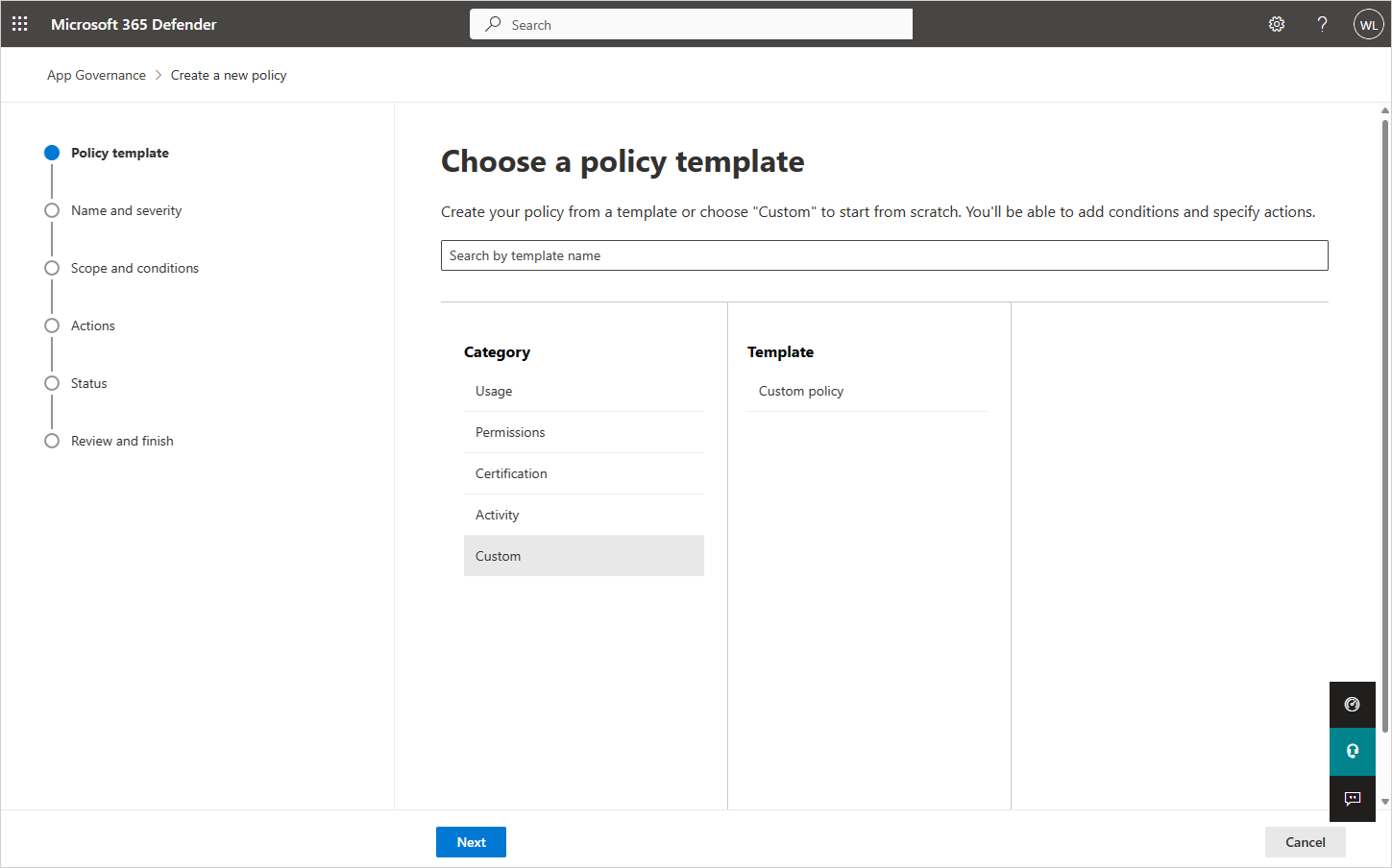
Disable an app:
- App governance > Microsoft 365 > select the app > Disable app in the details pane. Enable app reverses it. The Status column records who disabled it.
- For Google and Salesforce apps, use the Actions column to mark the app approved or banned, or revoke from the permission details.
Dashboard check: App governance > Overview, read the four Entra OAuth app counters and the incident split.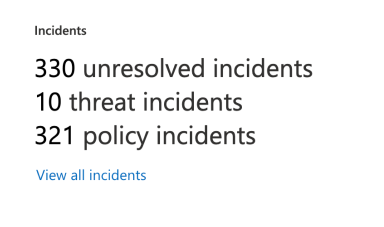
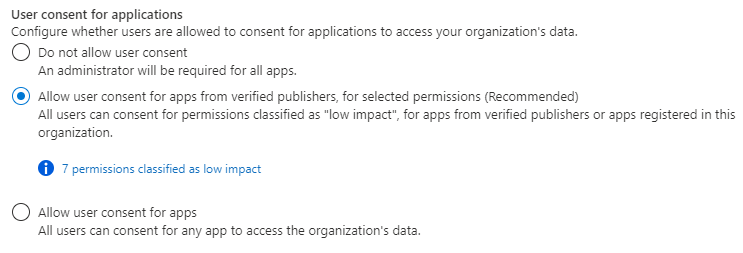
Entra user consent settings:
- Entra admin center > Identity > Applications > Enterprise apps > Consent and permissions > User consent settings.
- Pick Do not allow user consent, or Allow user consent for apps from verified publishers for selected permissions (needs permission classification set up), or the legacy Allow user consent for apps. Save. Applies to future consents only.
Admin consent workflow:
- Entra admin center > Enterprise apps > Consent and permissions > Admin consent settings.
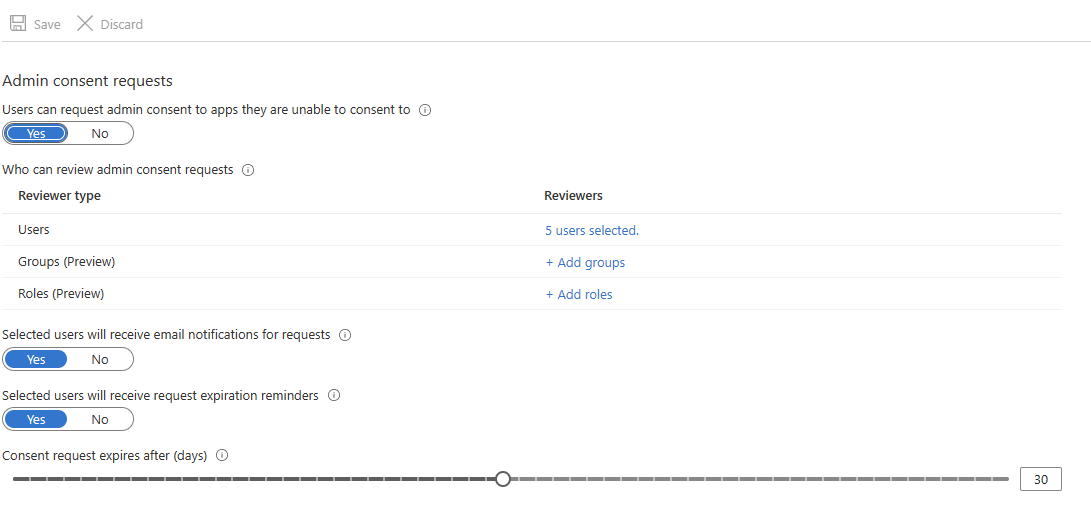
- Set Users can request admin consent to apps they are unable to consent to = Yes.
- Pick reviewers (users, groups or roles), turn on reviewer email and expiry reminders, set the expiry in days. Save. Up to an hour to take effect.
- Reviewers see requests in My Pending. Being a reviewer does not grant the right to approve; the reviewer still needs the role that can grant admin consent, and only Global Administrator can approve requests for Graph application permissions.
App governance itself has no PowerShell surface. The Entra side does. Cmdlet names below are from the Graph PowerShell SDK; the Learn grant page only shows the HTTP form, so test before trusting the parameter names.
# Tested on: TODO
Connect-MgGraph -Scopes "Application.Read.All","DelegatedPermissionGrant.ReadWrite.All","AppRoleAssignment.ReadWrite.All","Policy.ReadWrite.Authorization"

# Non-Microsoft service principals, newest first
Get-MgServicePrincipal -All -Property Id,AppId,DisplayName,AppOwnerOrganizationId,VerifiedPublisher,AccountEnabled,CreatedDateTime |
  Where-Object { $_.AppOwnerOrganizationId -ne 'f8cdef31-a31e-4b4a-93e4-5f571e91255a' } |
  Sort-Object CreatedDateTime -Descending |
  Select-Object DisplayName, AppId, Id, AccountEnabled, @{n='Publisher';e={$_.VerifiedPublisher.DisplayName}}, CreatedDateTime

# Delegated grants for one app. clientId is the service principal object id, not the appId.
$sp = Get-MgServicePrincipal -Filter "displayName eq 'Suspect App'"
Get-MgOauth2PermissionGrant -Filter "clientId eq '$($sp.Id)'" |
  Select-Object Id, ConsentType, PrincipalId, ResourceId, Scope

# Application permissions (app role assignments) held by the same app
Get-MgServicePrincipalAppRoleAssignment -ServicePrincipalId $sp.Id |
  Select-Object Id, AppRoleId, ResourceDisplayName

# Revoke one delegated grant. Tokens already issued stay valid until expiry.
Remove-MgOauth2PermissionGrant -OAuth2PermissionGrantId '<grant id>'

# Revoke an application permission
Remove-MgServicePrincipalAppRoleAssignment -ServicePrincipalId $sp.Id -AppRoleAssignmentId '<assignment id>'

# Disable the service principal outright
Update-MgServicePrincipal -ServicePrincipalId $sp.Id -AccountEnabled:$false

# Read the current user consent setting first, always
$policy = Get-MgPolicyAuthorizationPolicy
$policy.DefaultUserRolePermissions.PermissionGrantPoliciesAssigned

# Verified publishers plus low-impact permissions only. Keep the ForOwnedResource entries you read above.
$body = @{
  permissionGrantPolicyIdsAssignedToDefaultUserRole = @(
    "managePermissionGrantsForSelf.microsoft-user-default-low",
    "managePermissionGrantsForOwnedResource.microsoft-dynamically-managed-permissions-for-team"
  )
}
Update-MgPolicyAuthorizationPolicy -BodyParameter $body

# Turn off user consent entirely: drop every managePermissionGrantsForSelf entry
The first-party filter on AppOwnerOrganizationId uses the Microsoft services tenant id that commonly appears on Microsoft-owned apps; Learn does not document it on these pages. TODO: verify in the dev tenant that it matches what app governance calls non-Microsoft.
List service principals and the grants on one of them:
GET https://graph.microsoft.com/v1.0/servicePrincipals?$select=id,appId,displayName,accountEnabled,verifiedPublisher,appOwnerOrganizationId
GET https://graph.microsoft.com/v1.0/oauth2PermissionGrants?$filter=clientId eq '{servicePrincipalObjectId}'
GET https://graph.microsoft.com/v1.0/servicePrincipals/{servicePrincipalObjectId}/appRoleAssignments
oauth2PermissionGrants supports $filter with eq only. Each grant has clientId, consentType (AllPrincipals or Principal), principalId (null for AllPrincipals), resourceId and a space-separated scope. Listing needs Directory.Read.All.
Trim scopes or revoke the whole delegated grant (DelegatedPermissionGrant.ReadWrite.All):
PATCH https://graph.microsoft.com/v1.0/oauth2PermissionGrants/{grantId}
Content-Type: application/json
{ "scope": "User.Read" }
DELETE https://graph.microsoft.com/v1.0/oauth2PermissionGrants/{grantId}
Returns 204 No Content. One app can hold both a Principal grant and an AllPrincipals grant for the same resource; deleting one leaves the other. Application permissions are revoked by deleting the assignment on the resource: DELETE /servicePrincipals/{resourceSpId}/appRoleAssignedTo/{assignmentId} with AppRoleAssignment.ReadWrite.All.
Disable the app (Application.ReadWrite.All, Application Administrator or Cloud Application Administrator):
PATCH https://graph.microsoft.com/v1.0/servicePrincipals/{servicePrincipalObjectId}
Content-Type: application/json
{ "accountEnabled": false }
User consent setting (Policy.ReadWrite.Authorization, Privileged Role Administrator):
GET https://graph.microsoft.com/v1.0/policies/authorizationPolicy
GET https://graph.microsoft.com/v1.0/policies/permissionGrantPolicies
PATCH https://graph.microsoft.com/v1.0/policies/authorizationPolicy
Content-Type: application/json
{
  "defaultUserRolePermissions": {
    "permissionGrantPoliciesAssigned": [
      "managePermissionGrantsForSelf.microsoft-user-default-low",
      "managePermissionGrantsForOwnedResource.microsoft-dynamically-managed-permissions-for-team"
    ]
  }
}
Omit every managePermissionGrantsForSelf.* entry to block user consent. Keep whatever managePermissionGrantsForOwnedResource.* entries the GET returned.
Admin consent workflow (Policy.ReadWrite.ConsentRequest, Cloud Application Administrator or Application Administrator):
PUT https://graph.microsoft.com/v1.0/policies/adminConsentRequestPolicy
Content-Type: application/json
{
  "isEnabled": true,
  "notifyReviewers": true,
  "remindersEnabled": true,
  "requestDurationInDays": 5,
  "reviewers": [
    { "query": "/users/{userId}", "queryType": "MicrosoftGraph" }
  ]
}
App governance policies and the inventory have no documented public Graph endpoint. Alerts surface through the Defender XDR alerts API with Detection source App Governance.
Verify
- Settings > Cloud apps > App governance shows the service as on. App governance > Overview populates within 10 hours.
- The Microsoft 365 tab lists your known third-party apps with a risk score and a Last used date. If an app you know calls Graph shows no data usage, the Microsoft 365 connector is the usual gap.
- Policies > Microsoft 365 lists predefined policies with Source Predefined and your custom policy with Source User defined and Status Active. Watch Active alerts and Total alerts on the row over the first days.
- Consent setting:
Get-MgPolicyAuthorizationPolicyreturns the policy ids you set. A test user consenting to an unverified multi-tenant app should get the admin approval prompt instead of a grant. - Revocation: after
DELETEon a grant, the sameGETfiltered onclientIdno longer returns it. The list API is eventually consistent, so re-query after a minute. - Alerts: Defender portal > Incidents and alerts, filter Detection source = App Governance.
// New consents in the last 7 days from the Microsoft 365 connector feed.
// Needs the Microsoft 365 connector; TODO confirm exact ActionType strings in the dev tenant.
CloudAppEvents
| where Timestamp > ago(7d)
| where ActionType in ("Consent to application.", "Add delegated permission grant.", "Add app role assignment to service principal.")
| extend App = tostring(RawEventData.Target[3].ID)
| project Timestamp, ActionType, AccountDisplayName, App, RawEventData
| order by Timestamp desc
Troubleshoot
| Symptom | Likely cause | Fix |
|---|---|---|
| Use app governance option missing in settings | Region not supported, capacity constraint, or billing address in an excluded country | Join the waitlist. Excluded billing countries cannot enable it |
| Enabled, Overview still empty | Within the 10 hour populate window | Wait, then confirm the account holds a role that can read app governance |
| Cloud App Security Administrator cannot open app governance | That role can only enable it | Add Security Operator or Security Reader |
| No alerts in the Defender portal | One of the two portals never opened | Open both the Cloud Apps portal and the Defender portal once |
| App shows no data usage or services accessed | Microsoft 365 connector missing, or app uses only non-Graph APIs | Connect Microsoft 365; accept that Graph only conditions are skipped for non-Graph apps |
| Custom policy fires far less than expected | Conditions are AND, Graph only conditions skipped | Remove a condition at a time; check Policies page counts |
| Policy with Disable app broke a line-of-business app | Action fired on a legitimate app | Enable app in the details pane, loosen conditions, run alert-only first |
| Grant deleted but app still works | Existing access tokens remain valid until expiry | Wait for token lifetime, or also disable the service principal |
| Revoked one grant, app still has access | Both Principal and AllPrincipals grants exist | List with clientId filter and delete both |
| Users blocked from consent and no request option | Admin consent workflow off, or under the one hour enable delay | Turn the workflow on and wait |
| Reviewer cannot approve | Reviewer lacks the role to grant admin consent; app requests Graph application permissions | Use an account with the required role, Global Administrator for app roles |
| Google or Salesforce tab empty | Connector not connected | Connect the app connector first |
Gotchas and limits
- No report-only mode on the create page. The trial user guide mentions an audit mode, the create page does not. Until checked, alert-only (Disable app unticked) is the test mode. TODO: check the wizard.
- Policy names cannot be changed after creation. Learn says disable rather than delete a policy you may need again.
- Predefined policies change under you. Microsoft edits their conditions and adds new ones, so alert volume can move with no change on your side.
- The Permissions tab omits roles inherited through groups and all Azure RBAC. An app holding Owner on a subscription looks clean here.
- Last used tracking only goes back to June 2022. Older apps with no sign-ins since then show as unused.
- With admin consent, Total consented users is the whole tenant, so consenting user count conditions behave differently for admin-consented apps.
- Deleting an OAuth grant does not kill issued tokens. For a live incident, disable the service principal and reset the consenting users as the detection playbooks say.
- Consent settings are future-only. Switching to verified publishers plus low-impact does nothing to existing grants, and that mode is useless until permission classification has something marked low.
- Reviewers removed from the admin consent workflow keep their open requests and reminders. New reviewers do not inherit older requests.
- Workload identity Conditional Access covers only single-tenant service principals in your own tenant. The multi-tenant SaaS apps behind most OAuth incidents are out of its reach; app governance is the control for those.
- Learn's user consent page has a doubled
managePermissionGrantsForSelf.prefix in one PowerShell sample and a malformed JSON body in one REST sample. This article uses the corrected form.
Further reading
- The Threat Lurking in Your Entra Directory, Paul Schnackenburg, Virtualization Review, November 2025. Puts app governance in the context of the Salesloft Drift and Commvault breaches and argues for an app offboarding process, which Learn never mentions.
- App Governance in Defender for Cloud Apps: Your OAuth App Security Command Centre, Bartosz Wysocki, November 2025. Walks a sample investigation from alert to remediation with the portal screens in order.
- ConsentFix, a.k.a. AuthCodeFix: Detecting OAuth2 Authorization Code Phishing, Stamatios Chatzimangou, NVISO, January 2026. Covers the auth-code variant that bypasses consent prompts, with a Sentinel KQL query joining interactive and non-interactive sign-ins.
- Would You Click Accept? Automatically detecting malicious Azure OAuth applications using LLMs, Wiz Research, February 2026. Shows what malicious multi-tenant app campaigns look like at scale, useful for sanity-checking the risk score factors app governance surfaces.
My notes
TODO: Sohail's notes after verification.
Changelog
| Date | Change | Source |
|---|---|---|
| 2026-10-22 | Drafted from Learn, with Learn images and diagrams | [1] |