Cloud Discovery and shadow IT with Defender for Endpoint
What it is
Cloud Discovery is the shadow IT half of Defender for Cloud Apps. It takes web traffic logs, matches destinations against a catalog of more than 31,000 cloud apps scored on more than 90 risk factors, and tells you which apps your users reach, from which devices and IPs, and how much data moves. Data is refreshed four times a day. Apps not in the catalog are not discovered unless you add a custom app.
Three things feed it. The primary path for managed devices is the Defender for Endpoint integration: the MDE sensor already records network transactions, and a single toggle forwards them to Cloud Discovery with user and device context, on or off the corporate network, with nothing to deploy. The second path is a log collector container on your network that takes firewall or proxy logs over Syslog or FTP and uploads them. The third is a manual snapshot report, where you upload log files once to validate a format or get a first look. Secure Web Gateway integrations (Zscaler, iboss, Corrata, Menlo) and the Cloud Discovery API are the other documented inputs.
The part that matters operationally is enforcement. When MDE is integrated, tagging an app Unsanctioned creates custom URL indicators in MDE, and network protection on each device blocks the app's domains. Tagging it Monitored gives the user a warning they can bypass. That is the whole block path: no proxy, no PAC file, no extra agent. It only works on devices that are onboarded to MDE with network protection in block mode. Everything else (sanctioned apps and session control, policy types, alert handling) is in overview and policies and alerts. The AV settings that network protection depends on are in antivirus policy, and the full Defender signal wiring is in the integrations map.
Global Secure Access is not a Cloud Discovery data source. The Entra coexistence page says GSA has its own application discovery in the GSA Insights and Analytics dashboard, built from Internet Access traffic, and Cloud Discovery keeps building its report from MDE, firewalls and proxies. If you want both views, install both clients on Windows and macOS. On iOS and Android the MDE app is the GSA client. GSA discovery skips UDP, QUIC and IPv6. Pick one enforcement plane: MDE evaluates first when both block, and the page calls running both unnecessary.
Licensing and prerequisites
- Discovery through MDE: a Defender for Cloud Apps licence, plus MDE Plan 2 or Defender for Business (standalone or in Business Premium). The MDE-side config page lists the toggle under both P1 and P2, but the Cloud Apps integration page and the macOS network protection page require P2 or Defender for Business. Blocking: Defender for Cloud Apps plus Endpoint, or Microsoft 365 E5.
- Devices onboarded to MDE. Windows 10 1709 (16299.1085 with KB4493441), 1803 (17134.704 with KB4493464), 1809 (17763.379 with KB4489899) or later, and Windows 11. The troubleshooting page says Defender-managed endpoint reports need Windows 10 1809 or later. macOS needs MDE 20.123072.25.0 or later and network protection on. Blocking also lists Android 8.0+, iOS 14.0+, macOS 11+ and Linux.
- Defender Antivirus in active mode with real-time protection, cloud-delivered protection and network protection in block mode. Learn calls AV recommended for discovery and mandatory for blocking. Custom indicators and Cloud Apps controls are only enforced in block mode, never audit.
- MDE portal: Settings > Endpoints > Advanced features, both the Microsoft Defender for Cloud Apps toggle and Custom network indicators on.
- Non-Microsoft browsers: Learn asks for the Microsoft Defender Browser Protection add-on, and for QUIC and Encrypted Client Hello to be off so network protection can read the FQDN from the TLS ClientHello.
- Admin access in Defender for Cloud Apps to tag apps. Resolving anonymised usernames needs the Cloud Discovery global admin role with anonymisation permissions.
- Log collector host: 2 cores, 4 GB RAM, 250 GB disk, Intel 64 or AMD64, outbound 443. On Windows: Windows 10 Fall Creators Update or later, Hyper-V or WSL 2, Docker Desktop (paid for companies over 250 users or 10 million USD revenue), and a signed-in user.
How it works
MDE path
The sensor on Windows writes network transaction logs as part of normal monitoring. With the Cloud Apps toggle on, MDE forwards them in chunks of about 4 MB, roughly 4,000 transactions, or everything from the last hour if the chunk does not fill. Each record carries user and device identity, so Cloud Discovery can pivot from a risky user to the devices they used and from a risky device to every user on it. Data appears under the Defender - managed endpoints stream (older pages call it Win10 Endpoint Users) within about two hours of enabling. On macOS the signal comes from network protection and only covers TCP connection close events, so UDP is invisible there, and Learn warns of a CPU spike on some Macs.
Each discovered app gets a risk score. The total is a weighted average of four category subscores: General (domain, founding year, popularity), Security (MFA, encryption, audit trail), Compliance (SOC 2, ISO 27001, HIPAA, PCI-DSS) and Legal (DMCA, data retention). Each property scores 0 to 10, true or false properties are 10 or 0, and an unscored app usually means its properties are unknown. You can reweight categories under Score metrics, override one app's score with a note, or request a score update from Microsoft.
Tagging turns inventory into control. Unsanctioned syncs the app's domains to MDE as custom URL indicators with action Block; Monitored syncs them with action Warn. Sync is usually minutes, device propagation up to two hours, and Learn quotes up to three hours end to end. On the device, network protection matches the ClientHello FQDN against the indicator set and blocks or warns. In Edge the same indicators are enforced by SmartScreen. Every blocked access raises an informational alert in the Defender portal by default; if a device was supposed to block and did not, MDE admins get an alert saying so. Full URLs are not supported: drive.google.com syncs, google.com/drive is dropped silently.
Scoped profiles narrow the blast radius. A profile includes or excludes MDE device groups, and you pick it in the Tag as unsanctioned dialog. Scoping set by hand on indicators that Cloud Apps created is overridden; use profiles. Defender for Business tenants see no device groups here. Governance conflicts between a manual tag and a discovery policy resolve to the last action applied.
Log collector path
For users not on MDE devices, or for a forward proxy in front of MDE devices, logs come from the appliance. You create a data source per firewall or proxy with a receiver type (FTP, FTPS, Syslog UDP, TCP or TLS), then a log collector bound to a host IP and those data sources. The portal gives you a docker run command with a one-time token. The container listens on FTP 21 with passive ports 20000 to 20099, or on the Syslog port shown in the dialog, compresses each file and uploads it over 443. Syslog data is flushed to a file at 40 KB; FTP files upload when the transfer completes. Outbound is about 10 percent of inbound. The collector handles 50 GB per hour; beyond that, split appliances across collectors. It keeps the last 20 logs in a backup directory, drops new logs when the disk is full, and you get an alert after 48 hours of silence.
Parsing happens in the cloud, per data source. If the appliance is not in the supported list (Palo Alto, Fortinet, Check Point, Cisco ASA and IronPort, Zscaler, Squid, Blue Coat, Sophos, SonicWall and so on), you build a custom CSV or key-value parser by mapping the dialog's fields to your columns. Required fields must be present, in the same order as the dialog, with case-sensitive column names and an exact date format, or the log is skipped. Quality depends on the source: Cisco ASA at the default level gives no username, no target URL and no upload bytes, so set its information level to 6. Snapshot uploads take up to 20 files, 1 GB each, one file per ZIP, events no older than 90 days.
Reports, policies, anonymisation
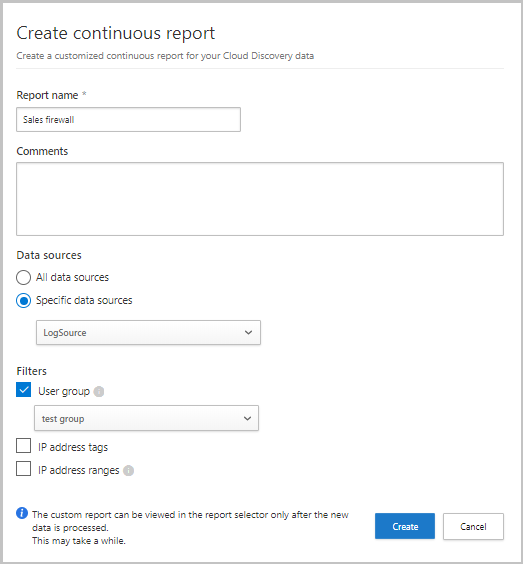
Continuous reports are views over the stream. The Global report consolidates every source except MDE; each data source has its own report; custom reports filter by data source, imported user group, IP tag or IP range, and hold at most 1 GB of uncompressed data. Exclusions (users, groups, IPs, devices) apply only to the Global report and only to new data, which stays 90 days.
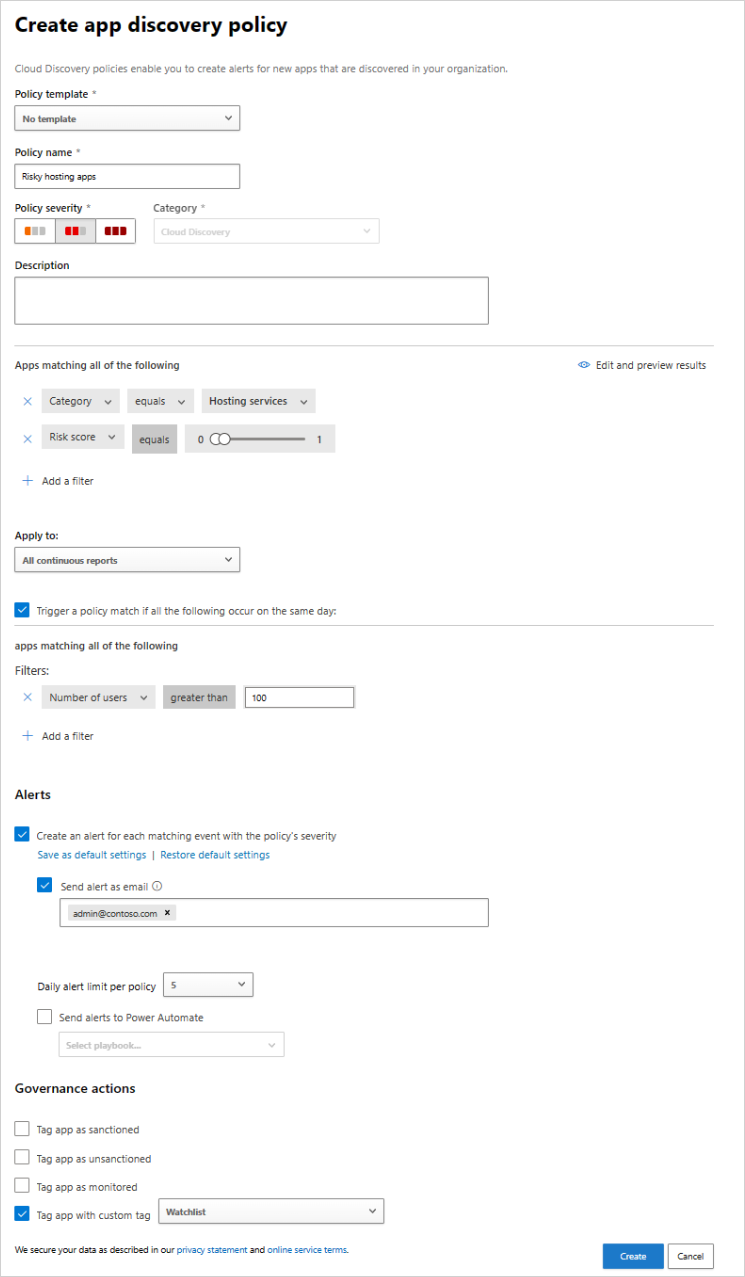
Two policy types live on the Shadow IT tab. An app discovery policy matches on filters (category, risk score, compliance factor) and same-day thresholds (users, IPs, transactions, traffic, uploaded or downloaded data) and can auto-tag the app Sanctioned, Unsanctioned, Monitored or custom. That is how you block a new risky app without an admin watching. A new policy alerts once per app per continuous report every 90 days even for apps already seen, and snapshot data never triggers it. The anomaly detection policy is on by default, learns per user or IP, and flags things like a first-time 600 GB Dropbox upload. Scope it to specific continuous reports; All continuous reports alerts once per stream including the global one.
Anonymisation replaces usernames, and optionally device names in the MDE stream, with AES-128 values under a per-tenant key. Enable it per snapshot, per data source, or tenant-wide under Settings > Cloud Apps > Cloud Discovery > Anonymization. An admin with the right role resolves one or many names with a justification; from October 2025 those resolutions land in the Activity log, not the Governance log. The Cloud Apps proxy stream does not support it.
Configure
- Portal
- PowerShell / Terminal
- Graph API
Enable the MDE integration, both sides:
- Defender portal > Settings > Endpoints > General > Advanced features. Toggle Microsoft Defender for Cloud Apps On, Save preferences. Data lands in Cloud Discovery within two hours.
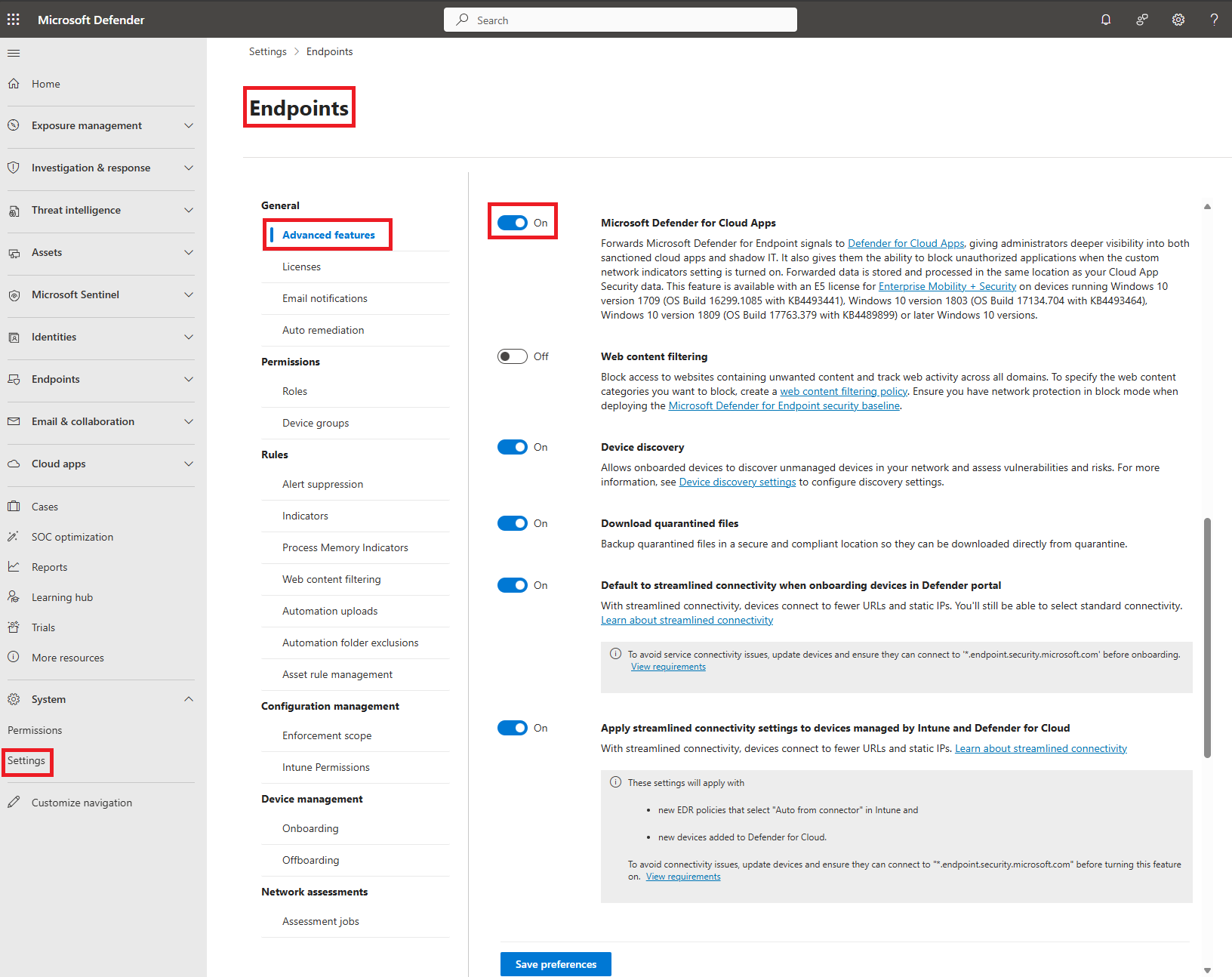
- Same page, toggle Custom network indicators On. Without this the Block and Warn indicators Cloud Apps creates are never enforced.

- Settings > Cloud Apps > Cloud Discovery > Microsoft Defender for Endpoint. Tick Enforce app access (up to 30 minutes to take effect), pick the global alert severity, set the Notification URL users land on from the block page or warning, set the Bypass duration in hours for Monitored apps, and optionally turn off Generate alert for blocked app access to stop the informational alerts. Save.

- Make sure network protection is in block mode on the devices. In Intune or the Defender portal Endpoint security policies, Microsoft Defender Antivirus profile, set Enable network protection to Enabled (block mode). Audit mode shows nothing from Cloud Apps. See antivirus policy.
Create a continuous report:
- Settings > Cloud Apps > Cloud Discovery > Continuous reports > Create report.
- Name it, choose all or specific data sources, add User groups, IP address tags or IP ranges. Filters include, they do not exclude.
Unsanction an app and confirm the indicator:
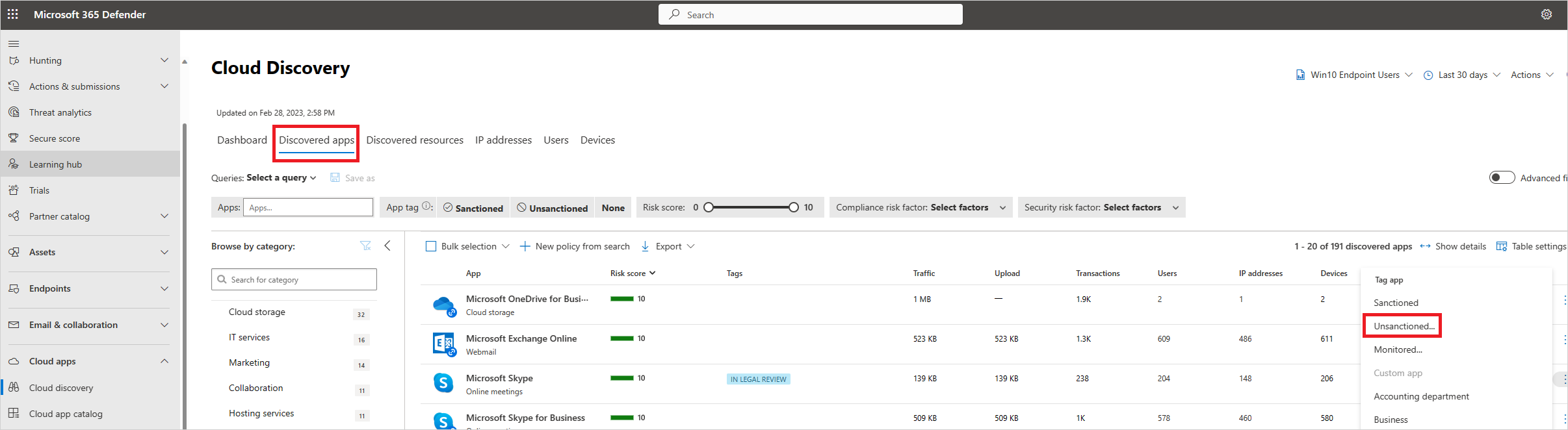
- Cloud apps > Cloud Discovery > Discovered apps. Filter, for example Risk score 6 or lower, Users over 50, Data at rest encryption Not supported.
- Three dots on the row > Unsanctioned. If Enforce app access is on and you have admin rights, the Tag as unsanctioned dialog appears. Save for all devices, or pick a scoped profile (created under Settings > Cloud Apps > Cloud Discovery > App tags > Scoped profiles) to include or exclude device groups.
- Settings > Endpoints > Indicators > URLs/Domains. Within minutes the app's domains appear with action Block (Warn for Monitored). Do not edit their scope by hand; change the profile instead by untagging and retagging.
- For Monitored instead of Unsanctioned, same menu, pick Monitored. The scoped profile option for Monitored only shows if the MDE stream has had data for 30 days.
Create a discovery policy:
- Cloud apps > Policies > Policy management > Shadow IT tab > Create policy > App discovery policy.
- Name, severity, filters (for example category Hosting services, risk score 1), then Trigger a policy match if all the following occur on the same day with thresholds such as more than 100 users and a download volume.
- Set a Daily alert limit and email recipients. Under Governance pick the tag to apply, Unsanctioned if the intent is automatic blocking. Create.
Log collector, in short:
- Settings > Cloud Apps > Cloud Discovery > Automatic log upload > Data sources > Add data source. Name, Source appliance (or Custom log format), Receiver type. One data source per appliance.
- Log collectors tab > Add log collector. Name, private host IP, attach data sources, Update. Copy the
docker runcommand and Export the appliance config. - On the host, run the command. Then
docker logs <name>should end with Finished successfully, and the portal row should move from Created to Connected.
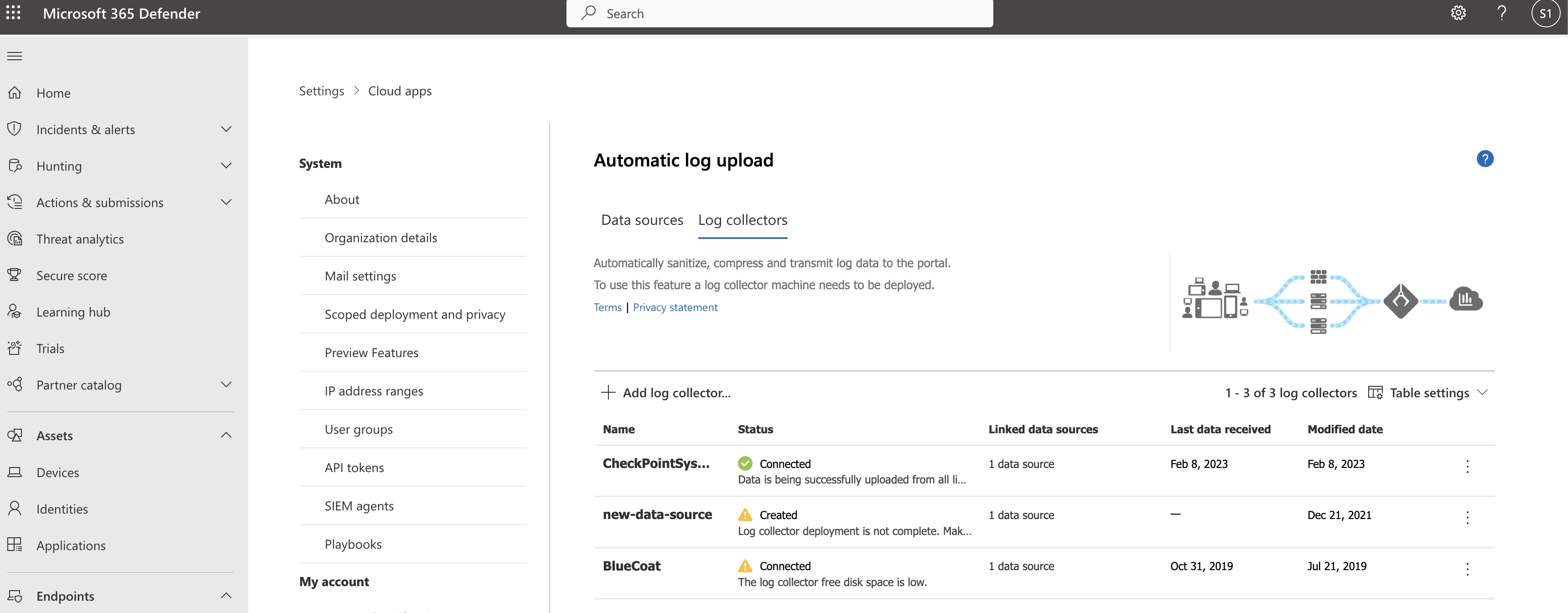
- Optionally tick Anonymize private information on the data source, or set the tenant default under Cloud Discovery > Anonymization.
Snapshot report: Cloud Discovery > Actions > Create Cloud Discovery snapshot report. Pick the Source, View log format > Download sample log to compare, upload up to 20 files, wait for the email, then open it under Settings > Cloud Apps > Cloud Discovery > Snapshot reports.
The Cloud Apps toggles have no documented PowerShell. What you can script is the device-side prerequisite and the MDE indicator check.
# Tested on: TODO
# Is this device able to enforce Cloud Apps blocks? From Learn: 0 off, 1 block, 2 audit.
Get-MpPreference | Select-Object EnableNetworkProtection,
    DisableRealtimeMonitoring, MAPSReporting,
    AllowNetworkProtectionOnWinServer, AllowNetworkProtectionDownLevel

# Policy-side value, if managed
Get-ItemProperty 'HKLM:\SOFTWARE\Policies\Microsoft\Windows Defender\Policy Manager' -Name EnableNetworkProtection -ErrorAction SilentlyContinue
Get-ItemProperty 'HKLM:\SOFTWARE\Microsoft\Windows Defender\Windows Defender Exploit Guard\Network Protection' -Name EnableNetworkProtection -ErrorAction SilentlyContinue

# Lab only: force block mode locally (Intune or MDE policy should own this in production)
Set-MpPreference -EnableNetworkProtection Enabled
# Windows Server additionally needs
# Set-MpPreference -AllowNetworkProtectionOnWinServer $true
# macOS: network protection must be in block mode for Cloud Apps warn and block
mdatp health --field network_protection_status      # expect: started
mdatp config network-protection enforcement-level --value block   # lab only, use Intune settings catalog in production
# MDE API: list indicators and pick out the ones Cloud Apps created.
# App registration with Ti.ReadWrite.All (or Ti.ReadWrite to see only your own). 100 calls per minute, 1,500 per hour.
$token = '<bearer token for api.security.microsoft.com>'
$uri = "https://api.security.microsoft.com/api/indicators?`$filter=indicatorType eq 'DomainName' or indicatorType eq 'Url'&`$top=1000"
$r = Invoke-RestMethod -Uri $uri -Headers @{ Authorization = "Bearer $token" }
$r.value |
  Where-Object { $_.action -in 'Block','Warn' } |
  Select-Object indicatorValue, action, createdBySource, sourceType, rbacGroupNames, creationTimeDateTimeUtc |
  Sort-Object creationTimeDateTimeUtc -Descending |
  Format-Table -AutoSize
# TODO: confirm in the dev tenant what createdBySource reads for Cloud Apps indicators. Learn documents the field but not its value for this integration.
Run the hunting query through Graph. Needs ThreatHunting.Read.All, delegated or application. Default timespan is 30 days; a KQL time filter shorter than Timespan wins.
POST https://graph.microsoft.com/v1.0/security/runHuntingQuery
Content-Type: application/json
{
  "Query": "DeviceEvents | where ActionType in ('ExploitGuardNetworkProtectionBlocked','ExploitGuardNetworkProtectionAudited') | extend f = parse_json(AdditionalFields) | where tostring(f.ResponseCategory) in ('CasbPolicy','CustomBlockList') | project Timestamp, DeviceName, ActionType, RemoteUrl, InitiatingProcessFileName, ResponseCategory = tostring(f.ResponseCategory), IsAudit = tostring(f.IsAudit) | order by Timestamp desc | take 100",
  "Timespan": "P7D"
}
The response is a huntingQueryResults object with a schema array and a results array of rows. For the raw connection attempts the brief asks about, swap the table:
{
  "Query": "DeviceNetworkEvents | where RemoteUrl has_any ('<domain1>','<domain2>') | project Timestamp, DeviceName, InitiatingProcessAccountName, RemoteUrl, RemoteIP, ActionType | order by Timestamp desc | take 100",
  "Timespan": "P7D"
}
Read DeviceNetworkEvents with care: network protection decides after the TCP handshake, so a blocked site can still log ConnectionSuccess. The DeviceEvents query above is the proof of a block.
The Cloud Apps tags themselves have no Graph route. MDE indicators are on https://api.security.microsoft.com/api/indicators, shown in the PowerShell tab.
Verify
Discovery:
- Cloud apps > Cloud Discovery > Dashboard, stream selector Defender - managed endpoints. Devices tab should list onboarded machines with transactions, traffic, discovered apps, user history and IP history. Allow two hours after enabling.
- For a log collector, the portal status is Connected, and the Governance log shows periodic uploads. Inside the container
docker exec -it <name> bashthencollector_status -p. - A snapshot report shows up under Settings > Cloud Apps > Cloud Discovery > Snapshot reports after the processing email.
Block:
- Tag a harmless test app Unsanctioned, wait, then open it in Chrome or Firefox (QUIC and ECH off) on an onboarded device with network protection in block mode. Expect the network protection block toast and a block page with Visit the Support page pointing at your Notification URL. In Edge, expect the SmartScreen block.
- Tag another app Monitored. Expect a warning with Unblock; after the bypass duration the warning returns.
- Settings > Endpoints > Indicators > URLs/Domains shows the domains with Block or Warn.
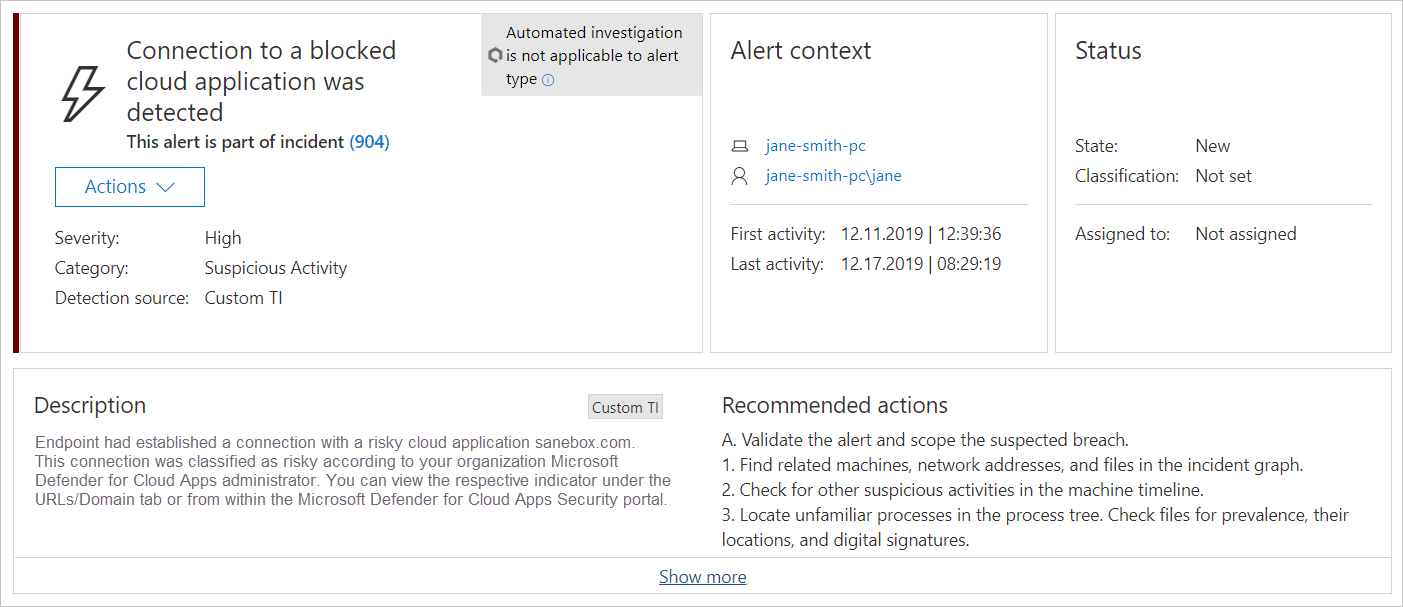
- The Defender portal alerts queue shows an informational alert per blocked access (unless you turned that off), and a separate alert if a device failed to block.
// Cloud Apps blocks and warns enforced by network protection, last 7 days
DeviceEvents
| where Timestamp > ago(7d)
| where ActionType in ("ExploitGuardNetworkProtectionBlocked", "ExploitGuardNetworkProtectionAudited")
| extend f = parse_json(AdditionalFields)
| extend ResponseCategory = tostring(f.ResponseCategory), IsAudit = tostring(f.IsAudit), DisplayName = tostring(f.DisplayName)
| where ResponseCategory in ("CasbPolicy", "CustomBlockList")
| project Timestamp, DeviceName, ActionType, RemoteUrl, InitiatingProcessFileName, ResponseCategory, IsAudit
| order by Timestamp desc
// Devices that reached an unsanctioned domain: paste the app's Domain list from the discovered app drawer
DeviceNetworkEvents
| where Timestamp > ago(7d)
| where RemoteUrl has_any ("<domain1>", "<domain2>")
| summarize Attempts = count(), LastSeen = max(Timestamp) by DeviceName, InitiatingProcessAccountName, RemoteUrl
| order by LastSeen desc
On Windows, Event Viewer shows 1126 for a block and 1125 for an audit hit, 5007 when the setting changes. TODO: confirm the channel name on a test device; Learn lists the IDs without naming it. Edge blocks surface as SmartScreenUrlWarning events rather than network protection events.
Troubleshoot
| Symptom | Likely cause | Fix |
|---|---|---|
| No Defender - managed endpoints stream, or empty | Toggle just enabled, or devices below Windows 10 1809, or MDE P1 only | Wait two hours. Check OS build and licence. Confirm Settings > Endpoints > Advanced features shows the Cloud Apps toggle On |
| MDE stream exists but discovery reports are thin | Endpoints sit behind a forward proxy | Send the proxy logs through a log collector as a second data source |
| macOS devices missing from discovery | Network protection off, or MDE below 20.123072.25.0 | mdatp health --field network_protection_status must return started; update the client |
| Unsanctioned app not blocked | Network protection off or in audit mode, Custom network indicators off, Enforce app access not ticked, or still inside the propagation window | Get-MpPreference must show EnableNetworkProtection 1; check both MDE toggles; allow up to three hours |
| Blocked in Chrome but not Edge, or the reverse | Edge enforces through SmartScreen, other browsers through network protection | Enable SmartScreen in Edge; for other browsers turn off QUIC and ECH and install the Browser Protection add-on |
| Some app domains block, others do not | Entry is a full URL path such as google.com/drive, or domain not in the catalog | Only domains sync. Suggest extra domains through the catalog change request |
| Indicator scope wrong after editing it in MDE | Manual scoping on Cloud Apps indicators is overridden | Remove the tag, create a scoped profile, retag |
| Nobody notified on macOS for a Monitored app | Defender notifications blocked | System Settings > Notifications, allow Microsoft Defender |
| Too many informational alerts | Default alert per blocked access | Turn off Generate alert for blocked app access under Cloud Discovery > Microsoft Defender for Endpoint |
| Log collector status Created | Container never ran or never reached the service | Run the copied command, check docker logs <name> for Finished successfully, allow outbound 443 |
| Log collector status Disconnected | No data from any linked source for 24 hours | Check appliance forwarding, collector_config and netstat inside the container, then open a case with the diagnostic bundle |
| Failed updating collector configuration | Stale token or 443 blocked | Regenerate the command in the portal, open 443 |
| Can't connect over FTP | Client using SFTP or SSH credentials | Use plain FTP with the FTP user; change the FTP password first time |
| Failed pulling the collector image | Host out of disk | docker pull mcr.microsoft.com/mcas/logcollector and look for no space left on device |
| Governance log: log format doesn't match | Wrong source selected, corrupt file, or new appliance firmware format | Compare with View log format sample; try Other or a custom parser; open a case with vendor docs |
| Governance log: transactions older than 90 days | Old export | Export a fresh log |
| Governance log: no transactions to cataloged cloud apps | Log has no outbound traffic, or only inbound and admin events | Forward web traffic logs only |
| Custom parser skips every line | Required field missing, wrong order, column name case, or date format mismatch | Fix the headers in the file to match the dialog exactly |
| Parsed fine but dashboard empty | Dashboard filters hide the data | Clear or change filters, check the report selector |
| Discovery policy alerts on apps you already knew | New or edited policy re-alerts once per app per report per 90 days | Expected. Raise the thresholds or lower the daily alert limit |
| Anomaly policy floods alerts | Applied to All continuous reports, including the global stream | Scope to specific continuous reports |
Gotchas and limits
- The block only exists on devices that are onboarded to MDE, have Defender AV active, and run network protection in block mode. Audit mode gives you nothing from Cloud Apps. Unmanaged devices, BYOD and anything with third-party AV see no block at all. For those you need the SWG integrations, a block script into the firewall, or GSA.
- macOS: discovery and warn and block are documented and need MDE 20.123072.25.0 or later with network protection in block mode. Network protection on macOS is disabled by default. The macOS page describes the Monitored flow in detail and lists Unsanctioned blocking as supported. Only TCP is seen; UDP and QUIC traffic are invisible, so turn QUIC off in Chrome and Firefox or the user slides past the block.
- Browser behaviour is not uniform. Edge on Windows is enforced by SmartScreen, not network protection, so SmartScreen must be on. Other browsers and non-browser processes go through network protection, which reads the hostname from the TLS ClientHello: QUIC or Encrypted Client Hello defeats it. Edge on macOS is the opposite: SmartScreen there lacks indicator support, so network protection does the work. In-browser notifications vary by browser.
- Timing: Learn gives three numbers. Minutes for the tag to become an indicator, up to two hours for the indicator to reach devices, up to three hours end to end. Enforce app access itself takes up to 30 minutes. Do not call it broken inside that window; use the not blocked alert as the tell.
- Indicators created by Cloud Apps are ordinary MDE URL indicators, but do not manage them in MDE. Hand-set scoping is overridden. Scoped profiles are the only supported way to limit a block, and Defender for Business has no device groups here, so it is all devices or nothing.
- Domain only, never a path.
drive.google.comworks,google.com/driveis dropped without an error. Full URL path indicators only work in Edge anyway. - A short list of Microsoft services (Intune, Purview, Defender portals, Entra Permissions Management, Microsoft Online Services and others) cannot be blocked through Cloud Apps at all.
- Unsanctioned without the MDE integration is just a label. The governance page is blunt: unsanctioning does not block. The block comes from MDE, from an SWG, or from a script you import.
- Apps onboarded to session control or an app connector are automatically Sanctioned in Cloud Discovery. Last action wins when a manual tag and a discovery policy disagree.
- The Global report excludes MDE data by design, and exclusions only work on the Global report. If you want a clean MDE-only view, use the Defender - managed endpoints stream or a custom report scoped to it.
- Custom continuous reports cap at 1 GB uncompressed; past that the data is silently truncated. Discovery data is kept 90 days. Delete data is tenant-wide and irreversible.
- Discovered subdomains were scheduled for deprecation on 31 December 2025. The page still documents the filter. Do not build process around it.
- The log collector is a single container doing 50 GB per hour. SIEM forwarding to it is only supported if the SIEM leaves the log format untouched. On Windows hosts a user has to stay signed in for Docker Desktop to run, which makes a Linux or Azure Ubuntu host the saner choice.
- GSA is not a Cloud Discovery feed. If a client asks for shadow IT across GSA and MDE, that is two dashboards today. TODO: re-check the Entra coexistence page; a native stream may appear.
- Discovery data is processed four times a day. Expect lag between a user hitting an app and it appearing in a report; policy alerts follow the report, not the event.
Further reading
- The Shadow AI Problem: Gaining Visibility, Rod Trent, July 2026. Frames Cloud Discovery as an ongoing AI app inventory and shows the generative AI category filters and risk factors in practice.
- Shadow AI Detection with Intune and Defender (2026), Tiago S. Carvalho, July 2026. Walks the MDE integration and the Sanctioned, Unsanctioned and Monitored tags from an Intune admin's angle, with the device-side prerequisites.
- Disable alert generation for Unsanctioned Apps in Microsoft Defender for Cloud Apps, Jeffrey Appel, June 2026. Shows the alert noise you get from blocked-app informational alerts and the setting that turns it off while blocks keep working.
- How to tackle shadow AI with Microsoft Purview and Defender for Cloud Apps, Jasper Oosterveld, January 2026. Pairs Cloud Discovery blocking with Purview DLP so the unsanctioned list and the data controls line up.
My notes
TODO: Sohail's notes after verification.
Changelog
| Date | Change | Source |
|---|---|---|
| 2026-10-22 | Drafted from Learn, with Learn images and diagrams | [1] |