Conditional Access App Control and session policies
What it is
Conditional Access decides whether a sign-in happens. Conditional Access App Control decides what the user can do after it. Entra routes the session to Defender for Cloud Apps, and MDA applies access policies and session policies in real time: block the sign-in, audit it, block a download, label the downloaded copy, block an upload, block copy, paste and print, or send the user back to Entra for step-up authentication. Policies are scoped by who, which apps and where, and they apply at the app level, never at the file level.
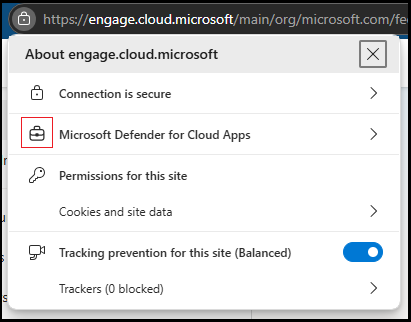
Two delivery paths exist. The original one is a reverse proxy: the browser is redirected to the app through MDA, and the URL gains a .mcas.ms suffix, so myapp.com becomes myapp.com.mcas.ms. The newer one is in-browser protection with Microsoft Edge for Business, where the policy runs inside the browser, nothing is redirected, and a lock icon in the address bar is the only sign. Both are controlled by the same session policies. Nothing is installed on the device, which is why this is the usual answer for unmanaged devices and partner users.
This is not DLP for native clients. Session controls only exist for interactive browser sessions. Native and desktop apps can be blocked or allowed with an access policy, but their content cannot be inspected. It is also not Entra's own app enforced restrictions, which only Exchange Online and SharePoint Online honour. For how MDA fits next to Defender for Endpoint and Purview see the overview and the integrations map. For the non-proxy policy types see policies and alerts.
Licensing and prerequisites
- A Defender for Cloud Apps licence, standalone or inside Microsoft 365 E5, plus Microsoft Entra ID P1 for the Conditional Access policy. If the "Use Conditional Access App Control" option is missing in a CA policy, one of these two is missing.
- For apps behind a non-Microsoft IdP, whatever that IdP needs, and the app must use SAML 2.0 SSO. Entra apps can use SAML 2.0 or OpenID Connect, and on-premises apps published through Entra application proxy also work.
- The Protect action needs a Purview licence, Microsoft Information Protection integration enabled under MDA settings, and unified labelling. Only labels that apply encryption appear as Protect options.
- Firewall egress to the MDA datacentre IPs and DNS names from the network requirements page on port 443. The app must present a full certificate chain.
- The enterprise application "Microsoft Defender for Cloud Apps - Session Controls", app ID
8a0c2593-9cbc-4f86-a247-beb7aab00d83, must exist in the tenant and must not be blocked by a CA policy. Exclude it from block-all policies and include it in location-based ones. If it is missing, create it withNew-MgServicePrincipalas shown in the PowerShell tab. - Browsers: latest Edge, Chrome, Firefox or Safari. Clients that cannot do TLS 1.2 or later cannot reach a session-controlled app at all.
- In-browser protection: Edge for Business work profile, Windows 10 or 11 or macOS, Entra ID as the identity platform, one of the last two stable Edge versions, commercial tenants only.
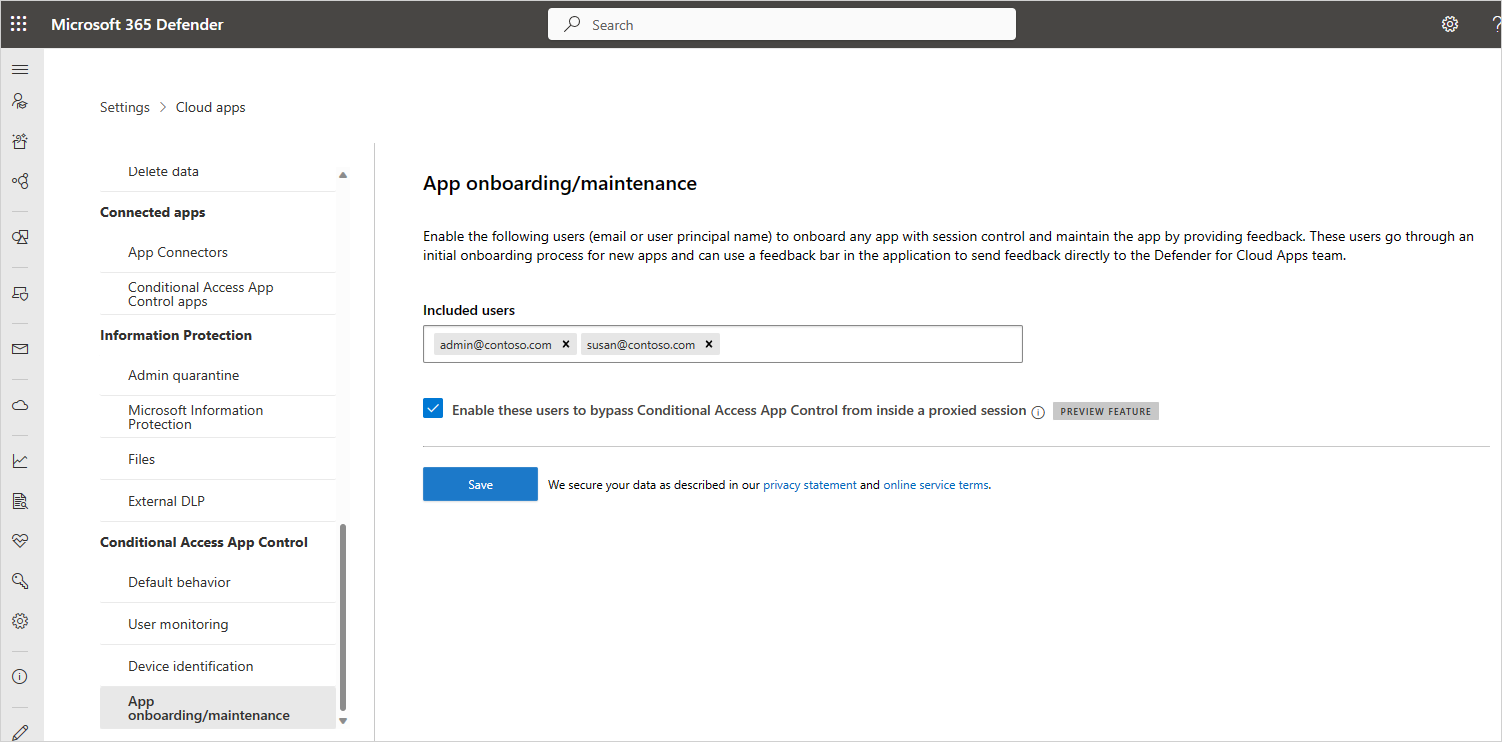
- Roles: at least Conditional Access Administrator in Entra. In MDA, admins who will onboard or maintain apps are added under Settings > Cloud Apps > Conditional Access App Control > App onboarding/maintenance.
How it works
Routing
A CA policy with the session control "Use Conditional Access App Control" is the switch. Entra evaluates the sign-in, and when the policy matches it issues the token in a way that lands the browser in MDA instead of at the app. From that point MDA sits between browser and app. Learn offers three settings on the Entra side: Monitor only, Block downloads, and Use custom policy. The first two are fixed MDA behaviours. Custom policy hands control to whatever access and session policies you build in the Defender portal, and it is the one you want in practice. Graph exposes these as cloudAppSecurityType values monitorOnly, blockDownloads and mcasConfigured.
For the proxy path, MDA rewrites the app's URLs so every link stays under the .mcas.ms suffix, injects controls into the page, and applies the matched policy to each request. Government clouds use .mcas-gov.us or .mcas-gov.ms. The proxy stores no session data at rest, caches only public content per RFC 7234, and may run in an Azure datacentre outside the user's region. Only the sessions the CA policy selects pay the latency. Some activities are enforced client-side only, because a server-side block would break the app; Learn notes a malicious insider could defeat those.
In-browser protection with Edge for Business
When the user is in an Edge work profile and every policy that applies to them is one Edge supports, the session is served in the browser. Supported policies are block or monitor of file download, file upload, copy, cut, paste, print, malware upload and malware download. No .mcas.ms suffix appears, developer tools are disabled, and the lock icon shows a suitcase symbol. Anything else falls back to the reverse proxy: a Protect file download policy, Chrome, Edge on Android, InPrivate, older Edge builds, B2B guests, Okta-authenticated apps, the built-in Monitor only and Block downloads options set in the Entra portal, and any mix where one policy is unsupported. Sensitive files found by built-in DLP scanning are also not supported in-browser.
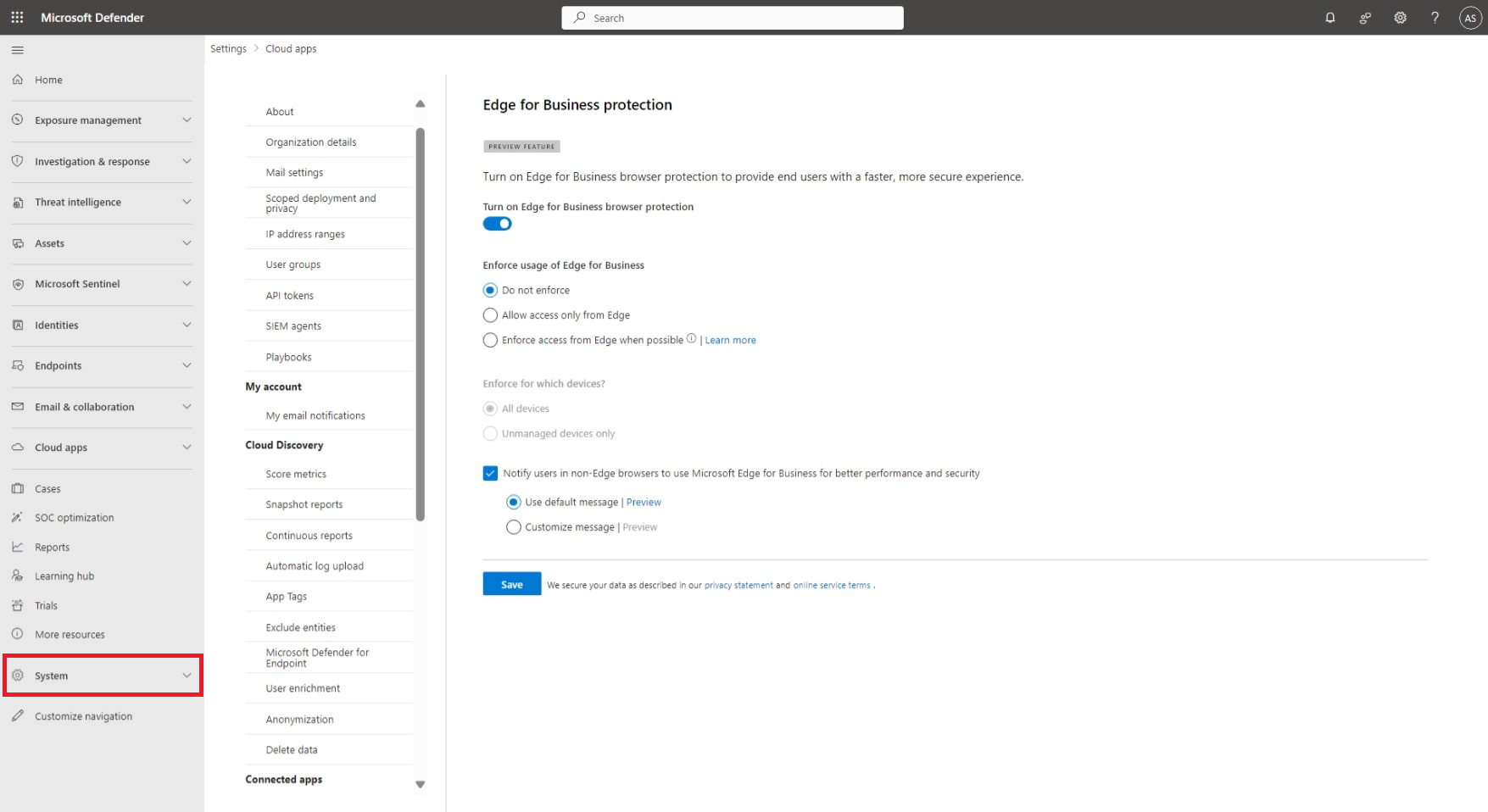
If the user opens the app outside the work profile they are prompted to switch or create one. They can refuse and continue, which sends them through the proxy. The protection toggle is on by default with enforcement set to Do not enforce. You can require Edge for all devices or for unmanaged devices only, and either hard-require it or require it only when the policy set and OS are compatible.
Device state
MDA learns device state three ways, all under Settings > Cloud Apps > Conditional Access App Control > Device identification. Intune compliant and Hybrid Azure AD joined are synced from Entra and Intune and show up as device tags in policy filters. For devices that are neither, you upload an X.509 root or intermediate CA in PEM format, deploy client certificates as PKCS 12 to the user store, and filter on the Valid client certificate tag. The certificate prompt comes from a redirect to *.managed.access-control.cas.ms/aad_login. An option to require certificate revocation checking rejects certificates with no reachable CRL.
Access policy or session policy
An access policy answers "may this sign-in proceed": Audit or Block, filtered on app, client app, device tag, IP, location, ISP, user and user agent. It is the only control that reaches mobile and desktop clients, and only when its Client app filter is set to Mobile and desktop. A session policy lets the sign-in through and then controls what happens inside the browser session. There is no limit on the number of session policies. When two policies conflict, the more restrictive one wins. A policy for a host app such as Teams or Exchange does not cover its resource apps SharePoint or OneDrive; build a separate policy for each.
Session policy types and actions
| Session control type | What it covers | Actions |
|---|---|---|
| Monitor only | Logs only the Login activity by default | Audit |
| Block activities | Print, clipboard cut, copy and paste, send, share, unshare, edit, with optional content inspection | Audit, Block, Require step-up authentication |
| Control file download (with inspection) | Downloads filtered on label, file name, extension, size, DLP or malware scan | Audit, Block, Protect, Require step-up authentication |
| Control file upload (with inspection) | Uploads with the same file filters | Audit, Block, Require step-up authentication |
Block replaces the file with a text file containing your message and shows a Download restricted page. Protect stamps a sensitivity label, with its encryption and permissions, on the downloaded copy only; the original in the cloud app is untouched, already-labelled files are not overwritten, and only Word, Excel, PowerPoint and unified-label PDF types can be protected. Require step-up authentication, in preview, bounces the session to Entra to re-evaluate an authentication context, for example MFA or device compliance, before the action goes ahead. Block custom activity is not a separate type: it is Block activities with the app-specific activity type, for example a Teams message containing a credential pattern. Each type has the option "Always apply the selected action even if the data cannot be scanned", which is what decides the outcome for files over the inspection limits.
Configure
- Portal
- PowerShell
- Graph API
Entra side, the routing switch:
- Entra admin center > Entra ID > Conditional Access > Policies > New policy.
- Users: All users, exclude break-glass accounts. Target resources: select the apps to route, for example Office 365 or Salesforce. Add device, platform or location conditions as needed; the usual pattern is to target this policy at sessions that are not from compliant or hybrid-joined devices.
- Access controls > Session > tick Use Conditional Access App Control, pick Use custom policy.
- Enable policy: Report-only, Create. Switch to On after you have checked sign-in logs.
MDA side, app onboarding:
- Entra apps onboard themselves. They appear under Settings > Cloud Apps > Connected apps > Conditional Access App Control apps after they have been put in a policy or after a user has signed in under a policy with no app filter. If there is a banner saying new apps are waiting, select View new apps and add them.
- Apps behind another IdP: Settings > Cloud Apps > Connected apps > Conditional Access App Control apps > Add. The wizard takes the app's assertion consumer service URL and SAML certificate, then your IdP's SSO URL and certificate, then gives you an MDA SAML SSO URL and MDA certificate to paste into the app. Learn recommends creating a custom app in the IdP rather than editing the gallery app. Catalog apps need only the IdP integration; custom apps also need their user-defined domains added under Edit app, and the MDA root certificates installed in Trusted Root on test devices. Admins doing this must first be listed under App onboarding/maintenance.
- Device identification: Settings > Cloud Apps > Conditional Access App Control > Device identification. Confirm Intune and Entra hybrid join are synced, or upload the CA certificate for client certificate checks.
- In-browser protection: Settings > Cloud Apps > Conditional Access App Control > Edge for Business protection. Leave the toggle on. Decide whether to enforce Edge, and for which devices. Optionally turn on the notice telling non-Edge users to switch.
Session policy, block download of labelled files on unmanaged devices:
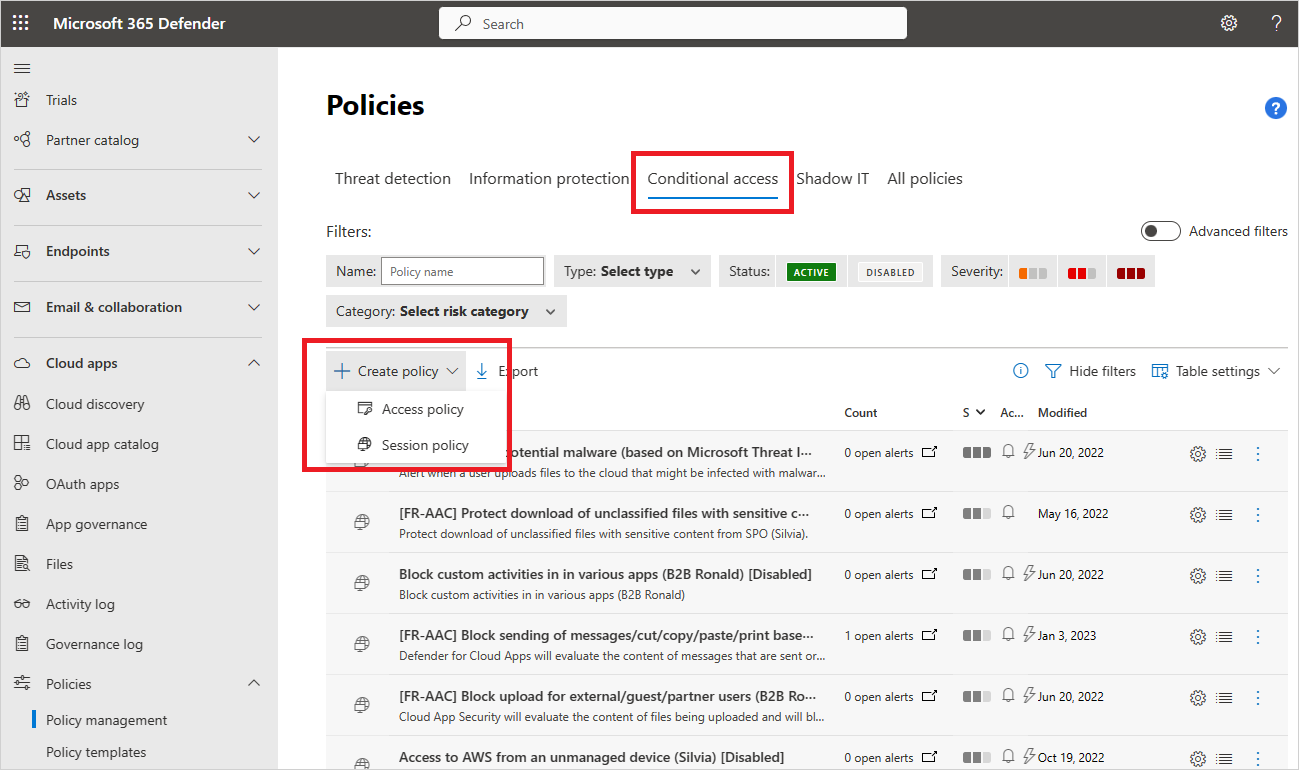
- Defender portal > Cloud Apps > Policies > Policy management > Conditional Access tab > Create policy > Session policy.
- Name it, for example "Block download of labelled files on unmanaged devices". Severity and category as you like. Session control type: Control file download (with inspection).
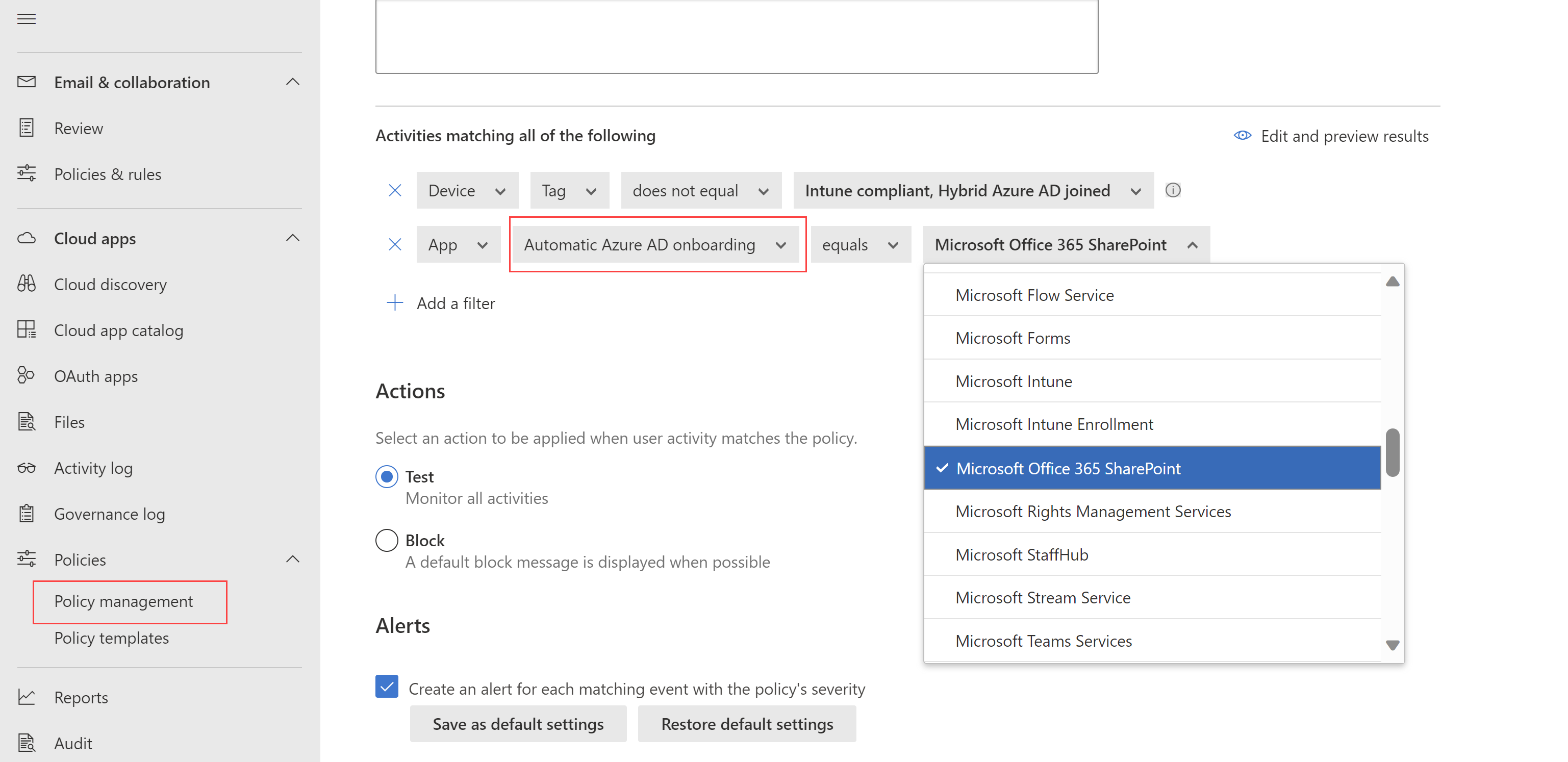
- Activities matching all of the following: Device tag, does not equal, Intune compliant and Hybrid Azure AD joined, or Valid client certificate if that is how you identify managed devices. App: Automated Azure AD onboarding, equals, the app. Leave the app filter out and the policy applies to every app that is Enabled on the CAAC apps page. Use Edit and preview results to check what the filters catch.
- Files matching all of the following: Sensitivity label, equals, the labels to protect. File name, extension and size filters are optional.
- Inspection: Data Classification Service for content matching, or Malware detection. Tick "Always apply the selected action even if the data cannot be scanned" if you want large and encrypted files blocked rather than allowed.
- Actions: Block. Tick notify user and customise the block message. Add alerts, a daily alert limit, or a Power Automate hook. Create.
- User monitoring banner: Settings > Cloud Apps > Conditional Access App Control > User monitoring. It is on by default. Keep it on or write your own text; turning it off removes the notice.
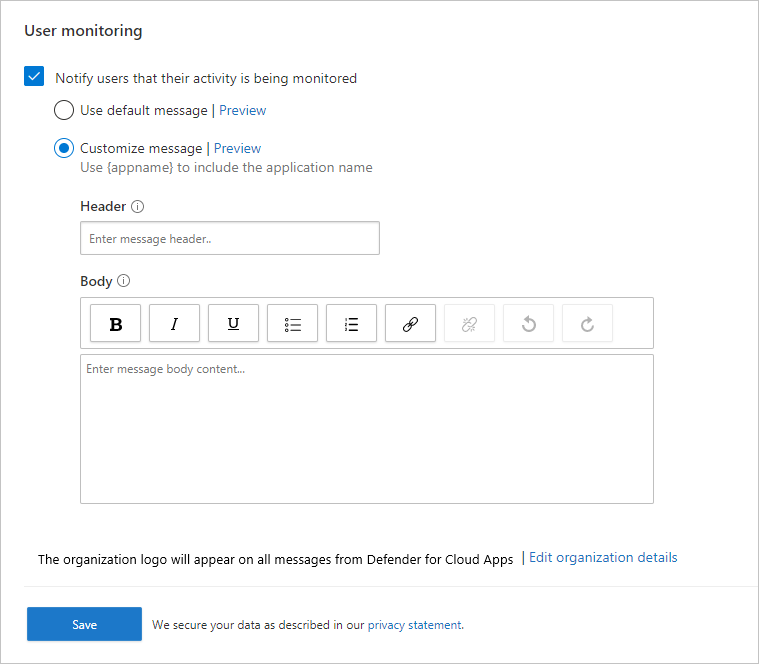
Learn's tutorial notes that blocking from both unmanaged devices and non-corporate locations needs two session policies, one per activity source. To use device state as a hard condition rather than a filter inside the session, pair the session policy with an access policy.
# Tested on: TODO. Microsoft.Graph.Identity.SignIns, Graph PowerShell SDK 2.x
# The MDA access and session policies have no PowerShell cmdlets. This creates the Entra side only.

Connect-MgGraph -Scopes "Policy.Read.All","Policy.ReadWrite.ConditionalAccess","Application.Read.All","Application.ReadWrite.All"

# 1. Make sure the Session Controls service principal exists (from Learn)
if (-not (Get-MgServicePrincipal -Filter "appId eq '8a0c2593-9cbc-4f86-a247-beb7aab00d83'")) {
    New-MgServicePrincipal -AppId 8a0c2593-9cbc-4f86-a247-beb7aab00d83
}

# 2. CA policy: route Office 365 browser sessions from non-compliant devices through MDA custom policies.
#    Shape follows the documented New-MgIdentityConditionalAccessPolicy body; cloudAppSecurityType
#    values are mcasConfigured, monitorOnly, blockDownloads. Starts in report-only.
$params = @{
    displayName = "CA-Session-MDA-Office365-Unmanaged"
    state       = "enabledForReportingButNotEnforced"
    conditions  = @{
        clientAppTypes = @("browser")
        applications   = @{
            includeApplications = @("Office365")
        }
        users = @{
            includeUsers  = @("All")
            excludeGroups = @("<break-glass-group-object-id>")
        }
        devices = @{
            deviceFilter = @{
                mode = "include"
                rule = "device.isCompliant -ne True -and device.trustType -ne ""ServerAD"""
            }
        }
    }
    sessionControls = @{
        cloudAppSecurity = @{
            cloudAppSecurityType = "mcasConfigured"
            isEnabled            = $true
        }
    }
}

New-MgIdentityConditionalAccessPolicy -BodyParameter $params

# 3. Read it back
Get-MgIdentityConditionalAccessPolicy -Filter "displayName eq 'CA-Session-MDA-Office365-Unmanaged'" |
    Select-Object DisplayName, State -ExpandProperty SessionControls |
    Select-Object DisplayName, State -ExpandProperty CloudAppSecurity
TODO: the device filter rule and Office365 include are from the CA conditions reference, not from the MDA pages. Confirm the filter syntax in the dev tenant before relying on it.
Create the Entra policy. Needs Policy.Read.All and Policy.ReadWrite.ConditionalAccess, returns 201 Created.
POST https://graph.microsoft.com/v1.0/identity/conditionalAccess/policies
Content-Type: application/json
{
  "displayName": "CA-Session-MDA-Office365-Unmanaged",
  "state": "enabledForReportingButNotEnforced",
  "conditions": {
    "clientAppTypes": ["browser"],
    "applications": { "includeApplications": ["Office365"] },
    "users": { "includeUsers": ["All"], "excludeGroups": ["<break-glass-group-object-id>"] }
  },
  "sessionControls": {
    "cloudAppSecurity": {
      "cloudAppSecurityType": "mcasConfigured",
      "isEnabled": true
    }
  }
}
The cloudAppSecurity object has two properties, isEnabled and cloudAppSecurityType, with values mcasConfigured, monitorOnly, blockDownloads and unknownFutureValue. Learn's own full example uses blockDownloads.
MDA policy API: the documented Defender for Cloud Apps REST API covers /api/v1/activities/, /api/v1/alerts/, /api/v1/entities/, /api/v1/files/ and /api/subnet/ only. There is no documented endpoint to create or edit access or session policies; they are portal only. The activities endpoint is the one to use for pulling proxied session events out.
POST https://<tenant_id>.<tenant_region>.portal.cloudappsecurity.com/api/v1/activities/
Authorization: Token <your_token_key>
Verify
- Entra sign-in logs: open the sign-in from the test user, Conditional Access tab, the policy shows as applied with session control Use Conditional Access App Control. Device info tab shows Managed or Compliant when the device state is what you expect.
- Browser: in Chrome, Firefox or Safari the address bar shows
app.com.mcas.msand the first page carries the monitoring notice. In an Edge work profile the suffix is absent and the lock icon shows the suitcase symbol.
- Activity log: Defender portal > Cloud Apps > Activity log, advanced filter Source equals Access control. Look for Single sign-on log on events; expand one and check the User agent tag correctly says browser, native client, or compliant or hybrid-joined device. For a block, filter Applied action equals Blocked and open the activity to see the matched policy on the General tab.
- Policy report: Policies > Policy management, open the session policy. Matches appear shortly after the test. Learn says policy sync to the proxy for a newly signed-in app takes up to one minute.
- Test from both a managed and an unmanaged device, after signing out of every session. Walk the app's pages and try an upload and a download. For non-Microsoft IdP custom apps, hit every domain you added.
- Traffic logs: Settings > Cloud Apps > Connected apps > Conditional Access App Control, export, then Reports > Cloud Apps > Exported reports.
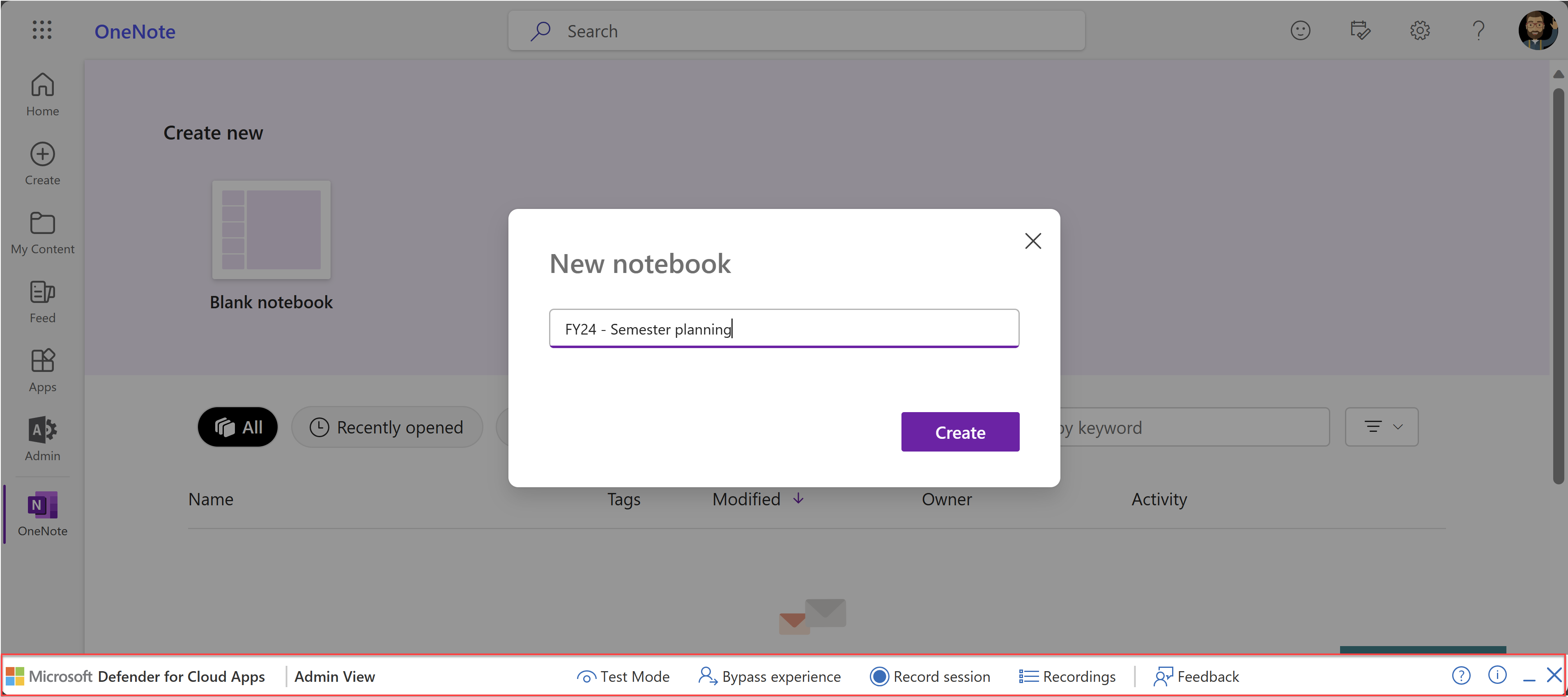
- Admin View toolbar: admins listed under App onboarding/maintenance with bypass enabled get a toolbar in proxied sessions, with Bypass experience, Record session, Discovered domains and Add domains. Recordings are kept 48 hours with personal data removed.
// Proxied sessions and blocks by app and user, last 7 days (CloudAppEvents, Advanced Hunting)
CloudAppEvents
| where Timestamp > ago(7d)
| where ActionType in ("Logon", "FileDownloaded", "FileUploaded", "Print", "Copy", "Paste")
| extend Matched = tostring(RawEventData.MatchedPolicies), Applied = tostring(RawEventData.AppliedAction)
| summarize Events = count(), Blocked = countif(Applied has "Block") by Application, AccountDisplayName, ActionType
| order by Blocked desc
TODO: Learn documents the Applied action and matched policies in the Activity log UI, not the Advanced Hunting column names. Confirm RawEventData fields in the dev tenant.
Troubleshoot
| Symptom | Likely cause | Fix |
|---|---|---|
App never gets the .mcas.ms suffix | CA policy not matching, or app not on the CAAC apps page, or user in an Edge work profile where in-browser protection applies | Check the sign-in log for the policy. Confirm the app is listed and Connected. In Edge look for the suitcase in the lock icon instead of a suffix |
| "Use Conditional Access App Control" missing in the CA policy | No Entra ID P1 or no MDA licence | Add the licence |
| "You don't have any apps deployed with conditional access app control" | Non-Microsoft IdP app not onboarded | Run the catalog or custom app wizard |
| App status Continue Setup | Onboarding wizard not finished | Finish the wizard. To change URLs or attributes create a new custom SAML app; change the original identifier if the IdP will not reuse the Entity ID |
| "App is not recognized" | App not added to CAAC apps | Settings > Conditional Access App Control apps > View new apps, add it, verify user-defined domains |
| "Request session control" shown | Custom app, no built-in session controls | Add yourself under App onboarding/maintenance, onboard the app, add domains, install certificates |
| Users land on the app home page, deep link lost | Context loss apps such as GitHub, ServiceNow, Workday, Box, Smartsheet, Power Apps, or a Continue in Edge or Switch to work profile jump | Non-Edge users append .mcas.ms to the domain by hand. Known limitation for the Edge switches |
| "Something Went Wrong" page | Idle sign-in, slow reload, or misconfigured non-Microsoft IdP app | Check SAML certificate, SSO URLs and attributes under Edit app. Clear cookies and cache, restart the browser |
Entra sign-in page appears after clicking an old .mcas.ms link | Any suffixed URL without a valid session is sent to Entra by design | Non-Entra users remove the suffix by hand |
| Slow sign-in or loop between app and proxy | Chained forward proxies, or nonce handling on an app that does not use nonces | Remove proxies. Edit app > Nonce-handling, clear Enable nonce handling, sign out and back in. Add a second sign-in URL under Advanced login configuration if the app has more than one |
| "This site isn't secure" or no internet errors | Firewall blocking MDA IPs, or TLS below 1.2 | Allow outbound 443 to the MDA ranges. Enable TLS 1.2 in the browser |
| Intune compliant or hybrid joined device treated as unmanaged | Device state not synced, wrong tag, or browser without the CA extension | Check Device identification settings, then sign-in log Device info tab. Install the browser extension where CA needs it. Open an Entra ticket if still missing |
| No client certificate prompt | Root CA not uploaded, cert in device store or wrong format, browser without cert support | Upload the PEM CA, deploy PKCS 12 to the user store, confirm redirect to managed.access-control.cas.ms. Safari on iOS, Firefox needs its own store |
| Certificate prompt on every sign-in | Browser setting | Enable "Don't prompt for Client Certificate selection when only one certificate exists" |
| Edge in-browser protection not kicking in | Personal profile, InPrivate, old Edge, Android, B2B guest, Okta app, a Protect policy, or an Entra-portal Monitor only or Block downloads setting | Fix the condition or accept the proxy fallback. Confirm the toggle is on under Edge for Business protection |
| Edge still enforces a policy after the user left the CA scope | Cached policy in the work profile | Re-add the user, remove the session policy, let them open the app, then remove them again. Or delete mda_store.1.txt under the Edge local app data, or delete the work profile |
| Download blocked but preview and print of PDFs also broken in OWA | OWA previews by downloading | Set-OwaMailboxPolicy -DirectFileAccessOnPrivateComputersEnabled $false -DirectFileAccessOnPublicComputersEnabled $false on every OWA policy in use |
| Chrome shows a "similar site" warning on the suffixed domain | Chrome heuristics on .mcas.ms | Open a support ticket; Edge is not affected |
| Block applied or allowed "due to Default Behavior" | Service disruption, default behaviour fired | Set Settings > Conditional Access App Control > Default behavior to the stance you want and watch service health |
| Protect action unavailable or encryption fails on download | No Purview licence, MIP integration off, label without encryption, unsupported file type | Enable MIP in MDA settings, use unified labelling, choose an encrypting label. Tick block download of files unsupported by native protection |
Gotchas and limits
- First sign-in onboards Entra apps. An Entra app shows up on the CAAC apps page only after it is in a CA policy and someone has signed in through it, or a user signs in under a policy with no app filter. You cannot build a session policy with an app filter until the app is listed.
- Session policies are browser only. Teams desktop, Office desktop and any native client are untouched. If you block downloads in the browser and leave desktop access open, the data walks out through the desktop app. Pair the session policy with an access policy that blocks Client app Mobile and desktop for the same users, or accept the gap.
- Apps in a suite pass non-interactive tokens between each other. Teams can obtain a SharePoint token without a new sign-in, so SharePoint session controls may never trigger. Onboard all the related apps.
- Session policies only apply to files up to 50 MB; content inspection only to files under 30 MB and under one million characters. Everything above that follows the "always apply even if the data cannot be scanned" option, or the tenant default behaviour. In Edge with that option on, anything over 50 MB is simply blocked.
- Files encrypted by a label with coauthoring enabled cannot be read by content inspection. With the always-apply option on, every such file is blocked.
- Drag-and-drop uploads of folder mixes are all-or-nothing: one sensitive file in a dropped folder blocks the whole set. The same files through the upload dialog are filtered one by one.
- The proxy modifies application code, so built-in apps and browser extensions are not supported, and a list of apps lose context on deep links. Default behavior is the fallback when enforcement cannot run.
- External B2B users in Teams are not protected by session policies, and B2B guests always fall back to the proxy in Edge.
- IPv4 only. IP filters do nothing for IPv6 requests on either path.
- Latency is real on the proxy path and sessions can be served from another region. Move users to Edge for Business work profiles rather than tuning the proxy.
- The user can decline the Edge work profile switch and go through the proxy. If you need the in-browser path, set enforcement to Allow access only from Edge or Enforce when possible.
- Google Workspace in Edge is not supported for in-browser controls.
- Endpoint DLP wins when it and a session policy share context and action.
- The MDA SAML certificate for non-Microsoft IdP apps expires after one year. Session control cannot be removed from an onboarded app, but nothing happens until a policy targets it.
- Per-user licensing: the Learn pages used here name the MDA licence and Entra ID P1 but do not state a per-user model for the proxy. TODO: confirm against the MDA licensing datasheet.
- The built-in Monitor only and Block downloads options in the Entra portal always go through the proxy, never in-browser. Use custom policy.
Further reading
- Defender for Cloud Apps session policy, CIAOPS, June 2026. End-to-end OneDrive example with the Entra and Defender portal screens, and a case for running in monitor mode first.
- How to Use Conditional Access Session Controls for Cloud App Security, Nawaz Dhandala, February 2026. Adds a worked
New-MgIdentityConditionalAccessPolicyreport-only example and pilot sequencing. - Enable In-Browser Protection with Microsoft Edge for Business to Securing Cloud Apps Without Proxies, Anoop C Nair, November 2025. Field walkthrough of the Edge for Business settings page and the work profile prompts users see.
Only three qualified in the October 2025 to October 2026 window. The Microsoft Mechanics Edge for Business post could not be dated from the page.
My notes
TODO: Sohail's notes after verification.
Changelog
| Date | Change | Source |
|---|---|---|
| 2026-10-22 | Drafted from Learn, with Learn images and diagrams | [1] |