Security settings management (MDE-attach)
What it is
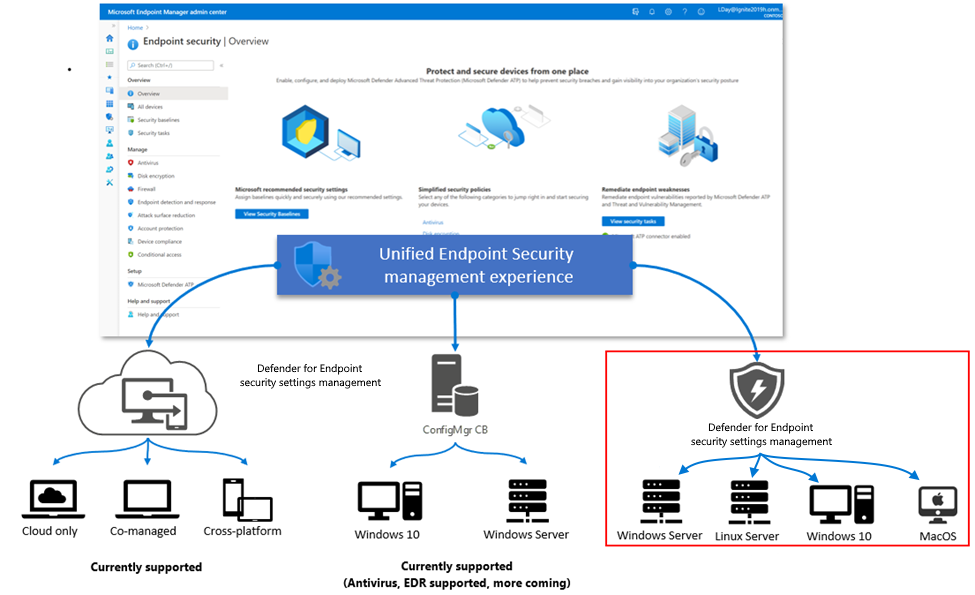
Security settings management lets Intune endpoint security policies reach devices that are onboarded to Defender for Endpoint but not enrolled in Intune. The Defender sensor on the device fetches the policy, enforces it, and reports status back to Intune and the Defender portal. You author the policy in the Intune admin center or in the Defender portal. Both write the same object.
It covers the Defender stack only: antivirus, AV exclusions, EDR settings, firewall and firewall rules, ASR rules, update controls, and the Windows Security experience. It is not device management. No apps, no compliance, no configuration profiles, no Conditional Access device compliance signal. If you need any of that, enrol the device in Intune.
Where it fits against the other options:
| Scenario | Use |
|---|---|
| Device is or can be Intune-enrolled | Intune. Enrolled devices ignore MDE-attach policy entirely. |
| ConfigMgr co-managed with Endpoint Protection workload in Intune | Intune, via co-management. |
| ConfigMgr-managed, workload stays in ConfigMgr | ConfigMgr, or MDE-attach after turning off the ConfigMgr authority toggle. Not both. |
| Onboarded to MDE, no MDM at all (servers, Linux, unmanaged macOS, domain-joined legacy fleet) | MDE-attach. This is the target case. |
Licensing and prerequisites
- An MDE licence that grants the Endpoint security node in Intune. Microsoft 365 bundles or standalone MDE P1/P2 both work. The policies page lists both P1 and P2.
- Defender for Servers (Defender for Cloud) on its own is not enough. The tenant needs at least one active MDE user licence.
- GCC, GCC High and DoD tenants are supported.
- Devices must reach
*.dm.microsoft.comin addition to the normal MDE and Entra endpoints. - RBAC: Intune Endpoint Security Manager, or Entra Security Administrator. In the Defender portal, Unified RBAC
Authorization and settings/Security settings/Core Security settings (manage)or the olderManage security settings in Security Centerpermission. The policy page is blocked if your role is scoped to specific MDE device groups.
Supported platforms from the Intune page:
| Platform | Minimum |
|---|---|
| Windows 11 Pro/Enterprise | KB5023778 or later |
| Windows 10 Pro/Enterprise | KB5023773. Windows 10 is out of support since 2025-10-14; still allowed, not guaranteed. |
| Windows Server 2012 R2 / 2016 | Modern unified solution (Defender for Down-Level Devices) |
| Windows Server 2019 | KB5025229. Server Core also needs the App Compatibility Feature on Demand. |
| Windows Server 2022 incl. Core | KB5025230 |
| Windows Server 2025 | No extra KB listed |
| Domain controllers | Supported with restrictions (see Gotchas) |
| macOS | MDE agent 101.23052.0004 or later |
| Linux | MDE agent 101.23052.0009 or later on a supported distro |
Not supported: Server Core 2016 and earlier, non-persistent VDI, Azure Virtual Desktop, 32-bit Windows, devices where PowerShell runs in Constrained Language Mode, MMA-based sensors, Windows 7 SP1 and Server 2008 R2 SP1 except for the AV policy type.
Entra requirements:
- The device needs an object in Entra ID. If it has none, the service creates a synthetic device registration. Devices with a full registration (hybrid joined, for example) keep it. If a full registration appears later, the synthetic one is removed and management continues under the full object.
- The Intune page says the hybrid join prerequisite has been dropped. Domain-joined devices that failed hybrid join before can now onboard with a synthetic registration. Domain-joined devices that can hybrid join still do so through the Entra Connect SCP. The troubleshoot page still lists SCP, Entra Connect and tenant-mismatch error codes, so a broken hybrid join setup can still block enrolment.
- Each synthetic registration counts against the Entra device quota. Matters on All devices scope.
How it works
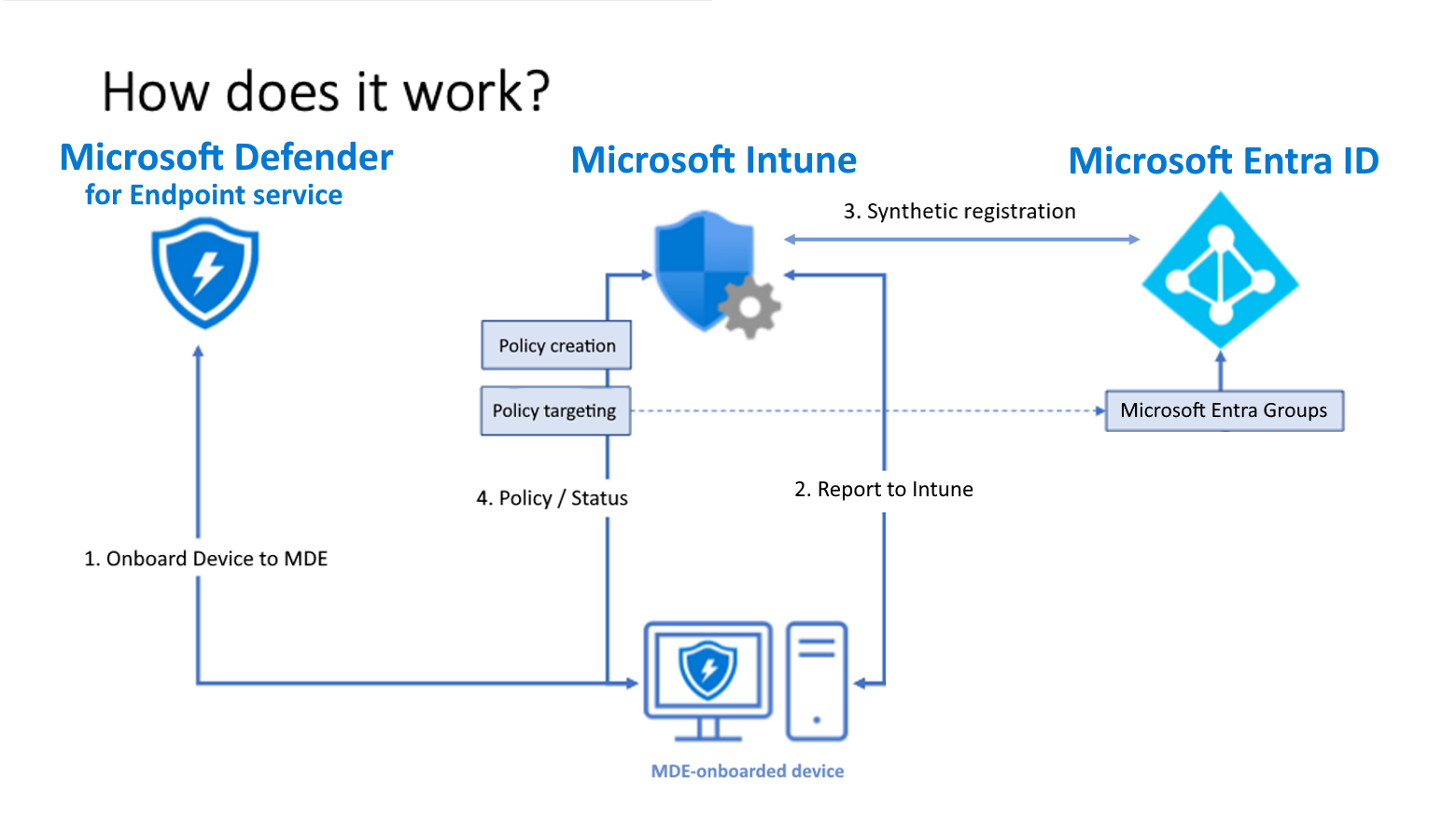
- The device is onboarded to MDE by any normal method.
- The Defender portal enforcement scope decides whether the device is in scope: all devices for that OS, or only devices tagged
MDE-Management. - The Intune toggle lets MDE enforce endpoint security configurations.
- The Sense client registers the device in Entra (synthetic if needed) and enrols with the MDE management channel. Most devices finish in minutes, but Learn allows up to 24 hours.
- Intune resolves policy assignments against Entra device groups. Only device objects work. Users and assignment filters are ignored on this channel.
- The device checks in with Intune every 90 minutes and applies policy through the Defender components. Status flows back to the Intune policy report and the Defender portal policy views.
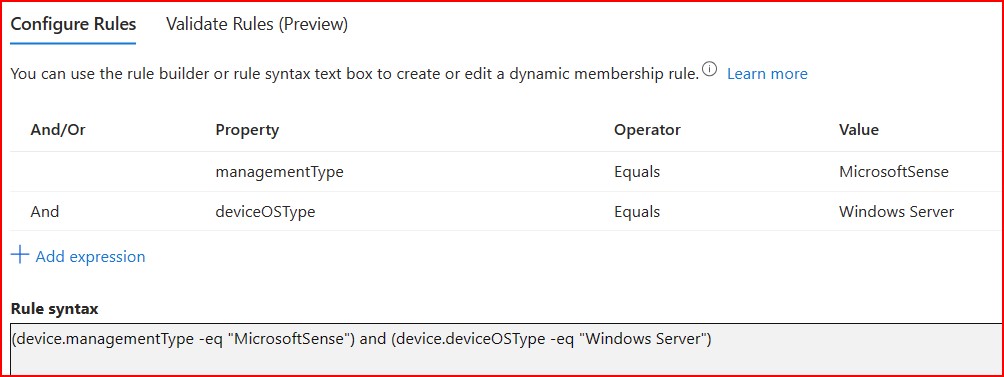
Synthetic devices show in the Defender device list with MDM = Intune and Join Type blank. For dynamic groups, Learn says target on deviceOSType (recommended) or managementType -eq "MicrosoftSense". The old MDEJoined and MDEManaged tags stopped on 2023-09-25. deviceOSType values are Windows, Windows Server and Linux. equals Windows has excluded servers since May 2023, so use contains or add Windows Server.
Policies for Windows must use the Windows platform. The Windows 10 and later platform is not supported on this channel. Supported profiles:
| OS | Policy | Profile |
|---|---|---|
| Windows | Antivirus | Microsoft Defender Antivirus, AV exclusions, Defender Update controls, Windows Security Experience |
| Windows | ASR | Attack Surface Reduction Rules. Device Control is Intune-enrolled only. |
| Windows | EDR | Endpoint detection and response |
| Windows | Firewall | Firewall, Firewall Rules |
| macOS | Antivirus | Microsoft Defender Antivirus, AV exclusions |
| macOS | EDR | Endpoint detection and response |
| Linux | Antivirus | Microsoft Defender Antivirus, AV exclusions |
| Linux | EDR | Endpoint detection and response, Global Exclusions (AV + EDR) |
The Defender portal policies page also lists a Microsoft Defender AI agent runtime protection profile for Windows. The Intune page does not list it in the channel support table, so treat its MDE-attach support as unconfirmed.
Defender portal versus Intune authoring: same policy object, same assignments, same reports. The Defender portal wizard cannot set scope tags or assignment filters. Filters do nothing on this channel anyway. The Defender portal lets a security admin manage these policies without an Intune admin role.
Configure
- Portal
- PowerShell
- Graph API
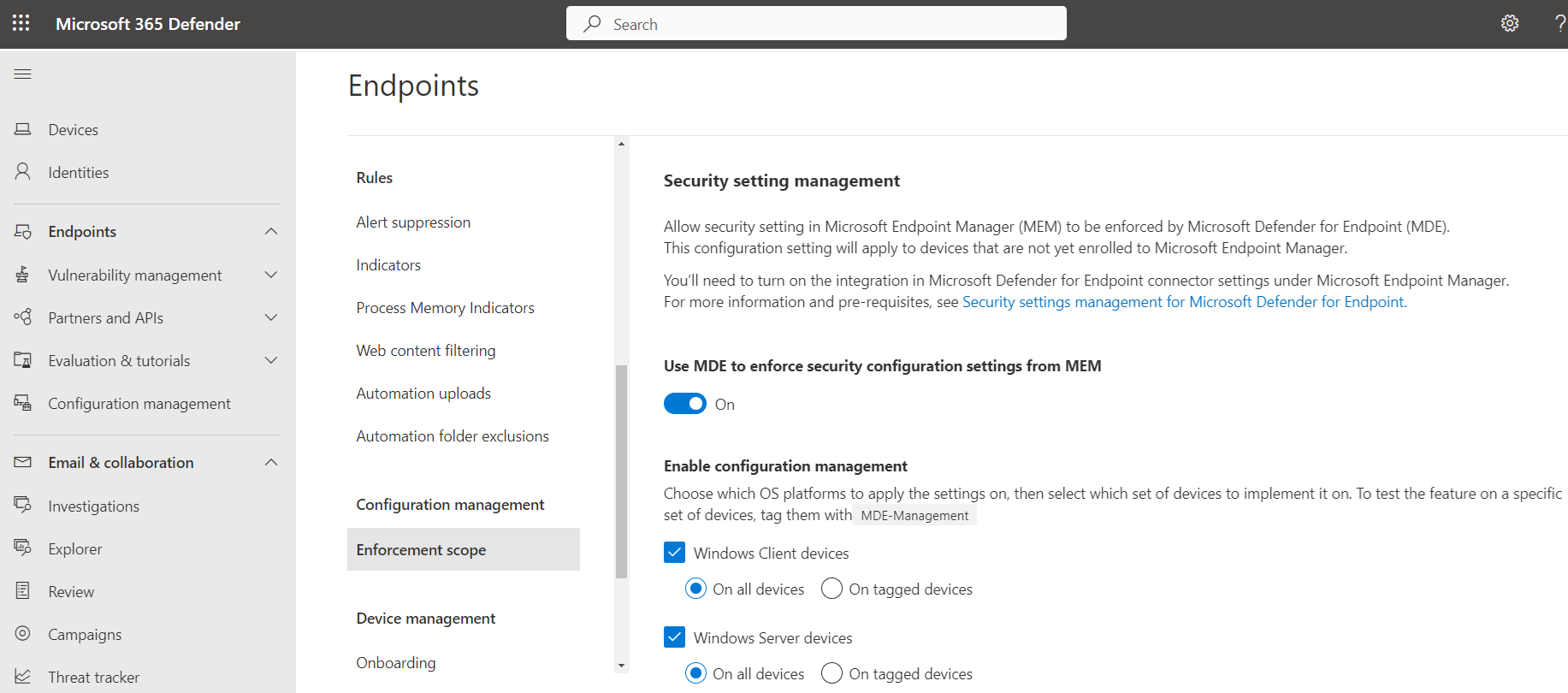
- Defender portal > Settings > Endpoints > Configuration management > Enforcement scope. Enable the OS types you want (Windows, Windows Server, macOS, Linux). For a pilot pick On tagged devices and tag the pilot devices
MDE-Management. All devices enrols everything in scope. Dynamic asset rules for the tag were in preview as of 2025-07-03.
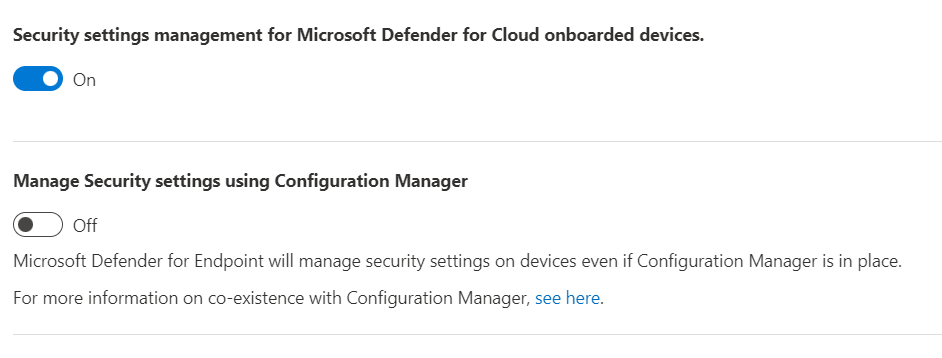
- On the same page, if ConfigMgr also manages the fleet, set Manage Security settings using Configuration Manager to Off so there is one control plane. Leave it On only if ConfigMgr keeps the workload.

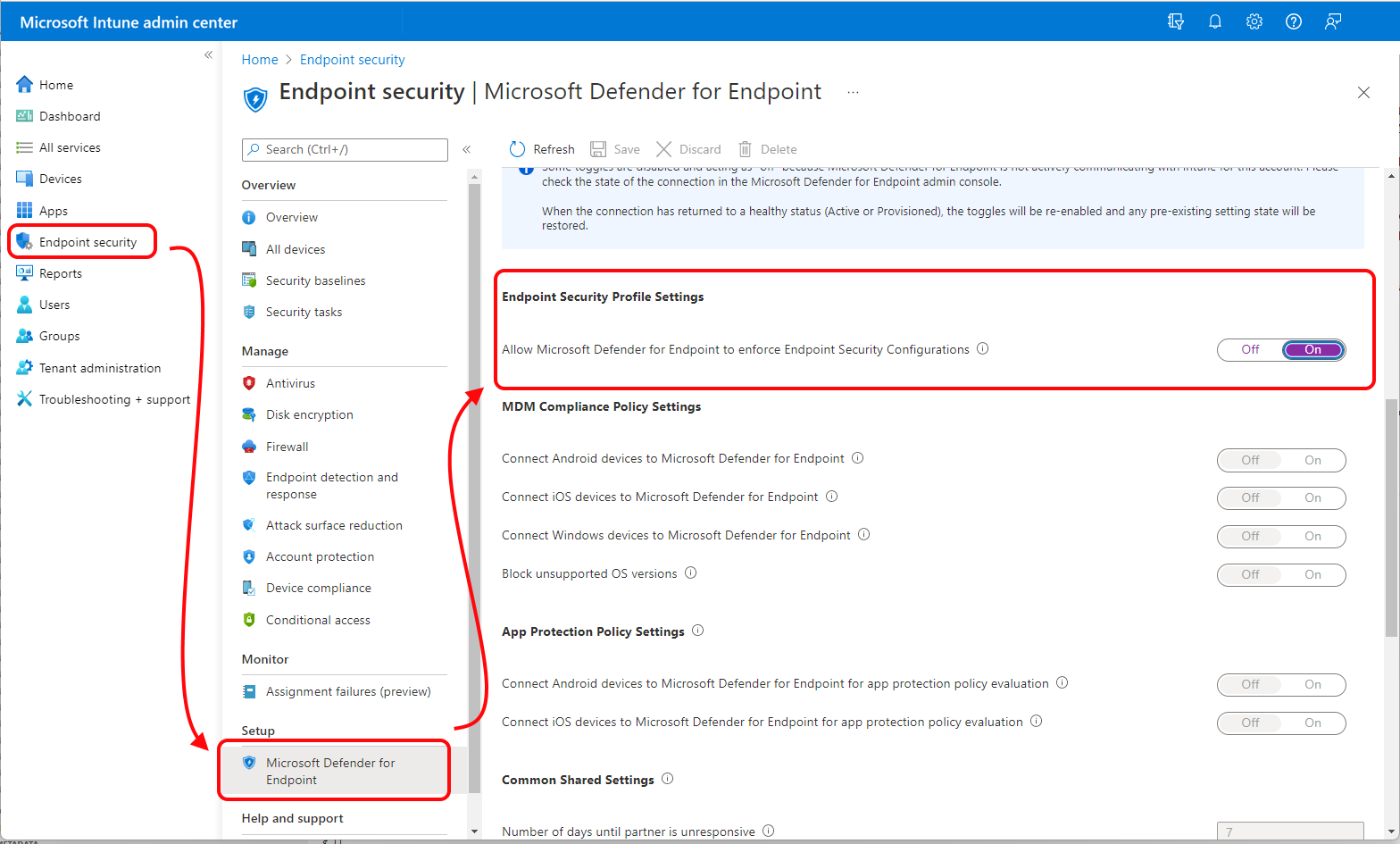
- Intune admin center > Endpoint security > Microsoft Defender for Endpoint. Set Allow Microsoft Defender for Endpoint to enforce Endpoint Security Configurations to On.
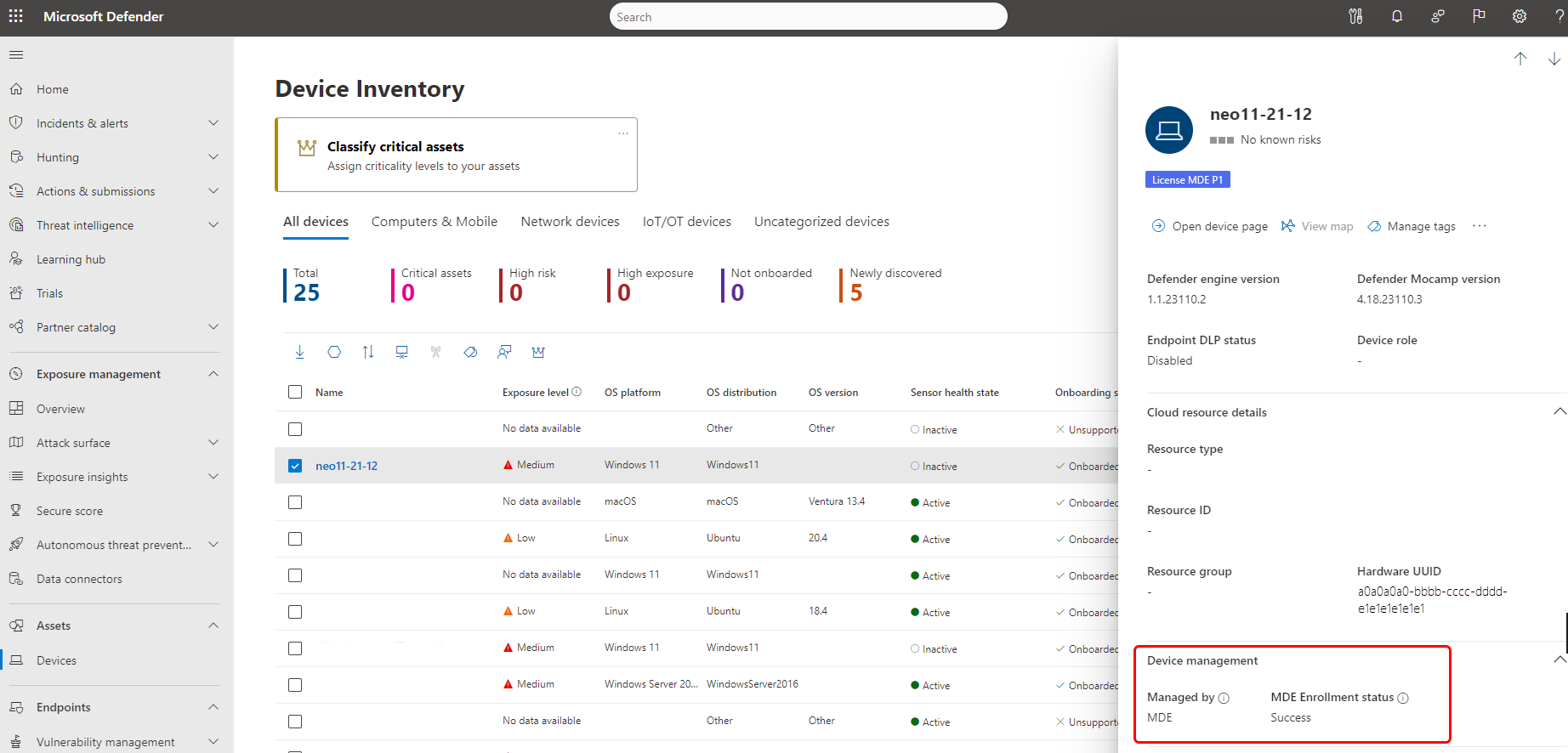
- Tag a test device. Defender portal > Assets > Devices > device > Manage tags >
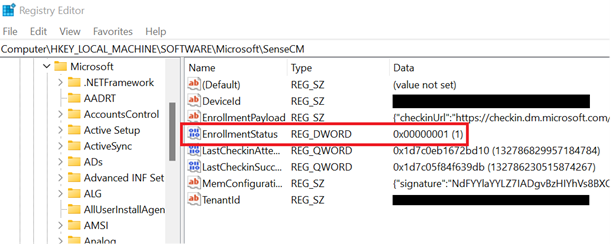
MDE-Management. Wait for MDE Enrollment status on the device page to read Success.
- Create an Entra device group holding the test devices. Static for the pilot. Dynamic on
deviceOSTypeormanagementTypelater.
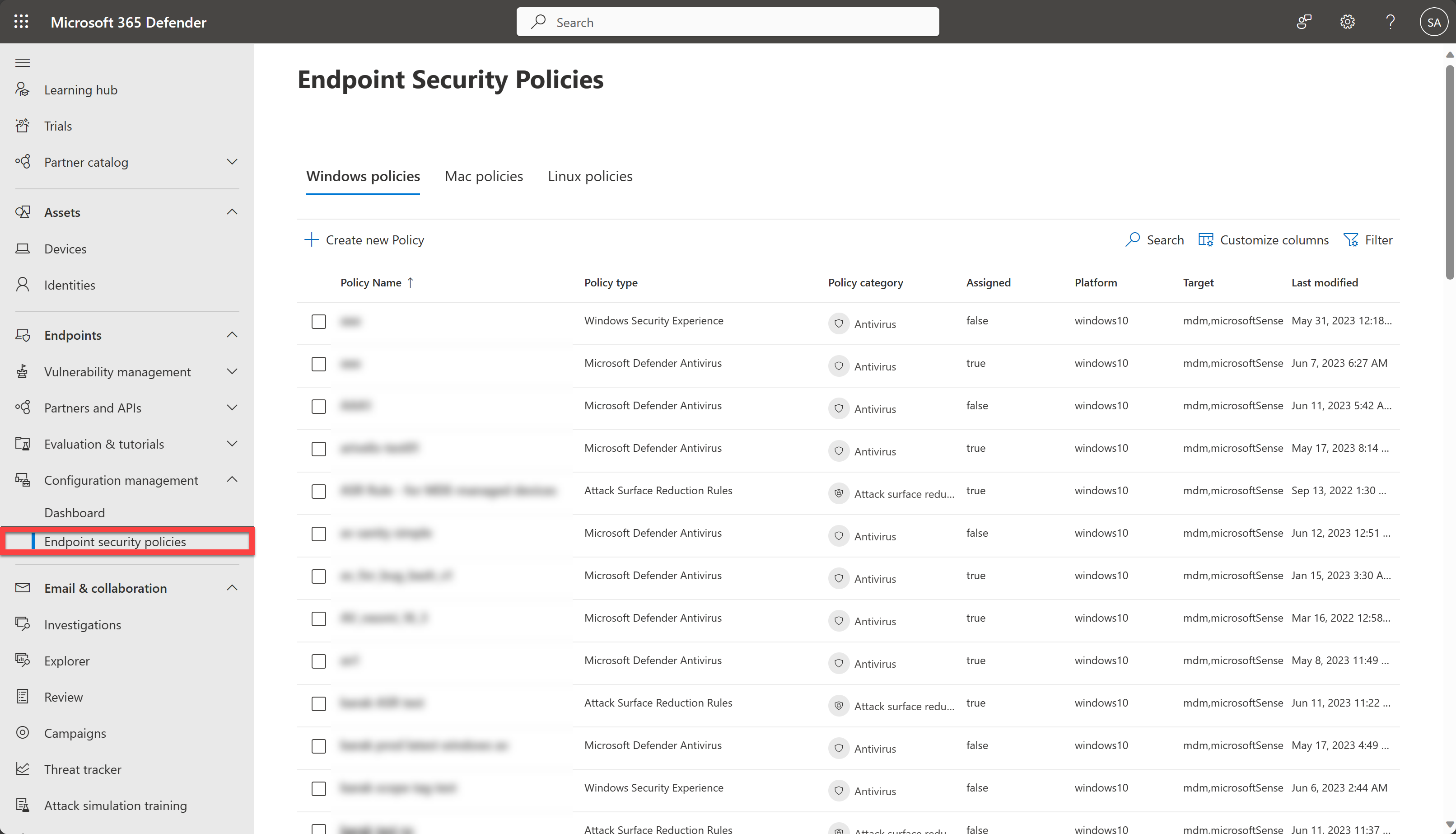
- Create the AV policy. Intune: Endpoint security > Antivirus > Create policy > Platform Windows > Profile Microsoft Defender Antivirus. Defender portal: Endpoint security policies (security.microsoft.com/policy-inventory) > Create new policy > Windows > Microsoft Defender Antivirus. Configure settings, assign the device group, create.
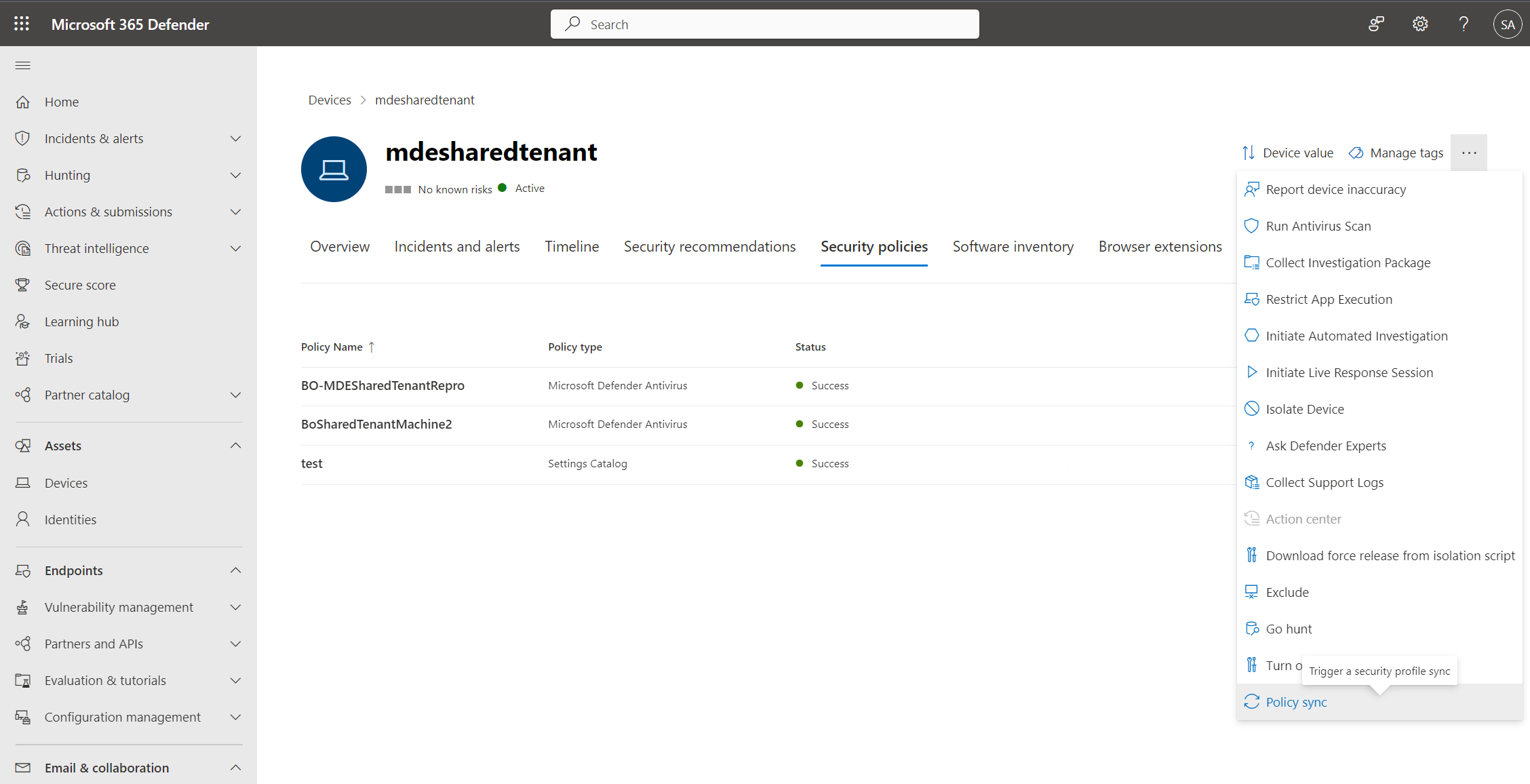
- Force a sync instead of waiting 90 minutes: Device inventory > device > More actions > Policy sync. The button only shows on devices that are successfully MDE-managed. Learn says about 10 minutes to apply.
Settings worth knowing: AllowOnAccessProtection and DisableLocalAdminMerge may need a restart. Avoid two policies setting the same value on one device; exclusions merge, most other settings conflict.
# Tested on: TODO
# On-device checks. Learn documents the registry key and Get-MpPreference. Value names under the key are not documented.

# Enrolment state of the MDE management channel
Get-ItemProperty -Path 'HKLM:\SOFTWARE\Microsoft\SenseCM\EnrollmentStatus' -ErrorAction SilentlyContinue

# Confirm Sense is running and onboarded
Get-Service Sense | Select-Object Status, StartType
Get-ItemProperty 'HKLM:\SOFTWARE\Microsoft\Windows Advanced Threat Protection\Status' -ErrorAction SilentlyContinue

# Applied AV settings after a policy sync
Get-MpPreference | Select-Object DisableRealtimeMonitoring, MAPSReporting, SubmitSamplesConsent,
  CloudBlockLevel, DisableLocalAdminMerge, ExclusionPath, ExclusionProcess

# Constrained Language Mode breaks this channel. Must be FullLanguage.
$ExecutionContext.SessionState.LanguageMode

# Entra registration state for hybrid or full join
dsregcmd /status

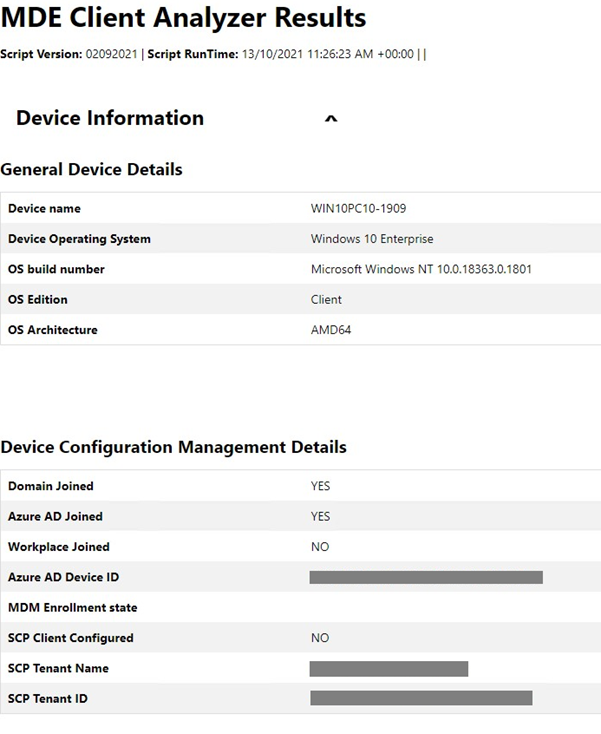
# MDE Client Analyzer (preview build has the Device Configuration Management Details section)
# Download: https://aka.ms/MDEClientAnalyzerPreview
# Run MDEClientAnalyzer.cmd, then open "MDE Client Analyzer Results.htm" and check
# General Device Details, Device Configuration Management Details and Detailed Results.
macOS and Linux: Learn gives no on-device command for channel status. Agent version check is mdatp health --field app_version. Policy effect is visible in mdatp health.
Endpoint security policies are settings catalog policies. Filter by template family. These are the same objects whether created in Intune or the Defender portal.
GET https://graph.microsoft.com/beta/deviceManagement/configurationPolicies?$filter=templateReference/templateFamily eq 'endpointSecurityAntivirus'&$expand=assignments
Other families: endpointSecurityEndpointDetectionAndResponse, endpointSecurityFirewall, endpointSecurityAttackSurfaceReductionRules. TODO: confirm in the dev tenant which platforms and technologies values mark the Windows profile versus Windows 10 and later before writing policy by API.
Assignments are standard configurationPolicies/{id}/assign calls with groupAssignmentTarget pointing at Entra device groups. Filter IDs can be set but are ignored on this channel.
TODO: confirm the managementAgent value for MDE-managed devices in managedDevices from the dev tenant.
{}
Verify
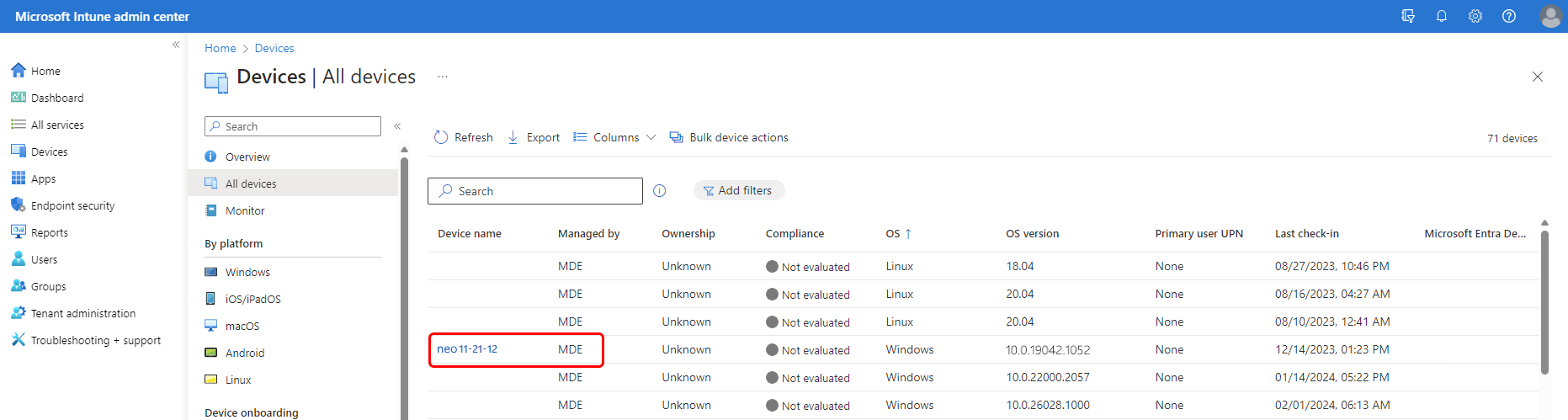
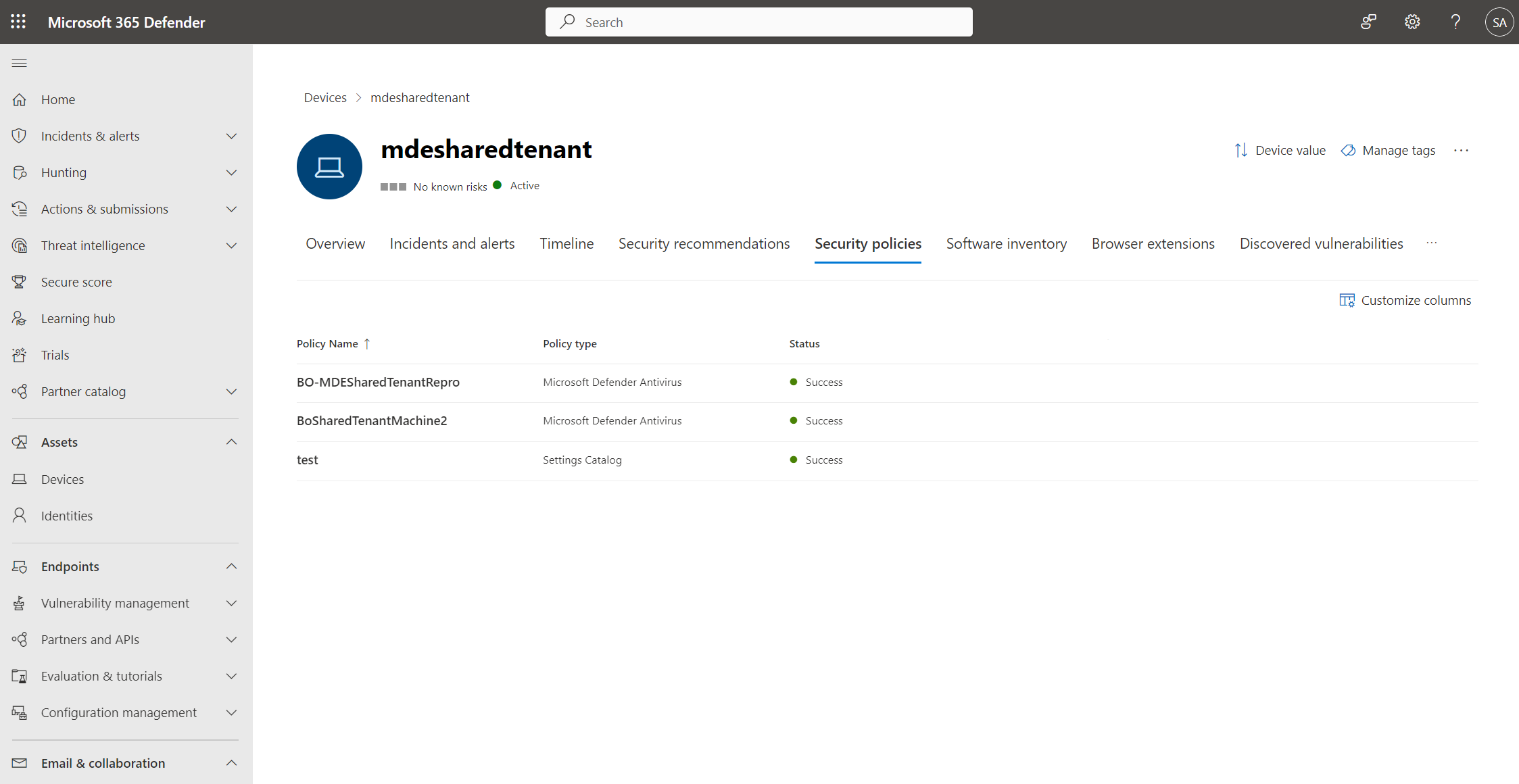
- Defender portal > Device inventory: Managed by column = MDE. Device page: MDE Enrollment status = Success. Device page > Configuration management > Security policies tab lists the policies that apply.
- Intune > Devices > All devices: Managed by = MDE.
- Entra admin center > Devices > All devices: the object exists. Synthetic objects show no join type.
- Intune > Endpoint security > policy > View report for per-device state, and Per setting status for success, error and conflict counts.
- Defender portal > Endpoints > Configuration management > Endpoint security policies: Overview, Policy settings values, Policy settings status, Applied devices, Assigned groups.
- On the device,
Get-MpPreferencereflects the values.HKLM\SOFTWARE\Microsoft\SenseCM\EnrollmentStatusexists.
Agent version check for macOS and Linux before you blame the channel:
DeviceTvmSoftwareInventory
| where SoftwareName in ("defender_for_linux", "defender_for_mac")
| project DeviceName, OSPlatform, SoftwareName, SoftwareVersion
Troubleshoot
Error codes are from the troubleshoot page. In every case the device is onboarded to MDE; only the management channel failed. The list is not complete.
| Code | State | Fix |
|---|---|---|
| 2 | Not enrolled, never enrolled | Device is not in enforcement scope or the Intune toggle is off. Check both. |
| 4 | Managed by SCCM agent | Turn off Manage Security settings using Configuration Manager in Enforcement scope. |
| 5-7, 9, 11-12, 26-33 | General error | Prerequisites not met. Run the Client Analyzer, read Detailed Results. |
| 8, 44 | Intune configuration issue | Intune toggle for MDE enforcement is off. |
| 13-14, 20, 24, 25 | Connectivity | Open Entra, Intune and *.dm.microsoft.com endpoints. |
| 10, 42 | Hybrid join failure | Standard hybrid join troubleshooting, dsregcmd /status. |
| 15 | Tenant mismatch | MDE tenant ID differs from the tenant ID in the domain SCP entry. |
| 16, 17 | SCP error | SCP points to Enterprise DRS or is wrong. Point it at Entra ID. |
| 18 | Certificate error | Device certificate belongs to a different tenant. Review trusted certificate profiles. |
| 36, 37 | Entra Connect misconfiguration | Run DSRegTool. Server 2012 R2 follows the legacy hybrid join guide. |
| 38, 41 | DNS | Fix client DNS. AD needs domain DNS, not the router. |
| 40 | Clock sync | Fix time sync. |
| 43 | MDE and ConfigMgr both managing | Pick one control plane. |
Other symptoms from the Intune page:
| Symptom | Likely cause | Fix |
|---|---|---|
| Onboarded, no object in Entra or Intune, no error | Enrolment pending | Check the SenseCM key. Allow 24 hours. Confirm scope and tag. |
| Policy sync button missing | Device not MDE-managed yet | Fix enrolment first. |
| Policy shows but device ignores it | Intune-enrolled, Windows 10 and later platform, or user group target | Windows platform, device groups. Enrolled devices take Intune policy only. |
| Dynamic group misses servers | deviceOSType equals Windows | Add Windows Server or use contains. |
| Linux enrolment fails on 101.23052.0009 | /sys/class/dmi/id/board_vendor missing | Known issue. Update the agent. |
| macOS/Linux Entra device ID blank in Defender portal | Known issue for synthetic registrations | Read it from Intune or Entra. |
| Settings not applied after third-party AV removal | Leftover tool | Reinstall the latest MDE client. |
| Enrolment fails with locked-down PowerShell | Constrained Language Mode | Not supported. Lift CLM or manage another way. |
Gotchas and limits
- Synthetic device objects land in Entra like any other device. Conditional Access device filters, dynamic groups and reports that key on all devices pick them up. They have no join type, no compliance state and no MDM enrolment. Exclude them explicitly in CA device filters and in any dynamic rule that assumes a managed device.
- Intune-enrolled devices never process MDE-attach policy. Enrolled and tagged means Intune wins. No merge, no fallback.
- ConfigMgr plus MDE-attach is error 43. The Enforcement scope toggle decides which wins.
- Controlled Configuration (Device) in the Windows Security Experience profile replaces standalone tamper protection. On, Intune-delivered settings take exclusive precedence over GPO and ConfigMgr. Supported on MDE-attach devices. GPO silently stops applying to Defender on them.
- Device Control does not work on this channel even though the Defender portal shows the profile.
- Unsupported, pending deprecation: Expedite telemetry reporting frequency (EDR),
AllowIntrusionPreventionSystem,AllowLocalPolicyMerge. - Servers: the tenant needs an MDE user licence even if every server is under Defender for Servers. Windows Server must be on in Enforcement scope before DCs can be targeted, and if servers are On tagged devices, DCs are too. Firewall policy is not supported on DCs. Exclude DC groups from general Windows policies. Configuration persists after unenrolment, so set a known state before pulling a DC out.
- Hybrid join: the hard prerequisite is gone, but SCP, Entra Connect, tenant and certificate error codes are still in the troubleshoot table. A half-configured SCP can still block a domain-joined device. Fix it or remove it.
- Assignment filters are ignored. Scope tags cannot be set from the Defender portal wizard.
- Each synthetic registration consumes an Entra device object. Watch the quota on All devices scope with a big server estate.
- 90 minute check-in. Policy sync on the device page is the only faster path, about 10 minutes.
Further reading
- Microsoft Defender XDR Security Settings Management: The Complete Implementation Guide, Kaido Järvemets, March 2026. Covers Azure Arc servers, monitoring enrolment with Sentinel, and the practical limits of the 90 minute check-in and template-only policies.
- Troubleshoot configured Defender AV settings with effective settings in Defender, Jeffrey Appel, November 2025. Shows how to tell which control plane set a value, including settings reported as configured by MDE, when GPO, Intune and MDE-attach overlap.
- Introducing effective settings: See security configurations enforced on your device, Microsoft Tech Community, March 2026. Microsoft's own announcement of the per-device effective settings view used to confirm what this channel actually applied.
- Automating tags to new onboarded servers in Defender, Microsoft Q&A, August 2026. Practitioner answer on auto-applying the MDE-Management tag with dynamic asset rules or the DeviceTagging registry policy instead of tagging servers by hand.
My notes
TODO: Sohail's notes after verification.
Changelog
| Date | Change | Source |
|---|---|---|
| 2026-10-22 | Drafted from Learn | [1] |
| 2026-10-22 | Added Learn images, diagrams, further reading |