Defender for Identity on domain controllers
What it is
Microsoft Defender for Identity (MDI) watches Active Directory for identity attacks. A sensor on each domain controller, AD FS, AD CS and Entra Connect server parses network traffic, Windows events and ETW locally, sends only what the detections need to the cloud service, and the cloud side does the analytics. Alerts, incidents, posture recommendations and response actions all land in the Defender portal next to MDE, MDO and MDA signal.
Detections map to the attack stages Learn lists: reconnaissance (user, group, IP and resource enumeration), compromised credentials (brute force, repeated failed auth, suspicious group membership changes), lateral movement against sensitive identities, and domain dominance (remote code execution on DCs, DCShadow, malicious replication, Golden Ticket). Non-human identities are in scope: service accounts, sync accounts, applications. Portal alerts are grouped by kill chain phase and come in two layouts, classic and Defender-format; the Detection source field tells you which engine fired.
MDI is not an AD audit log. Learn is explicit that it captures only what its detections and recommendations need. Full directory change auditing is Sentinel plus the Security event log.
This article sits in the servers section because the sensor is a server workload. The rest of the Defender for Servers story is in overview and onboarding. Hunting on the identity tables uses the same surface as EDR and hunting.
Licensing and prerequisites
- Licence: one of EMS E5/A5, Microsoft 365 E5/A5/G5, Microsoft 365 E5/A5/G5/F5 Security, Microsoft 365 F5 Security + Compliance, or standalone Defender for Identity. Both F5 options also need M365 F1/F3 or Office 365 F3 plus EMS E3. Defender for Servers plans do not include MDI.
- Workspace creation needs an Entra tenant and Security Administrator, or Unified RBAC System settings (Read and manage) plus Security settings (All permissions).
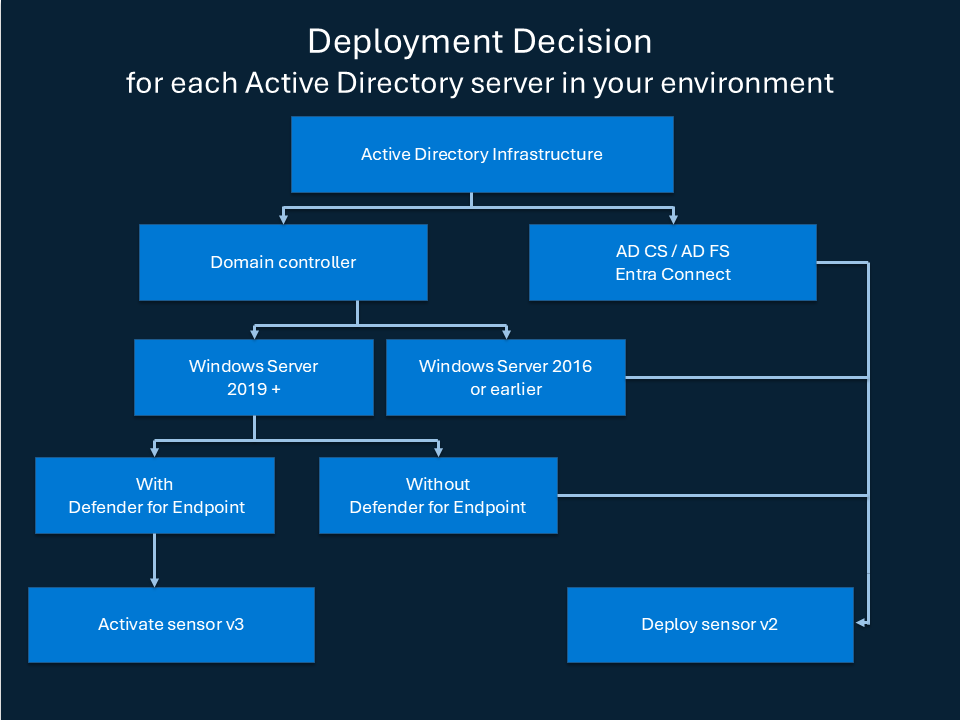
- Two sensor generations. v3.x is for Windows Server 2019 and later, built on the MDE Sense platform. v2.x is for 2016 and earlier (2012 R2 is out of support but still reports). Both can live in one workspace, never on one server.
- v3.x: server onboarded to MDE (AV active or passive), or onboarded with the identity-only standalone package. Sensor 3.0.10 and later need the September 2026 CU (KB5122876 for 2019, KB5122882 for 2022, KB5122871 for 2025). No sizing tool. No DSA.
- v2.x: 2 cores, 6 GB RAM, 6 GB disk minimum (10 GB recommended) on top of the DC's needs. .NET Framework 4.7 or later (installer adds it, may restart). Npcap OEM 1.0 ships in the package. Needs a Directory Service Account for full coverage. Run the sizing tool first.
- Supported roles: DCs including RODCs, AD FS federation servers (not WAP), AD CS servers with the CA role (not offline CAs), Entra Connect active and staging servers. Desktop Experience and Server Core, not Nano.
- Hyper-V: no Dynamic Memory. VMware: reserve all guest memory, disable Large Send Offload. Power plan High Performance. Clocks within 5 minutes.
- Network, v2.x: TCP 443 to
<workspace>sensorapi.atp.azure.com. Service tagAzureAdvancedThreatProtection. ExpressRoute BGP community 12076:5220. No SSL inspection; the sensor uses certificate-based mutual auth. Internal: DNS 53, TCP 135, UDP 137, TCP 3389 for name resolution, LDAP 389/636/3268/3269 cross-forest, TCP 444 sensor to updater. - Network, v3.x: the MDE connectivity URL set, streamlined or standard.
- Readiness:
Test-MdiReadiness.ps1from the Microsoft-Defender-for-Identity GitHub repo, also under Identities > Tools (preview).
Decision rule: 2019 or later with the right CU gets v3.x, anything older gets v2.x. Keep v2.x on a DC only if you need VPN RADIUS integration or syslog notifications.
How it works
Four parts: sensors, API connectors (Okta and other IAM sources), the cloud analytics service, and the Defender portal. Sensors capture and parse locally and upload only required signals. The cloud correlates with endpoint, email, SaaS and cloud app signal and emits alerts and incidents. Response actions go back down through the same sensor.
What the sensor reads depends on the role:
| Sensor type | Signal | Events Learn requires |
|---|---|---|
| Domain controller | Network traffic, Security log, ETW, LDAP queries to AD | 4662, 4726, 4728-4733, 4741, 4743, 4753, 4756-4758, 4763, 4776, 5136, 7045, 8004 |
| AD FS | AD FS audit log, logon events | 1202, 1203, 4624, 4625 |
| AD CS | CA audit events | 4870, 4882, 4885, 4887, 4888, 4890, 4896 |
| Entra Connect | Logon events, ADSync service config | 4624 |
The v2.x sensor runs as LocalService and impersonates the Directory Service Account for LDAP reads, SAM-R calls for local admin group membership, the Deleted Objects container, and domain and trust mapping at start and every 10 minutes. The v3.x sensor runs as LocalSystem for reads and remediation. That difference drives most migration work: once any sensor is v3.x, the action account setting must be "Automatically use the sensor's local system account" for all sensors.
v2.x updates come from the MDI cloud: the updater pulls a signed cab, extracts to a new versioned folder, repoints and restarts the service, one sensor at a time, with an optional 72 hour delayed ring. v3.x updates ride Windows Update as an MDE component.
Remediation: the portal checks Unified RBAC (Response manage), then hands the AD action to a DC sensor, which runs it under LocalSystem by default. Sensors on AD FS, AD CS and Entra Connect never execute actions. Entra actions go through the Microsoft-managed app 60ca1954-583c-4d1f-86de-39d835f3e452. Attack disruption uses the same path.
Posture: MDI feeds Secure Score recommendations in the Defender portal, filtered by product Defender for Identity.
Entity tags feed detections. Members of the built-in privileged groups (Domain Admins, Enterprise Admins, Schema Admins, Account Operators, Backup Operators and the rest) are Sensitive automatically, as are CA, DHCP, DNS and Exchange servers and accounts with Replicating Directory Changes. Honeytoken tags turn dormant accounts into tripwires.
Configure
- Portal
- PowerShell
- Graph API
All MDI settings live at Defender portal > System > Settings > Identities (security.microsoft.com/securitysettings/identities).
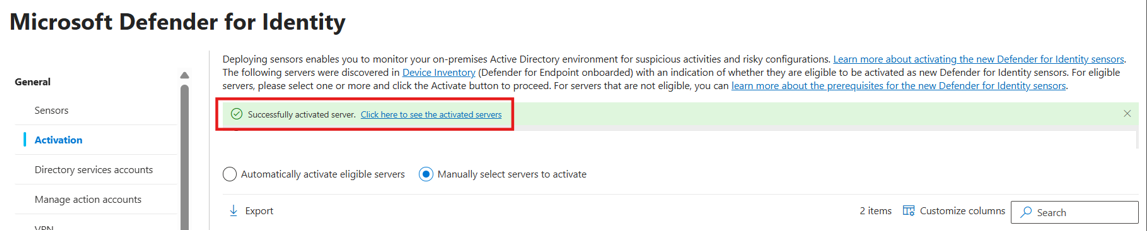
- On-premises > Sensor management. MDE-onboarded servers appear with a status: Onboarded, Activate sensor, Manually onboard, or Upgrade to the latest Windows Update. For a 2019+ DC, select it and choose Activate. Or turn on Automatic sensor v3.x activation under General > Advanced features.
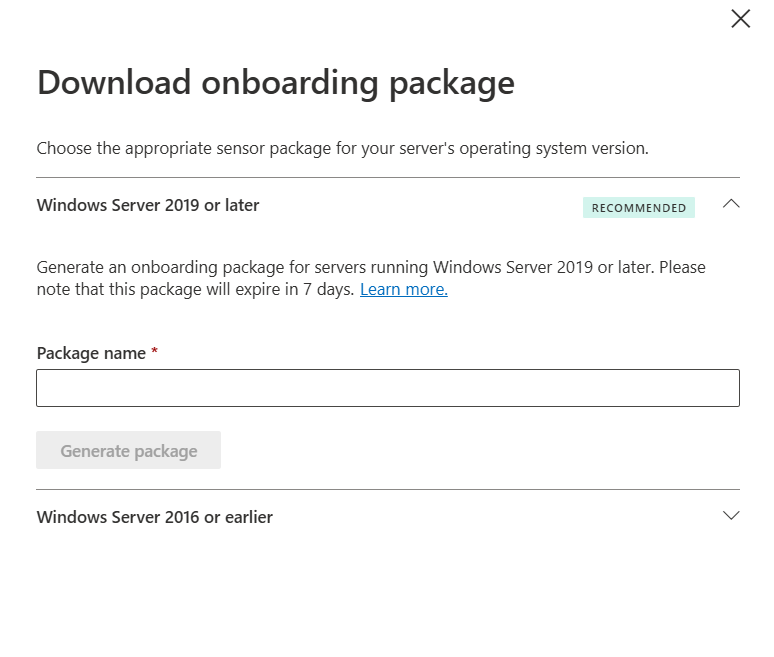
- For a server not onboarded to MDE, or for v2.x, select Download onboarding package. Expand Windows Server 2019 or later (package name, Generate package) for the v3.x standalone package, or Windows Server 2016 or earlier for the v2.x ZIP. Copy the access key. It is a one-time registration secret.
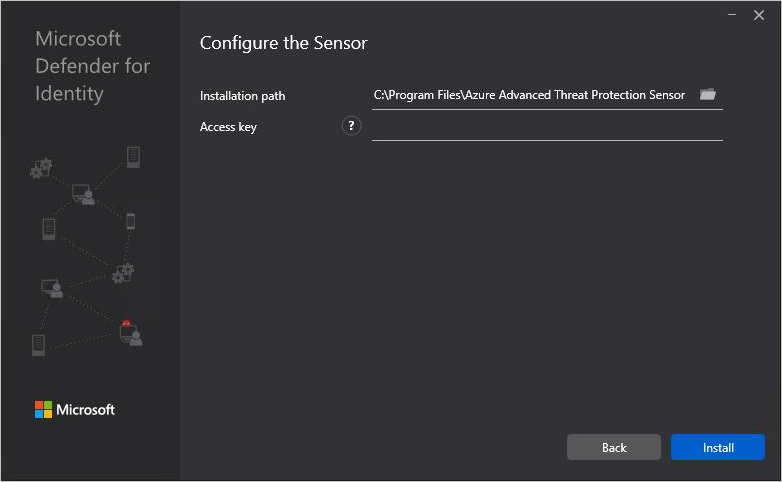
- v2.x install: extract the ZIP (running from inside the archive fails), run Azure ATP sensor setup.exe as admin, keep the default path under
%programfiles%\Azure Advanced Threat Protection sensor, paste the key, Install. The wizard picks the sensor type from the server role and warns on low hardware without blocking.
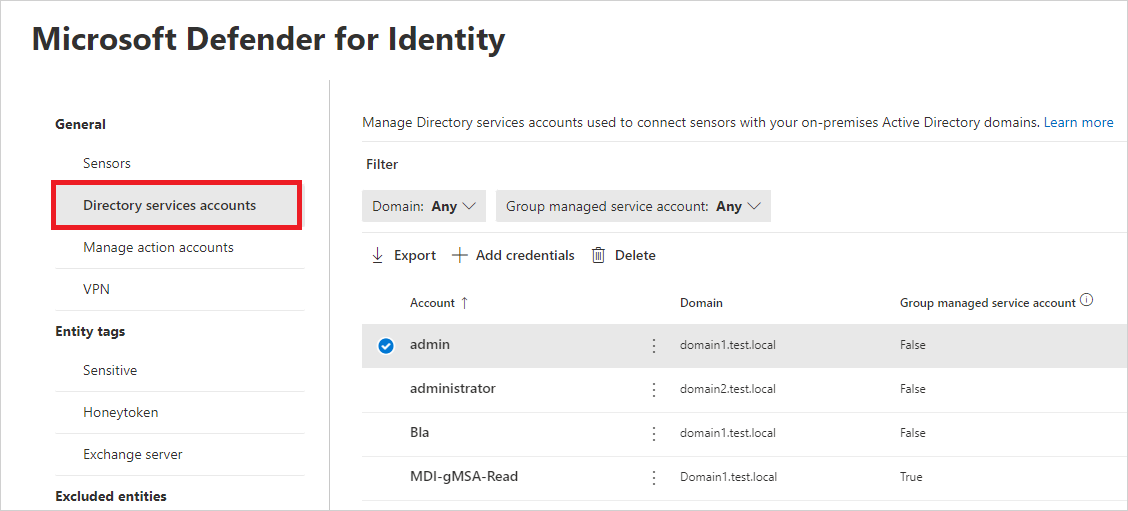
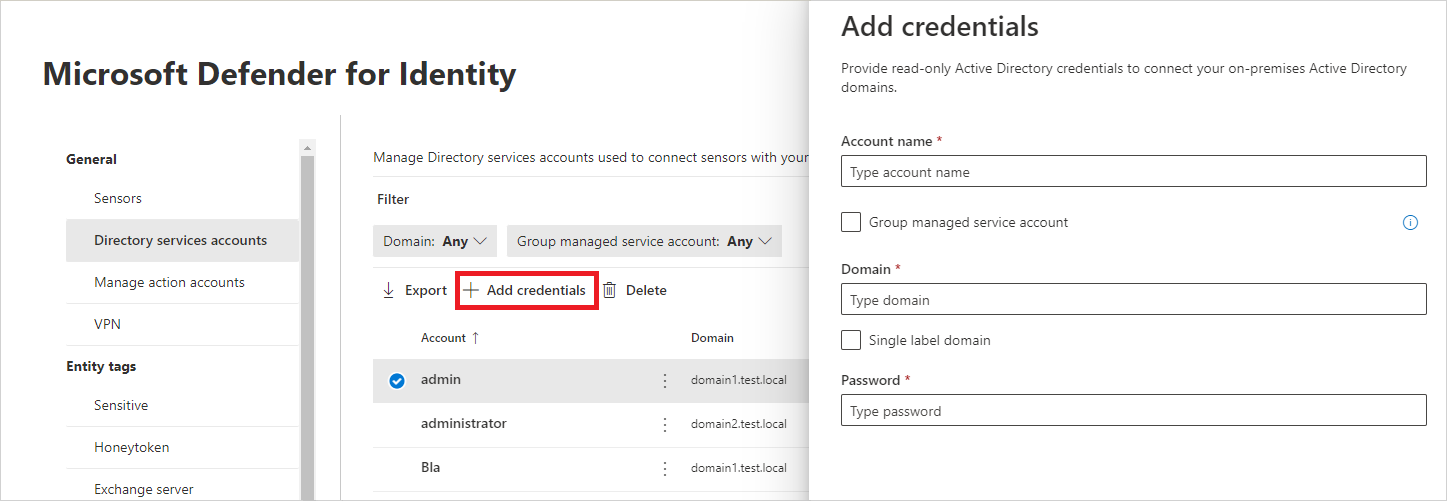
- Directory service accounts (v2.x only). Settings > Identities > Directory service accounts > Add credentials. For a gMSA tick Group managed service account, name with the trailing
$(for examplemdiSvc01$), domain as full FQDN of the domain holding the account. No password. Up to 30 entries by default; one per forest in untrusted multi-forest setups.
-
Manage action accounts. Settings > Identities > Microsoft Defender for Identity > Manage action accounts. Leave Automatically use the sensor's local system account selected. Only add a gMSA action account if you have a reason to scope write rights yourself, and never if any sensor is v3.x.
-
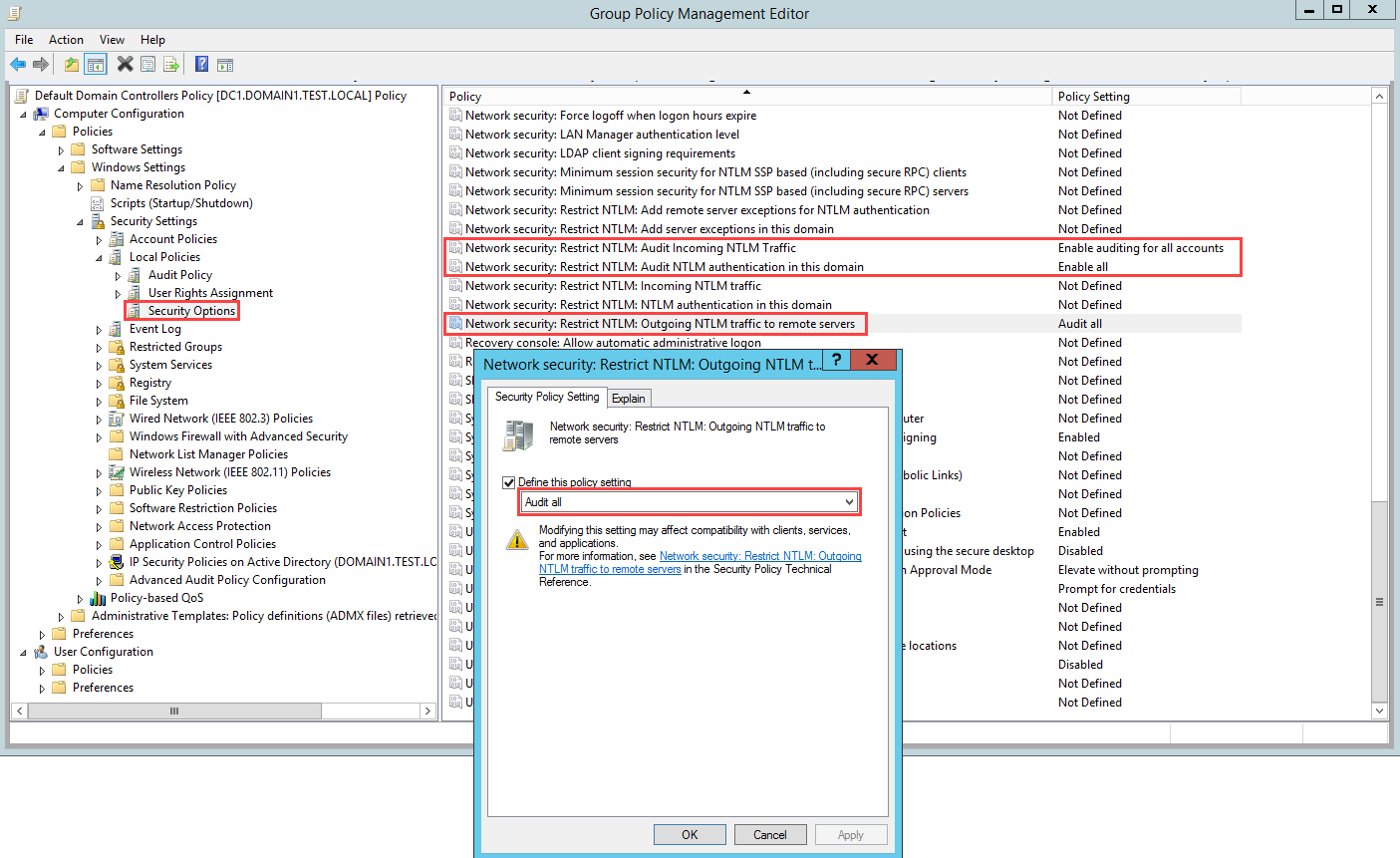
Windows auditing. For v3.x turn on Automatic Windows auditing configuration under Advanced features; the sensor applies advanced audit policy, NTLM auditing, domain object, Configuration container and ADFS container SACLs, and the AD CS audit filter value to local policy every 24 hours. For v2.x use GPO or the PowerShell module (next tab). AD FS Management event auditing and verbose level stay manual in both modes.
-
Entity tags: Settings > Identities > Sensitive, Honeytoken, Exchange server tabs. Tag users, devices or groups. Set at least one honeytoken account; it doubles as your detection test.
-
Exclusions: Settings > Identities > Excluded entities. Exclusions by detection rule, or Global excluded entities (IPs, subnets, devices, domains). Learn now steers you to alert tuning rules instead.
-
v2.x only: Sensor management > select sensor > Enable delayed update puts it in the 72 hour ring.
# Tested on: TODO
# Module: DefenderForIdentity from PowerShell Gallery. Windows PowerShell 5.1 or PowerShell 7.4+.
Install-Module -Name DefenderForIdentity
# PowerShell 7.4+ only:
Import-Module -Name GroupPolicy -SkipEditionCheck

# Cmdlets in the module (10):
# Get-MDIConfiguration, Set-MDIConfiguration, Test-MDIConfiguration, New-MDIConfigurationReport,
# New-MDIDSA, Test-MDIDSA,
# Get-MDISensorProxyConfiguration, Set-MDISensorProxyConfiguration, Clear-MDISensorProxyConfiguration,
# Test-MDISensorApiConnection

# 1. Report current audit state across the domain (reads GPOs) before touching anything
New-MDIConfigurationReport -Path "C:\Reports" -Mode Domain -Identity "CONTOSO\mdiSvc01" -OpenHtmlReport

# 2. Validate, then apply all required settings as GPOs (advanced audit, NTLM, object SACLs, etc.)
Test-MDIConfiguration -Mode Domain -Configuration All
Set-MDIConfiguration -Mode Domain -Configuration All
# Options: -CreateGpoDisabled to stage, -SkipGpoLink to link yourself, -Force to skip validation
Get-MDIConfiguration -Mode Domain -Configuration All

# 3. gMSA for the DSA (v2.x only). KDS root key once per forest, then wait 10 hours.
Add-KdsRootKey -EffectiveImmediately

# Learn's gMSA script, trimmed. Use the Domain Controllers group only in a single forest with DC sensors only.
$gMSA_AccountName   = 'mdiSvc01'
$gMSA_HostsGroupName = 'mdiSvc01Group'
$gMSA_HostNames     = 'DC1', 'DC2', 'ADFS1'
Import-Module ActiveDirectory
if ($gMSA_HostsGroupName -eq 'Domain Controllers') {
    $gMSA_HostsGroup = Get-ADGroup -Identity 'Domain Controllers'
} else {
    $gMSA_HostsGroup = New-ADGroup -Name $gMSA_HostsGroupName -GroupScope DomainLocal -PassThru
    $gMSA_HostNames | ForEach-Object { Get-ADComputer -Identity $_ } |
        ForEach-Object { Add-ADGroupMember -Identity $gMSA_HostsGroupName -Members $_ }
}
New-ADServiceAccount -Name $gMSA_AccountName -DNSHostName "$gMSA_AccountName.$env:USERDNSDOMAIN" `
    -PrincipalsAllowedToRetrieveManagedPassword $gMSA_HostsGroup -KerberosEncryptionType ('AES128','AES256')

# Hosts added to the group after their Kerberos ticket was issued need a new ticket:
# klist purge -li 0x3e7   (or reboot, or wait ~10 hours)

# 4. Deleted Objects container read for the DSA (Learn script, gMSA path creates a universal group first)
$Identity = 'mdiSvc01'
$groupName = 'mdiUsr01Group'
if (Get-ADServiceAccount -Identity $Identity -ErrorAction SilentlyContinue) {
    $group = New-ADGroup -Name $groupName -SamAccountName $groupName -GroupCategory Security -GroupScope Universal -PassThru
    Add-ADGroupMember -Identity $group -Members ('{0}$' -f $Identity)
    $Identity = $group.Name
}
$deletedObjectsDN = 'CN=Deleted Objects,{0}' -f ([adsi]'').distinguishedName.Value
C:\Windows\System32\dsacls.exe @("$deletedObjectsDN", '/takeOwnership')
C:\Windows\System32\dsacls.exe @("$deletedObjectsDN", '/G', ('{0}\{1}:LCRP' -f ([adsi]'').name.Value, $Identity))

# 5. Confirm the DSA is read-only and not over-privileged
Test-MDIDSA -Identity "mdiSvc01" -Detailed

# 6. Connectivity test from the sensor host
Test-MDISensorApiConnection
Test-MDISensorApiConnection -BypassConfiguration -SensorApiUrl 'https://contososensorapi.atp.azure.com' `
    -ProxyUrl 'https://myproxy.contoso.com:8080' -ProxyCredential (Get-Credential)

# 7. Proxy for an installed v2.x sensor
Get-MDISensorProxyConfiguration
Set-MDISensorProxyConfiguration -ProxyUrl 'http://proxy.contoso.com:8080'
Clear-MDISensorProxyConfiguration
v2.x silent install. Run in a maintenance window: the installer may restart the DC and norestart is not reliable. In PowerShell the .\ prefix is mandatory.
.\"Azure ATP sensor Setup.exe" /quiet NetFrameworkCommandLineArguments="/q" AccessKey="<Access Key>"
# Key from file to keep it out of process history:
.\"Azure ATP sensor Setup.exe" /quiet NetFrameworkCommandLineArguments="/q" AccessKeyFile="C:\Path\myAccessKeyFile.txt"
# With proxy and 72 hour delayed ring:
.\"Azure ATP sensor Setup.exe" /quiet NetFrameworkCommandLineArguments="/q" AccessKey="<Access Key>" `
    ProxyUrl="http://proxy.contoso.com:8080" ProxyUserName="CONTOSO\ProxyUser" ProxyUserPassword="<pw>" DelayedUpdate=true
v3.x standalone (identity-only, no MDE licence) onboarding script, run from the extracted package with the resources folder intact:
Set-Location .\DfiOnboarding
.\DefenderForIdentityV3StandaloneOnboardingScript.cmd
# Prompts for the access key, input masked
AD FS and AD CS extras that the module does not set: Set-AdfsProperties -AuditLevel Verbose, and on each CA certutil -setreg CA\AuditFilter 127 then Restart-Service certsvc.
MDI has no dedicated Graph configuration API. Sensors, DSAs, action accounts, tags and exclusions are portal and PowerShell only. What Graph gives you is the alert stream through the unified security alerts API.
GET https://graph.microsoft.com/v1.0/security/alerts_v2?$filter=serviceSource eq 'microsoftDefenderForIdentity'
Permissions: SecurityAlert.Read.All (delegated or application). Delegated callers also need Security Reader, Global Reader, Security Operator or Security Administrator. $filter is supported on serviceSource, severity, status, classification, determination, assignedTo, createdDateTime, lastUpdateDateTime. Page with @odata.nextLink.
Update classification on an alert with PATCH /security/alerts_v2/{alertId}:
{
  "status": "resolved",
  "classification": "truePositive",
  "determination": "compromisedUser"
}
TODO: confirm in the dev tenant whether classic-format MDI alerts and Defender-format MDI alerts both surface with serviceSource = microsoftDefenderForIdentity or whether the Defender-format ones report microsoft365Defender.
Verify
- Sensor management: server listed, Service status running, Sensor status Up to date, Health status healthy. First v3.x activation in a tenant can take up to an hour to show Running; later ones about five minutes. No restart.
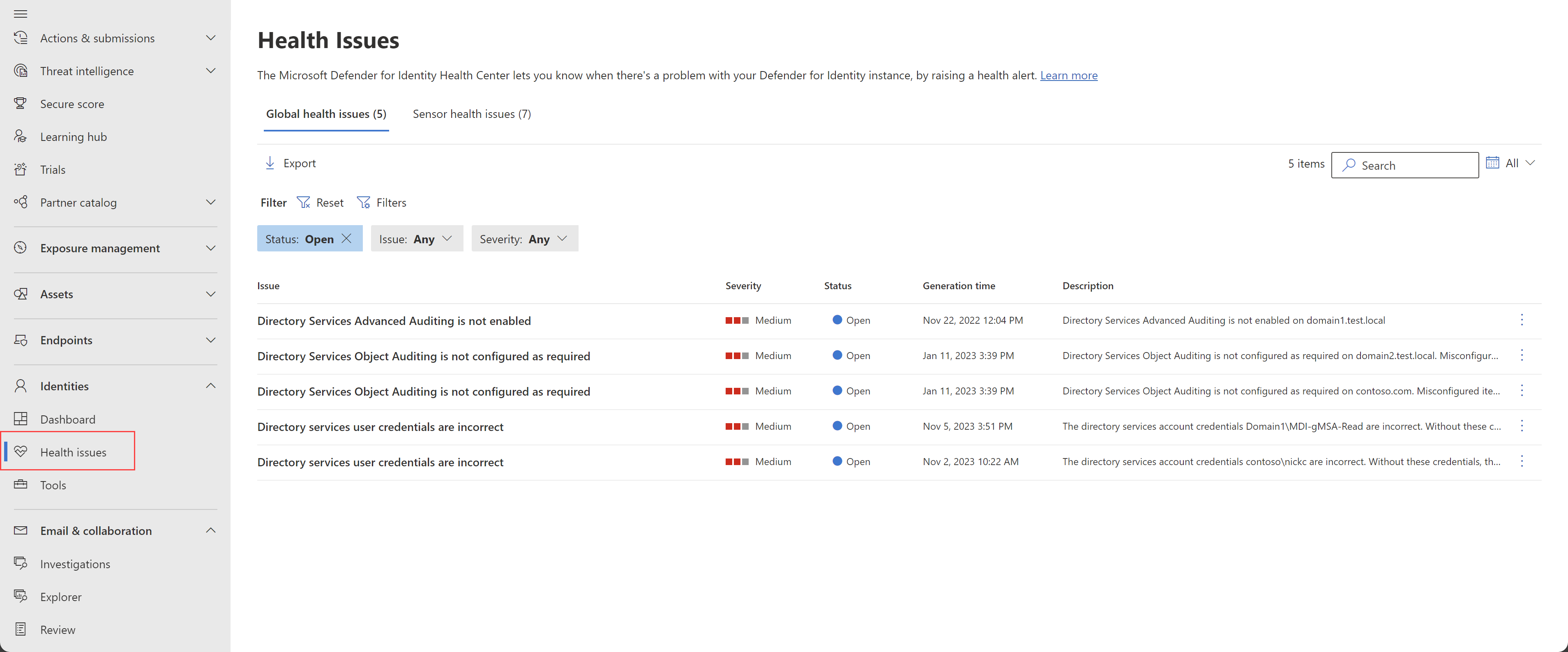
- Settings > Identities > Deployment > Health issues. Global tab for domain-wide problems, Sensor tab per server. Audit checks run once a day, so a GPO fix can take up to 24 hours to close its alert.
- On a v2.x host:
auditpol.exe /get /category:*aftergpupdate, then confirm 4776, 4662, 5136 and 8004 are landing in the Security log. Services are AATPSensor and AATPSensorUpdater. - Identities > Dashboard populates. Assets > Devices > the DC shows MDI events on the timeline. A user page has Overview, Observed in organization and Timeline. If a group timeline is empty, change a membership in AD to generate an event.
- Advanced Hunting:
IdentityDirectoryEvents
| where TargetDeviceName contains "DC_FQDN"
| summarize count() by ActionType
| order by count_ desc
IdentityQueryEvents
| where DeviceName contains "DC_FQDN"
| take 20
- Detection test, Learn's version: tag a dormant test account as Honeytoken, sign in with it against the activated DC, and wait for the honeytoken alert. Also create a suspicious service on the DC and run a remote command on it from a workstation as admin. Learn does not name the exact alert titles on that page.
- Posture test: set
ms-DS-MachineAccountQuotato 10, confirm Resolve unsecure domain configurations appears in Secure Score filtered to Defender for Identity, set it back to 0. - Remediation test: on a test user's page run Disable from the Actions menu, check AD, then Enable. Track in Action center.
Troubleshoot
| Symptom | Likely cause | Fix |
|---|---|---|
| Health: Sensor service failed to start (30+ minutes) | Bad config pull, cert chain, or v2.x start-up LDAP auth failure | Read sensor logs under the install folder. Check Test-MDISensorApiConnection. Confirm DSA can bind over LDAP. |
| Health: Sensor stopped communicating | Firewall or proxy blocking *sensorapi.atp.azure.com (v2.x) or MDE URLs (v3.x), or SSL inspection | Open the URLs, remove the sensor host from inspection. Browser test to /tri/sensor/api/ping returns the sensor version on success. |
| Health: Directory services user credentials are incorrect | Wrong DSA name or domain, gMSA host not in the retrieval group, Log on as a service denied to the gMSA, or a stale DSA left behind after v3.x migration | Check name ends with $ and domain is the account's own FQDN. Add host to the gMSA group and klist purge -li 0x3e7. Add gMSA plus NT Service\All Services to Log on as a service. After full v3.x migration, delete the DSA entry. gMSA rotation can cause a brief alert that closes on its own. |
| Health: packet capturing component (WinPcap, Npcap too old, Npcap not configured) | WinPcap still installed, or a third-party Npcap below 1.0 or with wrong options | Follow aka.ms/mdi/npcap. Package since 2.184 bundles Npcap OEM 1.0 but only installs it when no Npcap exists. |
| Health: NTLM Auditing is not enabled, Advanced Auditing not enabled, Object Auditing not enabled | GPO not applied, or a local setting overridden by GPO, or the v3.x known issue with manual auditing | New-MDIConfigurationReport to see gaps, Set-MDIConfiguration -Mode Domain -Configuration All. On v3.x turn on Automatic Windows auditing configuration; detections work either way. |
| Health: Sensor v3.x RPC Audit Misconfigured | Sensor older than 3.0.8 without the RPC audit tag, or CU missing | Install the September 2026 CU for 3.0.10+. From 3.0.8 RPC auditing is automatic on DCs. |
| Health: Sensor reached a memory resource limit, Some Windows or ETW events not analyzed | Under-sized v2.x host | Sizing table in capacity planning. Add RAM and cores or add DCs to the site. Sensor reserves at least 15 percent of DC CPU and RAM and will restart itself. |
| Health: Power mode isn't configured for optimal processor performance | Balanced power plan | High Performance, or min and max processor state 100. |
| Health: Sensor outdated (v3) | Server missing the Windows CU the sensor needs | Install latest CU, confirm Version column. |
| Health: Sensor outdated (v2) | Auto-update failing | Fix updater connectivity on TCP 444 and internet, or reinstall from the latest package. |
| Health: Sensor failed to retrieve Microsoft Entra Connect service configuration | ADSync service stopped or DSA lacks database rights | Start ADSync, grant the sensor DB permissions per the Entra Connect SQL guidance. |
| Silent install fails from PowerShell | Missing .\ prefix | Use .\"Azure ATP sensor Setup.exe". |
| Install fails from ZIP | Running inside the archive | Extract first. |
| Sensor on 2019 stops itself | KB4487044 missing, ntdsai.dll older than 10.0.17763.316 (v2.x) | Patch the DC. |
| Proxy change via PowerShell has no effect | Proxy was set with WinINet or registry originally | Change it with the same legacy method, or Clear-MDISensorProxyConfiguration and set again. |
| Proxy auth error shows as connection error | Trusted root certificates missing on the host | Install the required root CAs. |
| Remediation action pending forever | No DC sensor in that domain, or Response (manage) permission missing | Actions run only on DC sensors. Check Unified RBAC role. |
Gotchas and limits
- Entra Connect as sensor host: sensors go on active and staging servers, and the sensor needs database rights to read the ADSync config. A v2.x sensor on a non-DC Entra Connect server requires a DSA. If the box is also a DC, the sensor type is Domain controller and covers both.
- AD FS and AD CS need extra auditing beyond the DC set. AD FS: Audit Application Generated, success and failure audits in Federation Service properties, verbose audit level, SACL on the ADFS container. AD CS: Audit Certification Services plus a CA audit filter. Automatic auditing only edits an existing CA filter, and the change waits for a certsvc restart. Auditing CA start and stop on a large CA database slows restarts.
- Mixed estates: v2.x and v3.x coexist in a workspace, not on a server. Any v3.x sensor forces the LocalSystem action account for all, and a leftover DSA is validated on every sensor until deleted. v3.x on AD FS, AD CS and Entra Connect is preview with no in-place migration yet, and v3.x on non-DC roles alone still needs one v3.x DC sensor.
- Busy DCs: v2.x needs TriSizingTool.exe (aka.ms/mdi/sizingtool) run for 24 hours before install. The table runs from 0.25 cores and 2.5 GB under 1k packets per second to 7.5 cores and 13.5 GB at 100k, physical cores only. v3.x self-limits at 30 percent CPU and 1.5 GB and throttles at the cap.
- Action account: LocalSystem on the DC is the recommended default and what attack disruption uses. A custom gMSA needs Reset password, read and write pwdLastSet, read and write userAccountControl on descendant User objects, and must not be reused on non-DC servers or doubled as the DSA. v3.x ignores it.
- Auto-updates: v2.x pulls from the cloud and restarts its own services, one sensor at a time, with a 72 hour delayed ring as the only control. v3.x rides Windows Update with MDE, so DC patch cadence is now sensor cadence and a missing CU shows as Sensor outdated (v3).
- v3.x drops VPN RADIUS integration and syslog notifications and has ExpressRoute limitations. Stay on v2.x for that DC if you need them.
- Classic exclusions stop applying when a detection moves to the XDR engine. Rebuild them as alert tuning rules first.
- Tag before go-live. An untagged service account in a custom admin group is invisible to the sensitive-group alerts.
- Access keys: v2.x regeneration is harmless to existing sensors. v3.x standalone package regeneration breaks installs still using the old key.
- Add/Remove Programs shows the v2.x install-time version forever. Read the real version in the portal.
Further reading
- Announcing General Availability: Unified identity and endpoint sensor, Microsoft Tech Community, October 2025. Microsoft's GA post for the v3.x sensor, with the positioning for why identity and endpoint collapsed into one agent.
- Microsoft Defender for Identity Sensor v3.x Reduces Complexity, Boosts Threat Detection, Rabia Noureen, Petri, October 2025. Summary of what changed for deployment on 2019+ and the licence lines, useful as a quick brief for a client.
- Automatic migration from Defender for Identity sensor v2 to v3.x and gMSA changes, Jeffrey Appel, March 2026. Step-by-step of the portal migration, post-migration cleanup of DSAs, and the LocalSystem action account switch, with the gaps Learn glosses over.
- Defender for Identity Sensor v3 Upgrade: Proceed with Caution, Wes Miller, Directions on Microsoft, September 2026. The case for waiting on in-place v2 to v3 migration until the prerequisites loosen.
My notes
TODO: Sohail's notes after verification.
Changelog
| Date | Change | Source |
|---|---|---|
| 2026-10-22 | Drafted from Learn, with Learn images and diagrams | [1] |