Anti-phishing, anti-spam, anti-malware and preset policies
What it is
These are the policies that decide what happens to a message after the filtering stack has given it a verdict. Anti-malware runs first and handles attachments. Anti-spam (the HostedContentFilterPolicy objects) handles spam, high confidence spam, phishing, high confidence phishing and bulk. Anti-phishing handles spoof, DMARC enforcement, and in Defender for Office 365 also user impersonation, domain impersonation, mailbox intelligence and the phishing threshold. Outbound spam sets sending limits and forwarding control. Connection filtering acts on source IP before any of that.
Around the policies sit two shared lists. The Tenant Allow/Block List (TABL) is where allows and blocks for senders, spoof pairs, URLs, files and IPs live. Quarantine policies decide what a recipient can do with a quarantined message and whether they get notified. Every policy that can quarantine points at a quarantine policy per verdict.
Preset security policies (Standard and Strict) are Microsoft's fixed set of these policies, assigned to recipients you choose. You cannot edit their values. Everything else you create or edit yourself, and the default policies sit at the bottom catching whoever is left. This article is the settings reference. The overview covers licensing and where EOP ends and Defender for Office 365 begins, email authentication covers SPF, DKIM and DMARC that feed spoof intelligence, and investigation and quarantine covers working the queue after the fact.
Licensing and prerequisites
- Anti-spam, anti-malware, outbound spam, connection filtering, spoof intelligence, first contact safety tip and quarantine policies come with every cloud mailbox (EOP).
- Impersonation protection (users, domains, mailbox intelligence), phishing thresholds 1 to 4, Safe Links and Safe Attachments need Defender for Office 365 Plan 1 or Plan 2. Microsoft started rolling Plan 1 into Microsoft 365 E3 and Office 365 E3 in June 2026.
- TABL capacity scales with licence: 1,000 entries without Defender for Office 365 (500 allow, 500 block), 2,000 with Plan 1 (1,000 each), 15,000 with Plan 2 (5,000 allow, 10,000 block). Spoofed sender entries are capped at 1,024 allow and block combined, in every tier.
- Permissions: Organization Management or Security Administrator in Exchange Online, the Entra Security Administrator role, or Defender XDR Unified RBAC Core Security settings (manage). TABL writes need Detection tuning (manage) in Unified RBAC. Unified RBAC applies only to the portal; PowerShell is Exchange Online PowerShell with Exchange roles.
- Allow up to 30 minutes for a policy change to take effect, and 5 minutes for a TABL entry.
How it works
Verdict order, then policy order
Two orderings matter and they are easy to mix up. First, when a message carries several verdicts, the service processes them in a fixed order and the winning category is stamped as CAT in X-Forefront-Antispam-Report. Second, within each policy type, the service picks one policy for the recipient and ignores the rest. Settings are never merged.
The Learn example that shows why this bites: Policy A at priority 1 has user impersonation on and spoof off. Policy B at priority 2 has spoof on. A message that is both spoofed and impersonating a protected user, sent to a user in both policies, is evaluated for spoof first (row 4 to 6), Policy A wins on priority, spoof is off in A, so nothing happens. Policy B is never consulted. Keep high priority policies small and strict.
Anti-phishing
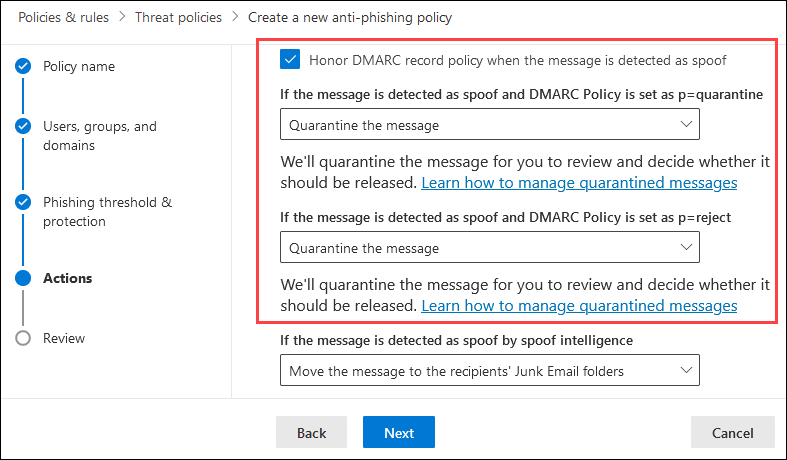
Spoof intelligence runs for every tenant. It learns which sending infrastructure legitimately sends as which domain and flags the rest. A composite authentication failure alone does not block a message; the service also weighs how suspicious it looks. Blocked spoofs get AuthenticationFailAction, which is Junk by default and Quarantine in Strict. With HonorDmarcPolicy on (the default since the DMARC work landed), explicit failures where the sender publishes p=quarantine or p=reject are handled by DmarcQuarantineAction and DmarcRejectAction instead. With honoring off, every failure, implicit or explicit, falls through to the spoof action and the published p value is ignored. If your MX does not point at Microsoft 365, do not turn spoof intelligence off; enable Enhanced Filtering for Connectors.
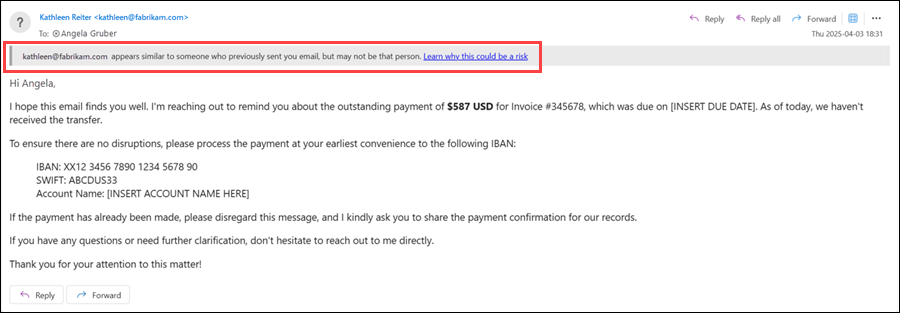
Impersonation is a different problem. The sender is not forging your domain; they registered a lookalike, so SPF, DKIM and DMARC can all pass. Defender for Office 365 checks three things, in this order: is the sender a near match for a protected user (up to 350 per policy), is the sender domain a near match for a protected domain (your accepted domains plus up to 50 custom ones), and does mailbox intelligence think the sender is a lookalike of someone the recipient normally talks to. Trusted senders and domains (1,024 entries, subdomains not included) short-circuit all three. Mailbox intelligence has two switches: EnableMailboxIntelligence builds the contact graph and is on by default, EnableMailboxIntelligenceProtection lets it act and is off by default. If both are on, the user and domain checks are skipped when sender and recipient have mailed before.
The phishing threshold (PhishThresholdLevel) changes how aggressively machine learning phish verdicts are promoted. Level 1 Standard scales action with confidence. Level 2 Aggressive treats high confidence as very high. Level 3 More aggressive promotes medium and high. Level 4 Most aggressive promotes low, medium and high. Standard preset uses 3, Strict uses 4, default policy uses 1.
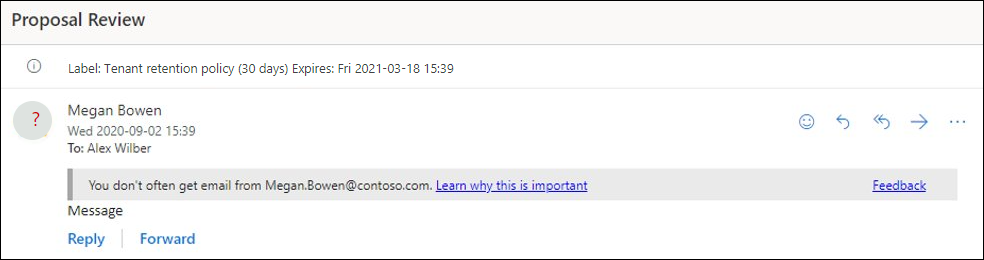
Safety tips are stamped as SFTY values: 9.25 first contact, 9.20 user impersonation, 9.19 domain impersonation. None of them are added to S/MIME signed messages or to mail allowed by organisational settings. The first contact tip is not stamped for mailboxes under seven days old, and the multi-recipient version uses a majority model, which can reveal that a colleague has never heard from this sender.
Anti-spam inbound
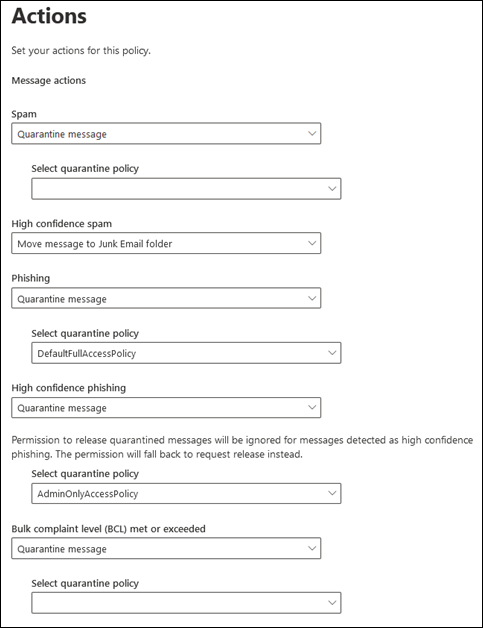
Five verdicts, each with its own action and quarantine policy. Spam and high confidence spam default to Junk. Phishing defaults to Junk in the default policy and in PowerShell-created policies, but Quarantine in portal-created ones. High confidence phishing is always quarantined with AdminOnlyAccessPolicy; Move to Junk is deprecated for it and users can only request release. Bulk is a complaint score from 0 to 9 (BCL in X-Microsoft-Antispam): 1 to 3 few complaints, 4 to 7 mixed, 8 to 9 many. The message is marked bulk when BCL meets or exceeds BulkThreshold (7 default, 6 Standard, 5 Strict) and MarkAsSpamBulkMail is on. SCL still appears in headers but in cloud mailboxes it does not drive the decision; read CAT and DIR instead. SCL matters for on-premises and hybrid Junk folder delivery.
Advanced Spam Filter settings (IncreaseScoreWith*, MarkAsSpam*) are all off in default, Standard and Strict, and add an X-CustomSpam header after mail flow rules have already run. Allowed senders and domains in the policy skip most filtering and authentication checks except malware and high confidence phishing, which is why Microsoft now points you at the TABL instead. Since September 2022 an allowed entry for one of your own accepted domains still has to pass authentication. The portal caps the four lists at 30 entries; PowerShell goes to about 1,000. Retention is 1 to 30 days (15 default, 30 in presets) and the same value governs anti-phishing quarantines. ZAP for spam and phish are separate toggles, both on.
Outbound spam
Recipient limits per hour external, per hour internal, and per day, all 0 to 10,000 where 0 means service defaults. ActionWhenThresholdReached is BlockUserForToday by default; BlockUser puts the sender on the Restricted users page until an admin clears them; AlertOnly just alerts. AutoForwardingMode is Automatic by default, which has meant Off for new tenants since 2021; set it explicitly. Off blocks Inbox rule and mailbox forwarding to external addresses and generates NDRs. Forwarding from a Microsoft 365 Group uses the group address as sender, so scope the policy to the group under Users, not Groups. The Bcc copy setting only works in the default policy, and the notify setting is being retired in favour of the User restricted from sending email alert policy. Outbound policies are not part of the presets.
Anti-malware
The common attachments filter is on in new policies and in the default policy for tenants created after 1 December 2023. The default list is around 55 extensions: executables and installers (exe, dll, msi, msix, apk, elf, macho), containers (iso, img, cab, ace, arj), scripts (bat, cmd, vbs, wsf, hta, sct), shortcuts (lnk, scf) and Office macro types (docm, xll, ppam). Matching is by true file type where the format is recognised, falling back to extension. Action is Reject with an NDR by default, or Quarantine. ZAP for malware is on. Malware quarantines use AdminOnlyAccessPolicy, so recipients never see them unless you change the tag, and even then they can only request release. Admin notifications for internal and external senders are off everywhere and fire only for real malware verdicts, not for common attachments filter hits.
Connection filtering
One default policy, no custom ones. The IP Allow List skips spam filtering for the source IP (IPV:CAL, SFV:SKI) but malware and high confidence phishing still run, and Secure by default can still override it. The IP Block List rejects at the edge with no trace entry. Allow wins over block for the same IP. Up to 1,273 entries per list, CIDR /24 to /32 only, IPv4 only; IPv6 goes in the TABL. The Microsoft safe list is a toggle, not an editable list.
Tenant Allow/Block List
Domains and addresses match the P2 From, not MAIL FROM. A block entry turns the message into high confidence phishing and quarantines it, and internal users sending to the address get NDR 550 5.7.703. Block entries default to 30 days expiry, up to 90 or never. Spoofed sender and IP entries never expire. Allow entries are the part people get wrong. A manual allow for a domain or address only overrides bulk, spam, high confidence spam and phishing. To override malware or high confidence phishing you must submit the message as clean and tick Allow this message, which creates the entry with the right scope. Allow entries expire 45 days after last use by default, or on a date up to 30 days out. Submitting a message blocked by impersonation protection does not create a TABL entry at all; it adds the sender to Trusted senders and domains in the anti-phishing policy that caught it. Block beats allow for the same entity.
Spoofed sender entries are pairs: spoofed user (address, domain or *) and sending infrastructure (PTR organisation domain, IP/24 when there is no PTR, or verified DKIM domain). *, * is invalid. A spoof allow only lifts the spoof verdict for that pair; a spoof block makes the message phishing and the recipient's anti-spam phishing action applies.
Quarantine policies
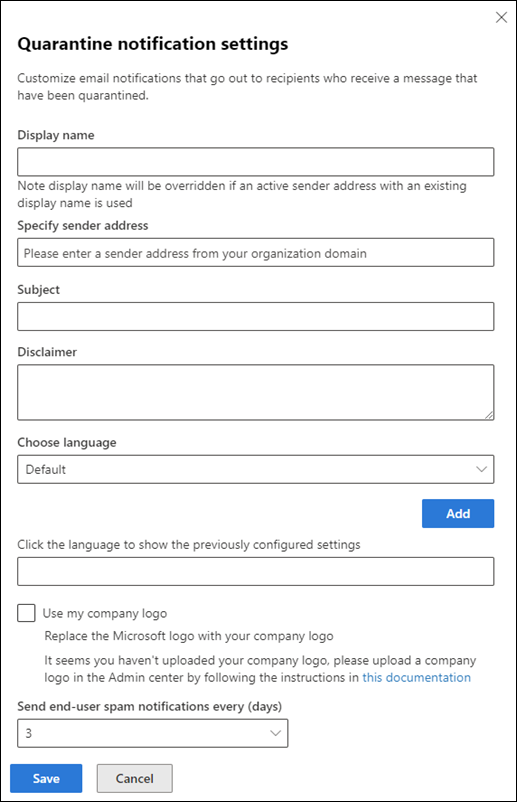
Three built-in policies you cannot delete: AdminOnlyAccessPolicy (no access, no notifications), DefaultFullAccessPolicy (full access, no notifications) and DefaultFullAccessWithNotificationPolicy (full access, notifications on). Older tenants also have NotificationEnabledPolicy. Permissions are a bit mask: View header 128, Allow sender 32, Block sender 16, Request release 8, Release 4, Preview 2, Delete 1. Limited access is 43 (32 plus 8 plus 2 plus 1). Release is never honoured for malware, Safe Attachments or high confidence phishing; the user gets Request release at best. Notification frequency, languages (up to three), sender address, subject, disclaimer and logo are global settings on the GlobalQuarantinePolicy object, not per policy. Changing the policy on a verdict only affects messages quarantined after the change.
Standard vs Strict, the settings that differ
Anti-malware, Safe Links and Safe Attachments are identical between the two presets. These are the ones that move.
| Setting (parameter) | Default policy | Standard | Strict |
|---|---|---|---|
Bulk threshold (BulkThreshold) | 7 | 6 | 5 |
Bulk action (BulkSpamAction) | MoveToJmf | MoveToJmf | Quarantine |
Spam action (SpamAction) | MoveToJmf | MoveToJmf | Quarantine |
High confidence spam action (HighConfidenceSpamAction) | MoveToJmf | Quarantine | Quarantine |
Phishing action (PhishSpamAction) | MoveToJmf | Quarantine | Quarantine |
High confidence phishing action (HighConfidencePhishAction) | Quarantine, AdminOnlyAccessPolicy | Same | Same |
Quarantine retention (QuarantineRetentionPeriod) | 15 days | 30 days | 30 days |
Spoof action (AuthenticationFailAction) | MoveToJmf | MoveToJmf | Quarantine |
Spoof quarantine policy (SpoofQuarantineTag) | DefaultFullAccessPolicy | DefaultFullAccessPolicy | DefaultFullAccessWithNotificationPolicy |
First contact safety tip (EnableFirstContactSafetyTips) | Off | On | On |
Phishing threshold (PhishThresholdLevel) | 1 | 3 | 4 |
Protect users (EnableTargetedUserProtection) | Off | On, your list | On, your list |
Protect owned domains (EnableOrganizationDomainsProtection) | Off | On | On |
Custom domains (EnableTargetedDomainsProtection) | Off | On, your list | On, your list |
User impersonation action (TargetedUserProtectionAction) | NoAction | Quarantine | Quarantine |
Domain impersonation action (TargetedDomainProtectionAction) | NoAction | Quarantine | Quarantine |
Mailbox intelligence protection (EnableMailboxIntelligenceProtection) | Off | On | On |
Mailbox intelligence action (MailboxIntelligenceProtectionAction) | NoAction | MoveToJmf | Quarantine |
Impersonation safety tips (EnableSimilarUsersSafetyTips and friends) | Off | On | On |
Outbound external per hour (RecipientLimitExternalPerHour) | 0 | 500 recommended | 400 recommended |
Outbound daily (RecipientLimitPerDay) | 0 | 1000 recommended | 800 recommended |
Outbound action (ActionWhenThresholdReached) | BlockUserForToday | BlockUser | BlockUser |
Auto forwarding (AutoForwardingMode) | Automatic | Off | Off |
Outbound rows are Microsoft's recommended values for your own policies, since presets do not include an outbound policy. Quarantine policies on Standard and Strict verdicts are DefaultFullAccessWithNotificationPolicy except bulk and spam on Standard, which stay on DefaultFullAccessPolicy.
Configure
- Portal
- PowerShell
- Graph API
Custom anti-phishing policy with recommended values (Defender for Office 365):
- Defender portal > Email and collaboration > Policies and rules > Threat policies > Anti-phishing (
security.microsoft.com/antiphishing) > Create. - Name it. Users, groups and domains: pick the recipients. Values in one condition are OR, condition types are AND, any exception match excludes.
- Phishing threshold and protection: threshold 3 or 4. Enable users to protect and add executives and finance (internal from the directory, external by full address). Enable domains to protect, Include the domains I own, add partner domains as custom domains. Add trusted senders, including the Teams and SharePoint system senders if they get flagged. Leave mailbox intelligence on and tick Enable intelligence for impersonation protection. Leave spoof intelligence on.
- Actions: user and domain impersonation Quarantine, mailbox intelligence Move to Junk (Standard) or Quarantine (Strict), spoof Quarantine,
DefaultFullAccessWithNotificationPolicyon each if users should be notified. Honor DMARC on with Quarantine and Reject. Tick all six safety tips and indicators. - Review > Submit. Then check priority in the flyout; a new policy lands below existing custom policies.

Enable Strict for a pilot group:
- Threat policies > Preset security policies (
security.microsoft.com/presetSecurityPolicies). - Toggle Strict protection on > Manage protection settings.
- Apply Exchange Online Protection: Specific recipients, add the pilot group. Next.
- Apply Defender for Office 365 protection: Previously selected recipients. Next.
- Impersonation protection: add users to protect, custom domains, trusted senders. These three are the only editable parts of a preset.
- Review and confirm. The underlying
Strict Preset Security Policyanti-spam, anti-malware, anti-phishing, Safe Links and Safe Attachments objects are created on first enable. Toggling Off later keeps the conditions. There is no Learn screenshot for this wizard.
Tenant Allow/Block List entries:
- Threat policies > Rules > Tenant Allow/Block Lists (
security.microsoft.com/tenantAllowBlockList), Domains and addresses tab. - Add > Block: up to 20 values, one per line. Expiry 30 days (default), up to 90 days, a date, or Never.
contoso.comis exact,*.contoso.comis subdomains only. - Add > Allow: same flyout, default expiry 45 days after last used. Covers bulk, spam, high confidence spam and phishing only. For malware or high confidence phishing go to Submissions > Emails > Submit to Microsoft > I have confirmed it is clean > Allow this message.
- Spoofed senders tab > Add: pairs as
spoofed user, sending infrastructure, Internal or External, Allow or Block. - Edit changes only expiry and note on sender entries, and only the action on spoof entries.
Quarantine policies: Threat policies > Quarantine policies. Create one only if the three built-ins do not fit. Global settings (gear icon) hold the notification sender, languages and frequency.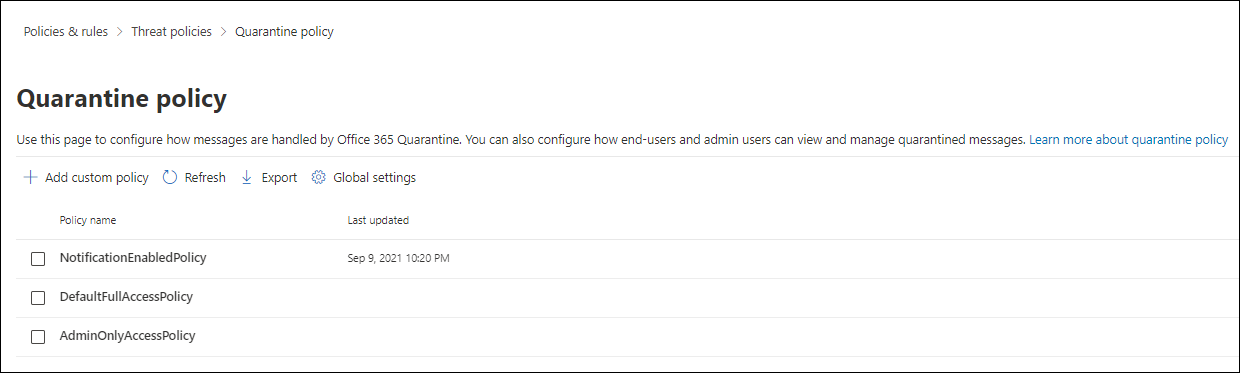
# Tested on: TODO (Exchange Online PowerShell, ExchangeOnlineManagement 3.x)
Connect-ExchangeOnline

# --- Anti-phishing: policy plus rule, recommended values ---
# EnableTargetedUserProtection / TargetedUsersToProtect: up to 350 "Display Name;address" entries
# EnableOrganizationDomainsProtection: protect every accepted domain
# EnableTargetedDomainsProtection / TargetedDomainsToProtect: up to 50 partner domains
# ExcludedSenders / ExcludedDomains: trusted senders and domains, 1,024 combined, no subdomain inheritance
# EnableMailboxIntelligence (graph) and EnableMailboxIntelligenceProtection (act on it) are separate switches
# PhishThresholdLevel 1 to 4
# AuthenticationFailAction: spoof action, MoveToJmf or Quarantine
# HonorDmarcPolicy / DmarcQuarantineAction / DmarcRejectAction: explicit DMARC failures
# *QuarantineTag: quarantine policy per detection, only used when the matching action is Quarantine
New-AntiPhishPolicy -Name "Execs Strict" -AdminDisplayName "Impersonation plus spoof for leadership" `
  -PhishThresholdLevel 4 `
  -EnableTargetedUserProtection $true `
  -TargetedUsersToProtect "Jane Doe;jane.doe@contoso.com","Finance Shared;ap@contoso.com" `
  -TargetedUserProtectionAction Quarantine -TargetedUserQuarantineTag DefaultFullAccessWithNotificationPolicy `
  -EnableOrganizationDomainsProtection $true `
  -EnableTargetedDomainsProtection $true -TargetedDomainsToProtect fabrikam.com `
  -TargetedDomainProtectionAction Quarantine -TargetedDomainQuarantineTag DefaultFullAccessWithNotificationPolicy `
  -ExcludedSenders noreply@email.teams.microsoft.com,no-reply@sharepointonline.com `
  -EnableMailboxIntelligence $true -EnableMailboxIntelligenceProtection $true `
  -MailboxIntelligenceProtectionAction Quarantine -MailboxIntelligenceQuarantineTag DefaultFullAccessWithNotificationPolicy `
  -EnableSpoofIntelligence $true -AuthenticationFailAction Quarantine -SpoofQuarantineTag DefaultFullAccessWithNotificationPolicy `
  -HonorDmarcPolicy $true -DmarcQuarantineAction Quarantine -DmarcRejectAction Reject `
  -EnableFirstContactSafetyTips $true -EnableSimilarUsersSafetyTips $true `
  -EnableSimilarDomainsSafetyTips $true -EnableUnusualCharactersSafetyTips $true `
  -EnableUnauthenticatedSender $true -EnableViaTag $true

# The policy is invisible in the portal until a rule points at it. Priority 0 is highest.
New-AntiPhishRule -Name "Execs Strict" -AntiPhishPolicy "Execs Strict" -SentToMemberOf "Leadership" -Priority 0

# Change later. Set-AntiPhishPolicy has no -Name; -MakeDefault exists only here.
Set-AntiPhishPolicy -Identity "Execs Strict" -PhishThresholdLevel 3
Set-AntiPhishPolicy -Identity "Execs Strict" -TargetedUsersToProtect @{Add="New CFO;cfo@contoso.com"}

# --- Anti-spam inbound, default policy to recommended Standard values ---
# SpamAction / HighConfidenceSpamAction / PhishSpamAction / HighConfidencePhishAction / BulkSpamAction: MoveToJmf, Quarantine, AddXHeader, ModifySubject, Redirect, Delete, NoAction (bulk only)
# BulkThreshold 1 to 9; MarkAsSpamBulkMail On by default, PowerShell only
# QuarantineRetentionPeriod 1 to 30 days, also governs anti-phish quarantine
# AllowedSenders / AllowedSenderDomains / BlockedSenders / BlockedSenderDomains: legacy lists, roughly 1,000 total; prefer the TABL
Set-HostedContentFilterPolicy -Identity Default `
  -BulkThreshold 6 -BulkSpamAction MoveToJmf -BulkQuarantineTag DefaultFullAccessPolicy `
  -SpamAction MoveToJmf -SpamQuarantineTag DefaultFullAccessPolicy `
  -HighConfidenceSpamAction Quarantine -HighConfidenceSpamQuarantineTag DefaultFullAccessWithNotificationPolicy `
  -PhishSpamAction Quarantine -PhishQuarantineTag DefaultFullAccessWithNotificationPolicy `
  -HighConfidencePhishAction Quarantine -HighConfidencePhishQuarantineTag AdminOnlyAccessPolicy `
  -QuarantineRetentionPeriod 30 -InlineSafetyTipsEnabled $true `
  -PhishZapEnabled $true -SpamZapEnabled $true

# --- Outbound spam, default policy to recommended Standard values ---
Set-HostedOutboundSpamFilterPolicy -Identity Default `
  -RecipientLimitExternalPerHour 500 -RecipientLimitInternalPerHour 1000 -RecipientLimitPerDay 1000 `
  -ActionWhenThresholdReached BlockUser -AutoForwardingMode Off

# --- Anti-malware default policy ---
Set-MalwareFilterPolicy -Identity Default -EnableFileFilter $true -FileTypeAction Reject -ZapEnabled $true `
  -QuarantineTag AdminOnlyAccessPolicy
Set-MalwareFilterPolicy -Identity Default -FileTypes @{Add="one","vhd"}   # extend the common attachments list

# --- Connection filter, add and remove without overwriting ---
Set-HostedConnectionFilterPolicy -Identity Default -IPAllowList @{Add="203.0.113.10","198.51.100.0/24"; Remove="192.0.2.5"}

# --- Tenant Allow/Block List ---
# -ListType Sender for domains and addresses (other list types exist for URLs, files and IPs; see the per-type Learn pages)
# -Allow or -Block ; -Entries up to 20 per call
# -RemoveAfter 45 (days after last used, allow only) | -ExpirationDate | -NoExpiration ; -Notes
New-TenantAllowBlockListItems -ListType Sender -Block -Entries "badattacker.example","*.lookalike.example" -NoExpiration -Notes "IR-2026-0142"
New-TenantAllowBlockListItems -ListType Sender -Allow -Entries "billing@vendor.example" -RemoveAfter 45 -Notes "Ticket 5512, bulk false positive"
Get-TenantAllowBlockListItems -ListType Sender -Block
Set-TenantAllowBlockListItems -ListType Sender -Entries "billing@vendor.example" -ExpirationDate (Get-Date).AddDays(30)
Remove-TenantAllowBlockListItems -ListType Sender -Entries "billing@vendor.example"

# Spoof pairs: SpoofedUser (address, domain or *) and SendingInfrastructure (PTR org domain, IP/24, or DKIM domain). Not * in both.
New-TenantAllowBlockListSpoofItems -Identity Default -Action Allow -SpoofedUser contoso.com -SendingInfrastructure mailgun.net -SpoofType Internal
Get-TenantAllowBlockListSpoofItems -Action Allow

# --- Quarantine policies ---
Get-QuarantinePolicy | Format-Table Name, EndUserQuarantinePermissionsValue, ESNEnabled
Get-QuarantinePolicy -QuarantinePolicyType GlobalQuarantinePolicy | Format-List EndUserSpamNotificationFrequency, MultiLanguageSetting, EndUserSpamNotificationCustomFromAddress
# Limited access (43 = AllowSender 32 + RequestRelease 8 + Preview 2 + Delete 1) with notifications
New-QuarantinePolicy -Name "LimitedWithNotify" -EndUserQuarantinePermissionsValue 43 -EsnEnabled $true
Get-QuarantinePolicy -QuarantinePolicyType GlobalQuarantinePolicy | Set-QuarantinePolicy -EndUserSpamNotificationFrequency 1.00:00:00

# --- Presets: view, enable, scope ---
Get-AntiPhishPolicy | Where-Object RecommendedPolicyType -eq "Strict" | Format-List
Get-EOPProtectionPolicyRule -Identity "Strict Preset Security Policy" | Format-Table Name, State, SentToMemberOf
Enable-EOPProtectionPolicyRule -Identity "Strict Preset Security Policy"; Enable-ATPProtectionPolicyRule -Identity "Strict Preset Security Policy"
Set-EOPProtectionPolicyRule -Identity "Strict Preset Security Policy" -SentToMemberOf "Pilot-Strict"
Set-ATPProtectionPolicyRule -Identity "Strict Preset Security Policy" -SentToMemberOf "Pilot-Strict" -ExceptIfSentTo "secops@contoso.com"
Not applicable. These policies have no Microsoft Graph or REST surface; the only programmatic path is Exchange Online PowerShell.
Verify
- Policy list:
Get-AntiPhishRule | Format-Table Name,Priority,StateandGet-HostedContentFilterRule -State Enabledconfirm the rule is on and where it sits. - Message trace: Exchange admin center > Mail flow > Message trace, or
Get-MessageTracethenGet-MessageTraceDetail. Look for the quarantine or Junk event and the policy name. - Headers: read
X-Forefront-Antispam-Report.CATis the winning verdict (SPOOF,UIMP,DIMP,GIMP,PHSH,HPHSH,SPM,HSPM,BULK,MALW,FTBPfor common attachments).SFVsays why filtering was skipped:SKApolicy allow list,SKIIP Allow List,SKNmail flow rule,SFEuser Safe Senders,SKQreleased from quarantine.SFTYshows which safety tip fired.DIRis INB, OUT or INT.BCLis inX-Microsoft-Antispam.Authentication-Resultscarriescompauth=andreason=:000explicit DMARC fail,001implicit fail,002admin spoof block,010intra-org spoof of your own domain,1xxpass,130ARC sealer override,905complex routing bypass. - Spoof: send from a
p=rejectdomain through an unauthorised relay and expectCAT:SPOOF,reason=000and theDmarcRejectActionresult. Impersonation: an external lookalike of a protected user givesCAT:UIMPandSFTY:9.20, provided the recipient has never mailed that sender. - Presets: ordinary spam lands in Junk for a Standard user and in quarantine for a Strict user. Bulk at BCL 6 goes to Junk on Standard; BCL 5 or above is quarantined on Strict.
- GTUBE on one line tests anti-spam. EICAR tests anti-malware in all three directions, after excluding it from local AV.
- Threat Explorer (
security.microsoft.com/threatexplorer) filtered by detection technology shows which policy acted. TODO: the Learn pages used here do not document the Explorer filters; confirm in the dev tenant. - TABL:
Get-TenantAllowBlockListItems -ListType Sender -Entry badattacker.exampleshows LastUsedDate once a message has hit it.
Troubleshoot
| Symptom | Likely cause | Fix |
|---|---|---|
| Legitimate mail quarantined as spoof | Sender's SPF or DKIM does not cover the relay, or DMARC p=reject with Honor DMARC on | Fix the sender's DNS first. Short term, add a spoof allow pair in TABL or from the spoof intelligence insight; check reason= in Authentication-Results |
| Legitimate mail quarantined as impersonation | Vendor name matches a protected user, or partner domain looks like yours, and no prior contact | Submit as clean; this adds the sender to Trusted senders and domains in the catching policy. Do not add a TABL allow, it does nothing for UIMP, DIMP, GIMP |
| Legitimate mail quarantined as high confidence phishing after adding a TABL allow | Manual allow entries do not cover high confidence phishing or malware | Submit the message as clean with Allow this message so the entry is created with the right scope |
| Phish getting through to a user | User is covered by a different policy than you think, or spoof is off in the higher-priority policy | Check Get-AntiPhishRule priorities and which rule matches the recipient. Only the first match applies. Raise PhishThresholdLevel on that policy |
Phish getting through with SFV:SKA, SKI or SKN | A policy allow list, IP Allow List, or SCL -1 mail flow rule bypassed filtering | Remove the bypass; use ARC or Enhanced Filtering for Connectors instead of SCL -1 rules |
| Allow entry not working | Entry expired (45 days after last use), entry matches MAIL FROM not P2 From, or the message is malware or HC phish | Check LastUsedDate and expiry, confirm the From header domain, re-create via submission if needed |
| Allow entry exists but mail still blocked | A TABL block entry for the same entity, or an IP Block List hit | Block beats allow. Search both lists and the connection filter |
| Users never see quarantine notifications | Verdict points at DefaultFullAccessPolicy or AdminOnlyAccessPolicy, which have notifications off | Point the verdict at DefaultFullAccessWithNotificationPolicy or a custom policy with EsnEnabled. Only messages quarantined after the change are affected |
| Users cannot release a message although the policy is Full access | Verdict is malware, Safe Attachments or high confidence phishing | By design. Release is never honoured for those; they can request release |
Policy saved in portal but not in Get-AntiPhishPolicy by name | Portal rename changes the rule, not the policy | Match on the rule name, or list Get-AntiPhishRule and read its AntiPhishPolicy property |
| New PowerShell policy invisible in portal | No rule attached | Create the New-*Rule object pointing at the policy |
| Save fails with 403 or CmdletAccessDeniedException with correct roles | Stale Exchange RBAC config | Open a support case citing RBAC configuration refresh |
| External auto-forward silently stopped | AutoForwardingMode Automatic resolved to Off | Set it explicitly to On for the users that need it via a custom outbound policy scoped to them |
| Impersonation user limit error | More than 350 users in one policy, or duplicate address | Split across policies. Duplicates error only in the portal, PowerShell accepts them silently |
Gotchas and limits
- TABL allow versus policy allow: anti-spam policy allowed senders and domains skip authentication as well as filtering, so a spoofed message from an allowed domain walks in. TABL allows still run authentication, URL and file checks. Use TABL, keep policy lists for short tests.
- Impersonation only protects the users you list. The default policy protects nobody. Standard and Strict turn the switches on but the user list is still yours to fill. Only accepted-domain protection is automatic once enabled.
- Mailbox intelligence suppresses user and domain impersonation checks when there is prior contact. A compromised partner who already mails your CFO will not trigger UIMP. Working as designed.
- Strict quarantines bulk at BCL 5 and ordinary spam. Newsletters and vendor marketing live at BCL 4 to 7. Plan trusted senders before the pilot, not after.
- Presets win over everything. A user in Standard and in your tuned custom anti-phishing policy gets Standard. Exclude them from the preset if the custom policy is the intent.
- Preset objects do not exist until first enable, and turning the toggle off keeps them. Editing or deleting the preset objects directly is unsupported.
- Custom anti-malware policies apply to inbound only. Only the default policy scans outbound.
- The common attachments filter is not overridden by TABL file allows or mail flow rules. Remove the extension from the policy or accept the NDR.
- A domain in Trusted senders and domains does not cover its subdomains. Same for
contoso.comin TABL; add*.contoso.comas a second entry. - Phishing action defaults differ by creation path: MoveToJmf in the default policy and in
New-HostedContentFilterPolicy, Quarantine when the wizard creates it. Audit every policy'sPhishSpamAction. SCLis not the decision in cloud mailboxes. Hybrid transport rules still read it. Do not tune on SCL alone.- The Bcc copy of over-limit outbound mail only works in the default outbound policy.
- Dynamic distribution groups and dynamic Entra groups are not valid in any of these policy scopes, including presets.
- Unified RBAC permissions do not reach PowerShell. Core Security settings (manage) alone cannot run
Set-AntiPhishPolicy.
Further reading
- Standard, Strict or Custom: Choosing Defender for Office 365 Protection, Tiago S. Carvalho, August 2026. Walks the six settings that differ between presets and gives a staged rollout plan with a monthly review loop, which Learn does not.
- Microsoft Defender for Office 365 Plan 1 is now rolling out to Microsoft 365 E3 and Office 365 E3, Microsoft Defender for Office 365 Blog, June 2026. Explains which protections turn on automatically with the E3 entitlement and why you should review built-in protection exclusions before it lands.
- Microsoft Defender Tenant Allow/Block List can now block external Teams users and domains, Tobias Asböck, February 2026. Covers the Teams tab of the TABL, its licence requirement and the Teams settings it depends on.
- Use PowerShell to Add Users into Microsoft Defender Anti-Phishing Policy's Protection, 51sec.org, December 2025. CSV-driven bulk load of
TargetedUsersToProtect, since the portal adds one user at a time.
My notes
TODO: Sohail's notes after verification.
Changelog
| Date | Change | Source |
|---|---|---|
| 2026-10-22 | Drafted from Learn, with Learn images and diagrams | [1] |