Attack simulation training, user reporting and priority accounts
What it is
Three features that share one idea: the user is part of the detection loop. Attack simulation training (Plan 2) sends benign phishing to your own users, records who clicked, who entered credentials and who reported, then assigns training. It has simulations (one technique, one payload, one target set), simulation automations (a pool on a schedule), training campaigns (training only) and a content library. User reported settings decide what happens when a user hits Report in Outlook: Microsoft, your own mailbox, or both, and what the user sees before and after. Reported messages land on the User reported tab of Submissions, where the investigation and quarantine workflow picks them up. Priority accounts and user tags mark the people who matter most so alerts, reports, Explorer and the simulation wizard can filter on them, and so Plan 2 can apply extra executive-tuned heuristics to their mail.
This article does not cover the policies that decide what is phish in the first place. That is anti-phishing and presets. Product positioning is in the overview.
Licensing and prerequisites
| Feature | Licence | Notes |
|---|---|---|
| Attack simulation training | Defender for Office 365 Plan 2 or Microsoft 365 E5 | E3 trial gets only the Credential Harvest payload and two training experiences. Learn says activity details are empty if no active user has an E5 licence. |
| User reported settings | Any Exchange Online tenant | Automatic investigation and the automatic user result emails need Plan 2. Phishing Triage Agent needs Plan 2 plus Security Copilot SCUs. |
| User tags, filtering in alerts and reports | Plan 1 or Plan 2 | Explorer and Campaign Views need Plan 2. |
| Priority account protection heuristics | Plan 2 | On by default. |
| Exchange Online priority account mail flow monitoring | 5,000 or more qualifying E3 or E5 licences and 50 or more monthly active users | Separate from the Defender feature. |
Roles: Attack simulation training uses Security Administrator (full), Attack Simulation Administrator (run campaigns), Attack Payload Author (payloads only), Security Operator or Reader (view). Unified RBAC is not supported for it. User reported settings need Security Administrator, or Hygiene Management in Exchange Online, or XDR RBAC Security operations Response manage. The Priority account tag needs Security Administrator plus Exchange Admin; custom tags need Organization Management or Security Administrator.
From the FAQ: audit logging must be on or simulation reports stay empty and training is not assigned. Shared mailboxes, guests and cross-organisation users are dropped during target validation. Hidden membership groups are not supported. Distribution and mail-enabled security groups must be static; Microsoft 365 Groups can be dynamic.
How it works
Simulation lifecycle
A simulation is one social engineering technique, one payload, one login page where relevant, a target set, a training rule, a landing page, a notification set and a launch window. Techniques are Credential Harvest, Malware Attachment, Link in Attachment, Link to Malware, Drive-by URL, OAuth Consent Grant and How-to Guide. All but How-to Guide are curated from MITRE ATT&CK. Credential Harvest, Link in Attachment, Link to Malware, Drive-by URL and OAuth Consent Grant can carry the link as a QR code instead of a URL.
Payloads are global (built-in, read-only, 30 to 40 new per month) or tenant (yours, including copies of global ones). Each carries a predicted compromise rate from aggregated Microsoft 365 history. Messages go through the transport pipeline; click tracking uses Safe Links even when Track user clicks is off. Links deactivate when the simulation ends or is cancelled.
Compromised depends on technique: credentials typed (Credential Harvest, Link in Attachment, Link to Malware), attachment opened and Enable Editing clicked (Malware Attachment), a click alone (Drive-by URL), permissions accepted (OAuth Consent Grant). Training triggers are All users, Clicked payload and Compromised; Learn says not to use Clicked payload for Malware Attachment or Drive-by URL.
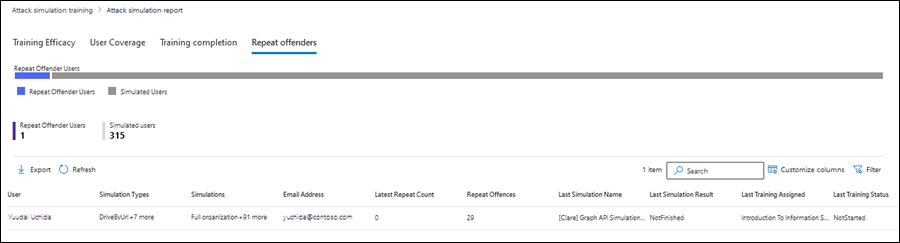
A repeat offender is a user compromised in consecutive simulations. The threshold defaults to 2 and is set on the Settings tab. The count resets when the user passes a simulation. The training threshold (default 90 days) stops the same module being reassigned inside that window; set it to 0 to always assign.
Simulation automations wrap the same wizard with a technique list, a payload pool, a randomised or fixed schedule and launch settings. Each eligible launch creates one run named AutomatedSimulation_... with one technique and one payload. A randomised schedule caps runs at 1 to 10 and launches at most one per day, so the real count is often lower. Users are split across runs or included in every run. Randomised send times spread delivery over 12 hours. Data retention is 18 months for simulation data and tenant content unless deleted earlier.
User report flow
The Outlook Report button is a split button: main action reports phishing, dropdown reports junk or not junk. Each message in a multi-select becomes a separate report.
Three destinations exist for the built-in button: Microsoft and my reporting mailbox, My reporting mailbox only, Microsoft only. A third-party add-in button supports only the first two. GCC, GCC High and DoD get mailbox only. Built-in reports always appear on the User reported tab; with mailbox only the Result shows Not Submitted to Microsoft until an admin submits it.
The reporting mailbox must be an Exchange Online mailbox in the tenant, not a group, not on-premises. Declare it as a SecOps mailbox in the advanced delivery policy so the copy is delivered unfiltered, and exclude it from DLP. Otherwise Safe Links or Safe Attachments can detonate the reported copy, which registers as a click and triggers a training assignment. The default reporting mailbox is the global admin's and only shows in the UI or PowerShell after the first report.
Simulation messages reported through the built-in button count as a Report signal until the simulation ends (MC1166864, November to December 2025). Reports through non-Microsoft tools are not captured. Mail flow rules must not block junk@office365.microsoft.com, abuse@messaging.microsoft.com, phish@office365.microsoft.com and not_junk@office365.microsoft.com.
Priority accounts and user tags
User tags are labels on users or groups. There is one system tag, Priority account, and up to 500 custom tags. Priority account holds up to 250 users; a custom tag holds up to 10,000 users, and a group assignment copies only the first 999 members at creation time. Users added to the group later are not tagged. Tags take up to 8 hours to apply.
Tags are filters in alerts and incidents, Explorer, the email entity page, quarantine (Priority only), submissions, the Compromised users, Submissions, Threat protection status and Top senders and recipients reports, Campaign Views, custom alert policies, and every Attack simulation training target picker.
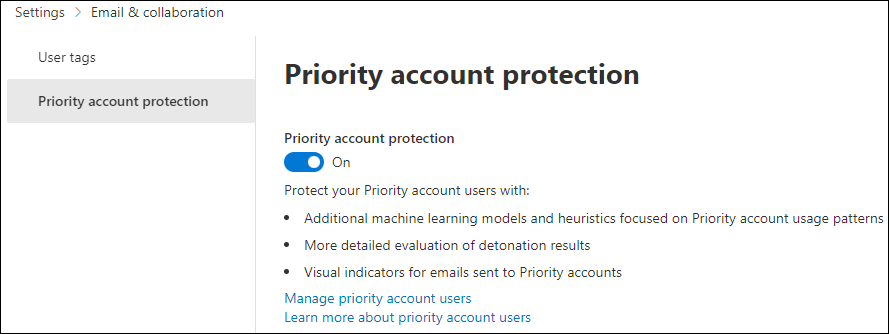
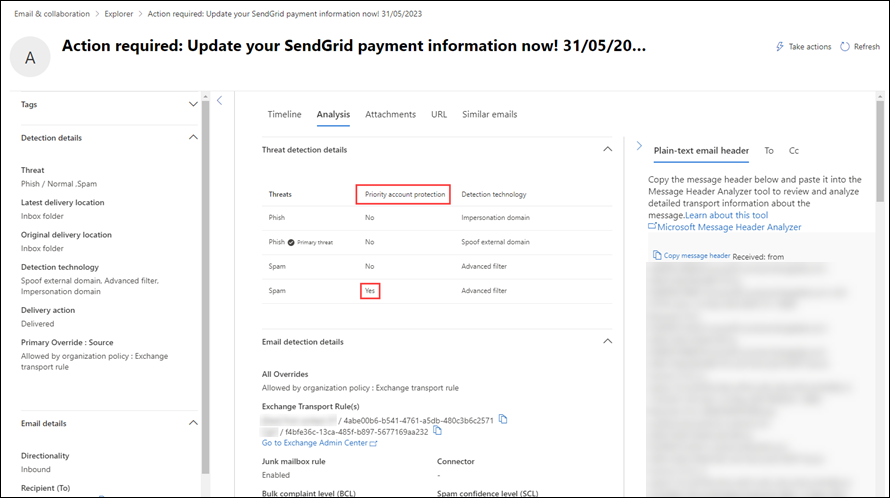
Priority account protection is the Plan 2 extra: heuristics tuned to executive mail flow patterns from Microsoft datacenter data, applied to anyone with the Priority account tag. On by default; Microsoft does not recommend turning it off. It shows in the Threat protection status report (Priority account protection = Yes), Explorer (Context filter) and the email entity page Analysis tab.
Configure
- Portal
- PowerShell
- Graph API
Launch a simulation end to end
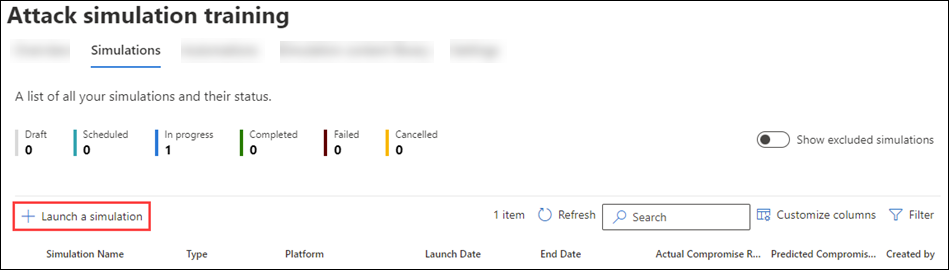
- Defender portal > Email and collaboration > Attack simulation training > Simulations > Launch a simulation.
- Select technique. One per simulation. View details shows what each technique asks of the user.
- Name simulation. Unique name, optional description.
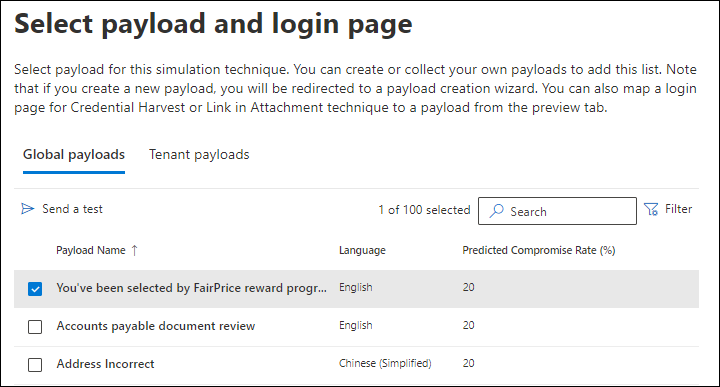
- Select payload and login page. Global or Tenant tab, filter by Complexity, Language, Theme, Brand, Industry. Tick a payload and Send a test. Credential Harvest and Link in Attachment let you change the login page. OAuth Consent Grant asks for app name, logo and scope.
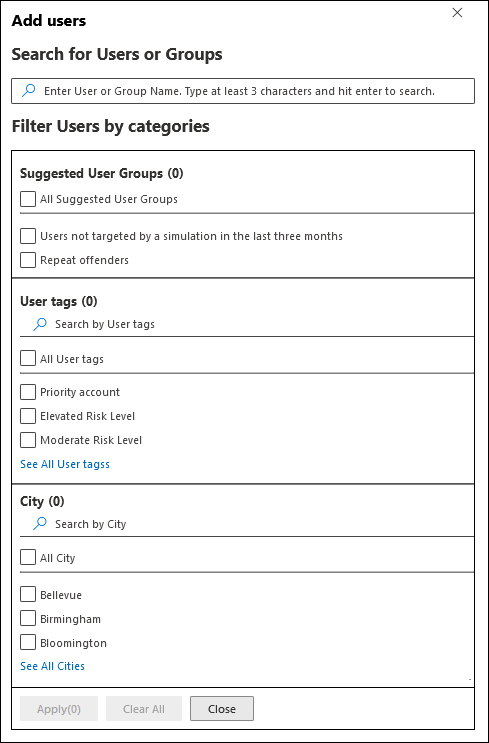
- Target users. All users (only under 40,000 users), or users, groups or a CSV. Filter by Suggested user groups (not targeted in three months, repeat offenders), User tags, City, Country, Department or Title. Categories combine with AND.
- Exclude users. Optional. Skipped for How-to Guide.
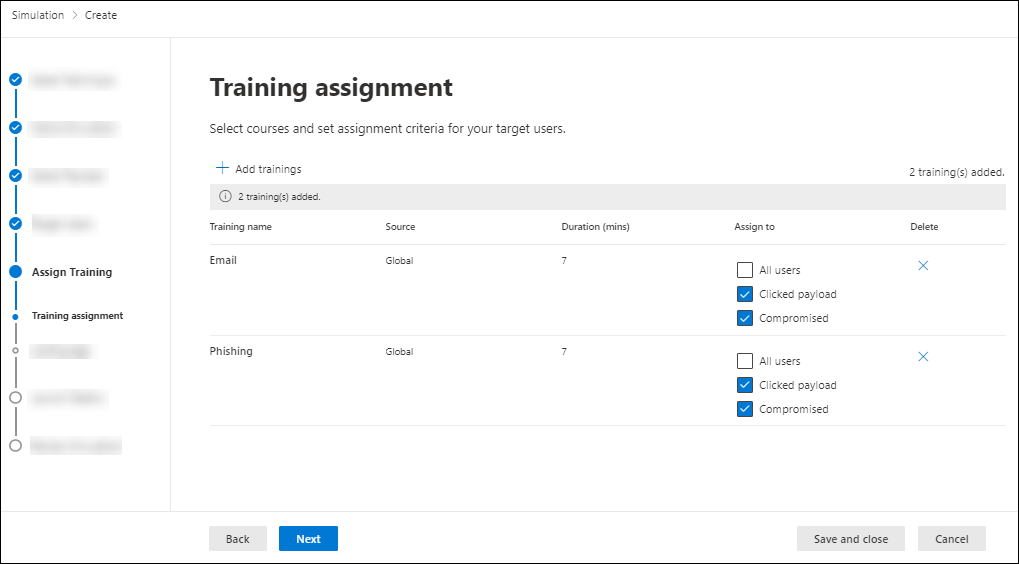
- Assign training. Microsoft training with Assign training for me (recommended) or pick modules yourself, due 7, 15 or 30 days after the simulation ends. Or a custom URL, or No training. Manual selection adds a page where each module is assigned to All users, Clicked payload or Compromised.
- Select landing page. Library page (global with your logo, or tenant) or a custom URL. Add payload indicators to email is the teaching overlay, unavailable for Malware Attachment and Link to Malware.
- End user notifications. Do not deliver, Microsoft default (language, positive reinforcement timing, reminders weekly or twice a week), or Customized.
- Launch details. Now or scheduled. End after 2 to 30 days (default 2). Region aware time zone delivery sends in each user's working hours.
- Review and submit.

Create a custom payload
Content library > Payloads > Tenant payloads > Create a payload. Type Email, technique, name, then Configure payload: From name and address, subject, optional External tag, attachment name and type (Docx or HTML) where needed, phishing URL from Select URL, and the body in Text or Code view. Dynamic tags such as ${firstName}, ${upn} and ${manager} are replaced per recipient. Insert QR code works for Credential Harvest, Drive-by URL, OAuth Consent Grant and How-to Guide. Add indicators marks the red flags shown on the landing page. Review, Send a test, Submit. Size cap 4 MB including embedded images.
Set user reported settings
- Defender portal > Settings > Email and collaboration > User reported settings (
https://security.microsoft.com/securitysettings/userSubmission). - Keep Monitor reported messages in Outlook on. Choose the built-in Report button or a non-Microsoft add-in button.
- Reported message destinations: Microsoft and my reporting mailbox, My reporting mailbox only, or Microsoft only. Enter the Exchange Online mailbox.
- Allow reporting for quarantined items if you want Report in the quarantine release flow.
- Before reporting: Ask the user to confirm shows a popup. Users can opt out in Outlook on the web under Settings > Mail > Junk email.
- After reporting: Show a success message. Title 50 chars, description 300 chars, optional link, up to seven languages.
- Email notifications: the result emails sent by Mark as and notify. Custom body per verdict, shared footer, custom From address instead of
submissions@messaging.microsoft.com, your logo via Microsoft 365 theme customisation. Automatic result emails after AIR are Plan 2 only. - Save. Then Policies and rules > Threat policies > Advanced delivery > SecOps mailbox, add the reporting mailbox.
Create a priority account tag and a custom tag
- Settings > Email and collaboration > User tags (
https://security.microsoft.com/securitysettings/userTags). - Select the Priority account row > Edit > Assign members > Add members or Import a text file of addresses. Submit. Maximum 250. The same list is in the Microsoft 365 admin center under Users > Active users > Manage priority accounts.
- Custom tag: Create > Name (fixed forever) and Description > Assign members > Submit. Deletion is permanent.
- Confirm Settings > Email and collaboration > Priority account protection is on.
Attack simulation training has no PowerShell cmdlets. Custom user tags have none either. Everything below is Exchange Online PowerShell.
# Tested on: TODO
Connect-ExchangeOnline

# --- User reported settings: policy holds the behaviour, rule holds the mailbox ---
Get-ReportSubmissionPolicy
Get-ReportSubmissionRule

# Microsoft and my reporting mailbox (create policy first, then the rule)
$usersub = "reportedmessages@contoso.com"
New-ReportSubmissionPolicy -ReportJunkAddresses $usersub -ReportNotJunkAddresses $usersub -ReportPhishAddresses $usersub -PreSubmitMessageEnabled $false -PostSubmitMessageEnabled $false
New-ReportSubmissionRule -Name DefaultReportSubmissionRule -ReportSubmissionPolicy DefaultReportSubmissionPolicy -SentTo $usersub

# Microsoft only: no rule is created
New-ReportSubmissionPolicy -ReportJunkToCustomizedAddress $false -ReportNotJunkToCustomizedAddress $false -ReportPhishToCustomizedAddress $false -PreSubmitMessageEnabled $false -PostSubmitMessageEnabled $false -EnableUserEmailNotification $true

# Third-party add-in button, mailbox only
$usersub = "thirdpartyreporting@contoso.com"
New-ReportSubmissionPolicy -EnableThirdPartyAddress $true -EnableReportToMicrosoft $false -EnableUserEmailNotification $true -ThirdPartyReportAddresses $usersub -ReportJunkAddresses $usersub -ReportNotJunkAddresses $usersub -ReportPhishAddresses $usersub -PreSubmitMessageEnabled $false -PostSubmitMessageEnabled $false
New-ReportSubmissionRule -Name DefaultReportSubmissionRule -ReportSubmissionPolicy DefaultReportSubmissionPolicy -SentTo $usersub

# Change the mailbox later: update the rule AND the policy addresses, Set-ReportSubmissionRule alone does not touch the policy
Set-ReportSubmissionRule -Identity DefaultReportSubmissionRule -SentTo newaddress@contoso.com
Set-ReportSubmissionPolicy -Identity DefaultReportSubmissionPolicy -ReportJunkAddresses newaddress@contoso.com -ReportNotJunkAddresses newaddress@contoso.com -ReportPhishAddresses newaddress@contoso.com

# Quarantine reporting, pause and resume forwarding
Set-ReportSubmissionPolicy -Identity DefaultReportSubmissionPolicy -DisableQuarantineReportingOption $false
Get-ReportSubmissionRule | Disable-ReportSubmissionRule -Confirm:$false
Get-ReportSubmissionRule | Enable-ReportSubmissionRule -Confirm:$false

# --- Priority account tag (the only tag with PowerShell) ---
Get-User -IsVIP | Select-Object Identity
Set-User -Identity "ceo@contoso.com" -VIP $true -Confirm:$false
Set-User -Identity "ceo@contoso.com" -VIP $false -Confirm:$false

# Priority account protection switch
Get-EmailTenantSettings | Format-List Identity,EnablePriorityAccountProtection
Set-EmailTenantSettings -EnablePriorityAccountProtection $true

# --- Third-party phishing simulation override (not needed for Attack simulation training) ---
New-PhishSimOverridePolicy -Name PhishSimOverridePolicy
New-ExoPhishSimOverrideRule -Policy PhishSimOverridePolicy -Domains vendor-sim.com -SenderIpRanges 192.0.2.10
New-TenantAllowBlockListItems -Allow -ListType Url -ListSubType AdvancedDelivery -Entries *.vendor-sim.com -NoExpiration
Get-PhishSimOverridePolicy
Get-ExoPhishSimOverrideRule | Format-Table Name,Mode
The API lives under /security/attackSimulation in v1.0, Global service only. Reads need AttackSimulation.Read.All. The root exposes simulations, simulationAutomations, trainings, payloads, landingPages, loginPages, endUserNotifications and operations. Simulations also support create, update and delete; the rest are read-only.
GET https://graph.microsoft.com/v1.0/security/attackSimulation/simulations
Supports $count, $filter, $orderby, $skipToken, $top, $select. Filter and order on attackTechnique, attackType, completionDateTime, displayName, isAutomated, launchDateTime, status.
{
  "value": [
    {
      "id": "f1b13829-3829-f1b1-2938-b1f12938b1f1",
      "displayName": "Sample Simulation",
      "attackType": "social",
      "attackTechnique": "credentialHarvesting",
      "status": "scheduled",
      "launchDateTime": "2021-01-01T02:01:01.01Z",
      "completionDateTime": "2021-01-07T01:01:01.01Z",
      "isAutomated": false,
      "automationId": "f1b13829-3829-f1b1-2938-b1f12938b1ab",
      "payloadDeliveryPlatform": "email"
    }
  ]
}
GET https://graph.microsoft.com/v1.0/security/attackSimulation/simulationAutomations
Filter and order on displayName and status only. Returns status, lastRunDateTime, nextRunDateTime per automation.
GET https://graph.microsoft.com/v1.0/security/attackSimulation/trainings
Returns the training catalogue: displayName, source (microsoft), type, availabilityStatus, hasEvaluation, supportedLocales. The Learn example response spells the duration field duratonInMinutes; check the training resource page before relying on the name.
Per-user results come from the Graph reports API, not covered here. User reported settings, user tags and priority account protection have no documented Graph API on the pages used.
Verify
- Simulation: status In progress. Users tab, filter Simulation message delivery for delivered and failed counts. Send a test first and confirm it lands in the Inbox and the link resolves.
- Report signal: report the test with the Outlook button. The Users tab shows Reported, and the message appears on Submissions > User reported.
- User reported settings:
Get-ReportSubmissionPolicyshowsEnableReportToMicrosoftand the addresses;Get-ReportSubmissionRuleshowsSentTo. Confirm the copy in the reporting mailbox arrived unfiltered. - Priority account:
Get-User -IsVIPlists tagged users. Explorer > Context > Priority account protection returns their mail. Email entity page > Analysis shows the Priority account protection line.
- Repeat offenders: Attack simulation training > Reports > Repeat offenders tab. Export to CSV and group by Department if Entra Department is populated.
// Third-party simulation mail that matched the advanced delivery override.
// Attack simulation training mail does not carry this override, so use the simulation reports for it.
EmailEvents
| where Timestamp > ago(7d)
| where OrgLevelPolicy == "PhishSimOverride" or OrgLevelAction has "PhishSim"
| project Timestamp, SenderFromAddress, RecipientEmailAddress, Subject, OrgLevelPolicy, OrgLevelAction
| take 50
TODO: Learn says the phishing simulation override appears as an option within OrgLevelPolicy; confirm the exact string in the dev tenant. The FAQ also says Safe Links does not wrap simulation URLs, so do not expect simulation clicks in UrlClickEvents.
Troubleshoot
| Symptom | Likely cause | Fix |
|---|---|---|
| Simulation mail never arrives, Users tab shows Failed to deliver | Target is a guest, shared mailbox, cross-org user, or no longer active | Target user mailboxes or groups of them; check membership with Get-DistributionGroupMember; read the NDR if you own the sender domain |
| Simulation mail blocked or flagged by a third-party gateway or filter | Non-Microsoft filter not exempting simulation domains | Allow every Attack simulation training URL and domain plus any custom payload domains; there is no static IP list to allow |
| Clicks or compromises seconds after delivery from odd IPs | Security add-in, gateway, AV or SOAR playbook detonating the link | Exclude simulation mail in each tool; compare EmailLinkClicked_IP and timestamp in the export |
| Report button missing in Outlook | Old client, or non-Microsoft add-in button selected in user reported settings | Update the client; the built-in button cannot be scoped to a subset of users, it is all or nothing |
| Report Message add-in stopped working | Client lacks nested app authentication | Update the client or move users to the built-in button; the add-ins are in maintenance mode |
| Reported simulation triggers a training assignment with no user click | Reporting mailbox not a SecOps mailbox, Safe Links or Safe Attachments detonated the copy | Add the reporting mailbox under Advanced delivery > SecOps mailbox and exclude it from DLP |
| Reports empty, training never assigned | Audit logging off, or no active E5 licence in the tenant | Turn auditing on in Purview; confirm licensing |
| Same training not assigned on the second simulation | Training threshold, default 90 days | Lower the threshold on the Settings tab or set 0 |
| Automation created fewer runs than the maximum | Fewer eligible days than the maximum, end date reached, no payload matched the technique and language filters | Check run history; use a Fixed schedule when you need a known count |
| Automation shows Completed but a run is still In progress | Expected; each run ends 30 days after its own creation | Nothing to fix |
| Chrome shows Deceptive site ahead on the landing page | Google Safe Browsing flagged the simulation domain | Test URLs during planning; allow them via Chrome Enterprise policy; Edge is unaffected |
| Priority account tag not visible in filters hours later | Tags take up to 8 hours | Wait; confirm with Get-User -IsVIP |
| Group members added later are not tagged | Tag copies members at assignment time only | Re-edit the tag or assign users directly |
| Mailbox-only reports show Not Submitted to Microsoft | By design for My reporting mailbox only | Submit from the User reported tab if you want a Microsoft verdict |
Gotchas and limits
- Attack simulation training does not need an advanced delivery entry. The third-party phishing simulation section of that policy is for vendors such as KnowBe4 or Hoxhunt. What AST does need from advanced delivery is the SecOps mailbox entry for your reporting mailbox, and for any non-Microsoft filtering layer, an allow for the simulation domains.
- Third-party override needs at least one domain (MAIL FROM or DKIM d=) and one sending IP (IPv4 in portal, IPv6 in PowerShell). Up to 50 domains, 10 IPs, 30 URLs. Domains and IPs are not paired. The URL list is only for non-email simulations such as Teams. Do not also add simulation URLs to the Safe Links Do not rewrite list; it causes URL-click alerts.
- Third-party override does not apply to direct injection or intra-org
DIR:INTrouting through hybrid Exchange. Enhanced Filtering for Connectors is needed when the MX is not Microsoft 365. Do not add on-prem IPs to work around in-and-out routing; that opens spam bypass for spoofers. - Licensing is per user. The FAQ says activity details stay empty when no active user holds E5. Learn does not describe a per-target licence check. TODO: confirm behaviour for mixed Plan 1 and Plan 2 tenants.
- Capture stops at the simulation end date (2 to 30 days), so late clicks are lost. The automation end date only stops new runs.
- Target limits: All users only under 40,000; 40,000 for CSV or individual picks; 400,000 through groups, 200,000 recommended. Groups expand at save time, not send time.
- Test sends show a static QR code; the tracked one only exists in a real simulation.
- Cancelling an In progress simulation deactivates links, but delivery to remaining targets continues and positive reinforcement still sends on report.
- Reported email telemetry is missing in NOR, ZAF, ARE and DEU regions. GCC High and DoD lack payload automation, recommended payloads and predicted compromise rate. The Graph API is Global service only.
- Brand use in payloads needs the landing page disclaimer Learn supplies. Government seals carry criminal risk. Not legal advice.
- Built-in Report button cannot be scoped to some users. You can remove the add-in and keep the button, not the reverse. Microsoft only destination is unavailable for add-in buttons and in US Government clouds.
- Priority account tag: 250 users, no rename, no delete. Custom tags: name fixed, description editable, deletion permanent. Quarantine filtering supports only the Priority tag. Priority account protection has no per-user switch.
- The Email issues for priority accounts report needs 5,000 qualifying licences and 50 monthly active users. Learn documents no standalone Priority accounts report in the Defender portal, only report filters. TODO: check the dev tenant.
Further reading
- Microsoft Ignite 2025: Transforming Phishing Response with Agentic Innovation, Jeffrey Pinkston, Microsoft Defender for Office 365 Blog, November 2025. Explains the agentic grading of user-reported and admin-submitted phish that now sits behind the User reported tab, which Learn only names in passing.
- Microsoft Defender for Office 365: Refinement to user activity tracking in Attack Simulation and Training (MC1166864), itelio message center mirror, October 2025. The change notice behind the rule that reported simulations count as a Report signal until the simulation closes and training completions count until the due date.
Only two qualified in the window. The better practitioner walkthroughs (Practical 365, Anoop C Nair on the Report button) predate it.
My notes
TODO: Sohail's notes after verification.
Changelog
| Date | Change | Source |
|---|---|---|
| 2026-10-22 | Drafted from Learn, with Learn images and diagrams | [1] |