Threat Explorer, quarantine, submissions and AIR
What it is
This is the part of Defender for Office 365 you use after the policies have done their job. The overview, anti-phishing and presets and Safe Links and Safe Attachments articles cover what blocks mail. This one covers what you do with the mail that got through, the mail that was held, and the mail a user complained about.
Four tools, one loop. Threat Explorer (Plan 2) or Real-time detections (Plan 1) is where you search and act. Quarantine is where held mail sits. Submissions is how you tell Microsoft a verdict was wrong and, as a side effect, create allow or block entries. AIR (Plan 2) runs playbooks from alerts or a manual trigger and queues remediation for approval. Underneath, the Email* tables in Advanced Hunting hold the same data for KQL, 30 days deep.
Message trace in the Exchange admin center is a mail flow tool, not a security tool. It says whether a message arrived, deferred, failed or was quarantined, goes back 90 days, and needs no Defender licence. Explorer says why a verdict was reached and lets you remediate. Use both.
Licensing and prerequisites
| Capability | Plan 1 | Plan 2 |
|---|---|---|
| Real-time detections (Malware, Phish, Content malware views) | Yes | Replaced by Explorer |
| Threat Explorer (All email, Campaigns, URL clicks added, saved queries, Go hunt) | No | Yes |
| Email entity page | Yes | Yes |
| Take action: submit, Tenant Allow/Block List entries | Yes | Yes |
| Take action: move or delete, release from quarantine, initiate investigation, propose remediation | No | Yes |
| Campaigns page and Threat trackers | No | Yes |
| AIR, Action center pending actions | No | Yes |
| Quarantine for email (EOP) | Everyone with cloud mailboxes | Everyone |
| Quarantine for SharePoint, OneDrive, Teams files and Teams messages | Yes | Yes |
| Submissions page | EOP has it; Teams submissions need Plan 2 | Yes |
Explorer and Real-time detections only hold data for users with a Defender for Office 365 licence assigned. Unlicensed mailboxes are invisible there even if the mail flowed through EOP.
Permissions, unified RBAC with Email and collaboration permissions set to Active:
- Read Explorer and headers: Security operations/Raw data (email and collaboration)/Email and collaboration metadata (read).
- Preview and download: Security operations/Raw data (email and collaboration)/Email and collaboration content (read).
- Move, delete, start and approve AIR: Security operations/Security data/Email and collaboration advanced actions (manage). In legacy role groups this is Search and Purge, held by Data Investigator and Organization Management by default.
- Quarantine for all users: Security operations/Security data/Email and collaboration quarantine (manage), or Quarantine Administrator.
- Submissions: Security operations/Security data/Response (manage), or Security Administrator.
Unified RBAC only applies to the portal; PowerShell still uses Exchange Online roles. PIM assignments are not supported for quarantine. AIR needs audit logging on, which it is by default.
How it works
Explorer and Real-time detections
Both read the same detection pipeline. Real-time detections shows malicious detections at delivery time only. Explorer adds the All email view (clean mail too), post-delivery activity (ZAP, admin remediation, Dynamic Delivery are consolidated into one record per message), Campaigns, URL clicks, more filters, saved queries, and Go hunt into Advanced Hunting. The date picker defaults to yesterday and today and goes back a maximum of 30 days. Export of the details table is capped at 200,000 rows and the top targeted users export at 3,000.
Views: All email, Malware, Phish, Campaigns, Content malware (files scanned by Safe Attachments for SharePoint, OneDrive and Teams), URL clicks (Safe Links clicks). Filters worth knowing: Delivery action, Original and Latest delivery location, Primary override source (transport rule, Tenant Allow/Block List, user safe sender, quarantine release, phishing simulation), Detection technology, URL source (QR Code is one value), Click verdict, SPF, DKIM, DMARC, Composite. Alert ID is a filter too, which is how View messages in Explorer on an MDO alert works.
Threat trackers at https://security.microsoft.com/threattrackerv2 hold your saved Explorer queries, Tracked queries (run periodically, today versus prior day) and Microsoft-populated Trending campaigns. The Campaigns page groups mail by sender infrastructure, content, recipients and payload under a Campaign ID, draws a Sankey flow from sender IP through filter verdict to destination and click, and has an Explore messages button that opens Explorer filtered on that ID.
Email entity page
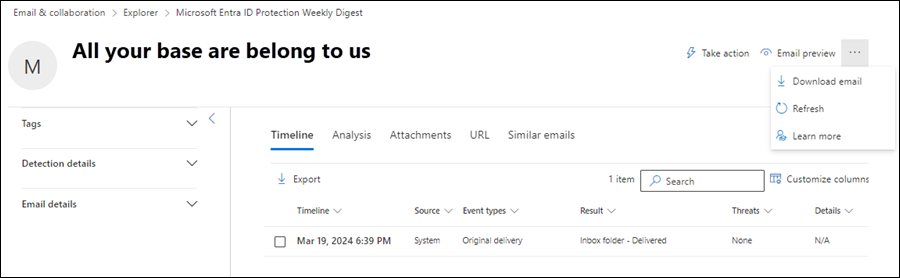
No menu entry. You get to it from Open email entity in the summary panel, which appears in Explorer, alerts, incidents, quarantine, submissions and Advanced Hunting (click a NetworkMessageId). Left pane: tags, detection details, Internet and Network Message IDs, Cluster ID. Tabs: Timeline (original delivery plus every ZAP, release or admin action), Analysis (threat classification, override chain, transport rules by name and GUID, BCL, SPF, DKIM, DMARC with BestGuessPass, composite authentication, domain creation date, forwarding), Attachments and URL (detonation chain, screenshots, a Block button into the Take action wizard), Similar emails (same body fingerprint).
Latest delivery location reflects system and admin moves only; a user deleting or archiving does not update it. Preview and download need the Preview role and only work while the message exists in a cloud mailbox or quarantine. Every preview and download is audited as AdminMailAccess and lands in CloudAppEvents.
Take action wizard
One wizard from Explorer, Real-time detections and the entity page. 1 to 100 messages allows multiple actions; 101 to 200,000 allows only Move or delete or Propose remediation in Explorer, and only Submit to Microsoft in Real-time detections.
- Move or delete (Plan 2): Junk, Inbox (releases a quarantined message to all or selected original recipients), Deleted items, Soft deleted items (Recoverable Items\Deletions, user can restore), Hard deleted items (purged). Delete sender's copy also soft-deletes an internal sender's Sent Items copy.
- Submit to Microsoft: confirmed clean (optional Allow messages like this, default 1 day), appears clean or suspicious (asks for a verdict), confirmed threat (Phish, Malware, Spam) with a pick list of sender, domain, URL and attachment entities to block.
- Initiate automated investigation (Plan 2): email, recipient, in-org sender, or Contact recipients.
- Propose remediation (Plan 2): a soft delete that someone with Search and Purge must approve in the Action center. The two-step path for analysts without delete rights.
Quarantine
Quarantine cannot be turned off. Malware, Safe Attachments detections and high confidence phishing are always quarantined. Spam, bulk, phishing, spoof and impersonation verdicts go to junk or quarantine depending on policy. Retention by reason:
| Quarantine reason | Days | Changeable |
|---|---|---|
| Anti-spam verdicts, default and custom policies | 15 | Yes, 1 to 30 via QuarantineRetentionPeriod |
| Anti-spam verdicts, Standard and Strict presets | 30 | No |
| Anti-phishing spoof and impersonation | 15 or 30 | Follows the matching anti-spam policy |
| Anti-malware, Safe Attachments, mail flow rule quarantine, encrypted attachments | 30 | No |
| Safe Attachments for SharePoint, OneDrive, Teams files | 30 | No, file stays blocked in place afterwards |
| ZAP for Teams | 30 | No |
Expired messages are gone. There is no recovery.
Quarantine policies decide what a recipient can do. Built-in: AdminOnlyAccessPolicy (no access, no notifications), DefaultFullAccessPolicy (release, delete, preview, allow sender, no notifications), DefaultFullAccessWithNotificationPolicy (same plus notifications), and NotificationEnabledPolicy in tenants that predate mid-2021. Limited access swaps Release for Request release. Release is never honoured for malware, Safe Attachments detections or high confidence phishing: the most a user can do is request release, and the default alert policy User requested to release a quarantined message mails Organization Management when they do. Notifications run every 4 hours, daily or weekly from quarantine@messaging.microsoft.com unless you set a custom sender.
Admin release re-delivers the message. You cannot release to the same recipient twice. Bulk actions in the portal cap at 100 items.
Submissions
Admin submissions take a Network Message ID or an uploaded .eml or .msg, a recipient (used to replay the policy that applied to that mailbox), and a reason. Email can be submitted up to 30 days back if it still exists in the mailbox; on-premises mailboxes only 7 days. URLs go in 50 at a time. Analysis covers authentication, policy hits, payload reputation and detonation, then a grader. Policy results come back in minutes; grader results can take a day. Results you will see: Should have been blocked, Should not have been blocked, Allowed due to user overrides, Allowed due to a rule, Threats found, No threats found, Spam, Bulk, Phish simulation. You can dispute a completed verdict once, or resubmit as often as you like.
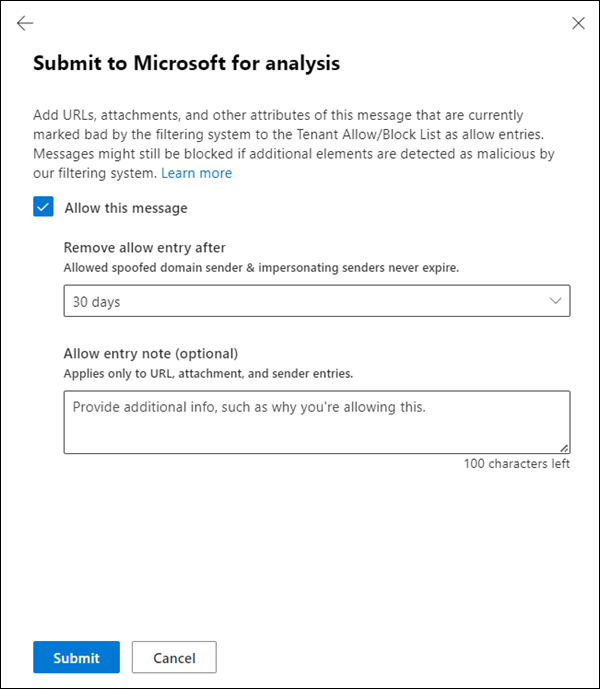
The allow mechanics matter. An allow entry is only created for entities the filter actually judged malicious. Default expiry is 45 days after last used, and the clock resets each time the entity is seen clean. Seven or more allowed addresses in one domain roll up into a domain allow. An allow skips the filter that blocked it, not the whole stack, so authentication failures still win. Impersonation false positives belong in the anti-phishing policy's trusted senders, not in the Tenant Allow/Block List. Throttle: 150 submissions per 15 minutes, the same item at most 3 times in 24 hours.
User reports come from the built-in Outlook Report button. Report junk moves the message to Junk and blocks the sender for that user. Report phishing deletes it. Not junk moves it back to Inbox. Reports route to Microsoft, a reporting mailbox, or both; reporting-mailbox-only reports show Not submitted to Microsoft on the User reported tab until an admin converts them. Admin actions there: Submit to Microsoft, Mark as and notify (No threats found, Phishing or Spam, with a localised email back to the user), Trigger investigation (Plan 2).
AIR
Triggers: alert policies with Automated investigation set to Yes (user reported phish, ZAP, URL click, suspicious mailbox behaviour, suspicious sending), or a manual Initiate automated investigation from Explorer, Advanced Hunting, a custom detection or the entity page. The email playbook assesses threat type, sender, sending infrastructure, whether other copies were delivered, the cluster of similar messages and any campaign link. It recommends soft delete for malicious messages and clusters (a cluster is judged as a whole once more than a handful of messages are malicious), block URL at time of click, remove forwarding rules, remove delegations. For user clicks, sending anomalies, DLP and volume anomalies it records the finding and recommends nothing.
The compromised user side is thinner. Learn describes anomaly detection on sending and collaboration behaviour that raises an alert, sometimes restricts the user from sending, and may run an investigation. It does not publish the signal list. The user is unblocked from Email and collaboration > Review > Restricted users.
Status values: Starting, Running, Queued by Throttling, Pending Action, Partially Investigated (used to be Threats found), Partially Remediated, Remediated, No Threats Found, Terminated By System (pending actions expired after one week), Terminated By Throttling, Failed. Pending actions are approved from the investigation, the incident's Evidence and response tab, or the Action center Pending tab. Click the name, not the checkbox. Malicious similarity clusters, including URL and file clusters, are auto-approved. Investigation history is kept for 72 days. Undo is a Take action from Explorer, the entity page or the Action center History tab.
Configure
- Portal
- PowerShell
- Graph API
Explorer walkthrough, Plan 2:
- Email and collaboration > Explorer, or
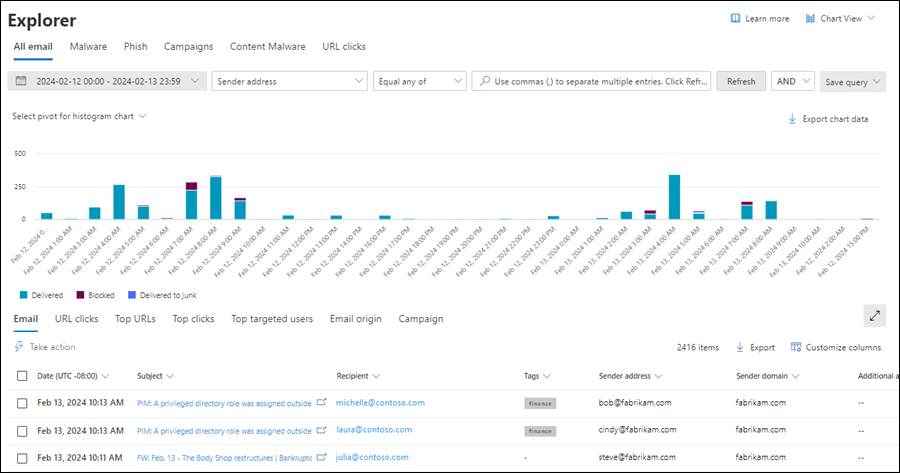
https://security.microsoft.com/threatexplorerv3. Plan 1 tenants get Real-time detections athttps://security.microsoft.com/realtimereportsv3instead. - Pick the view (All email is the default), set the date range (max 30 days back), add filters, select Refresh. Filters are not applied until you refresh.
- In the Email tab select rows with the checkbox for Take action, or select the Subject value for the summary panel and Open email entity.
- Take action, step 1: pick the response. Show all response actions is off by default and hides actions that do not fit the message's latest delivery location. Step 2: name the remediation and review the impacted assets. Step 3: Submit. Export on step 3 gives you
Impacted assets.csv.

- Open email entity for the full page. The Timeline tab is the first thing to read when a user says a message vanished: it shows ZAP, release and admin actions in order.
Admin submission:
- Actions and submissions > Submissions > Emails tab > Submit to Microsoft for analysis, or
https://security.microsoft.com/reportsubmission. - Paste the Network Message ID from the
X-MS-Exchange-Organization-Network-Message-Idheader (orX-MS-Office365-Filtering-Correlation-Idfor a quarantined message), or upload the.eml. Add at least one affected recipient. - Pick the reason. For a confirmed false positive choose I've confirmed it's clean and, on the second page, decide whether to create an allow entry and for how long.

Quarantine release:
- Email and collaboration > Review > Quarantine > Email tab, or
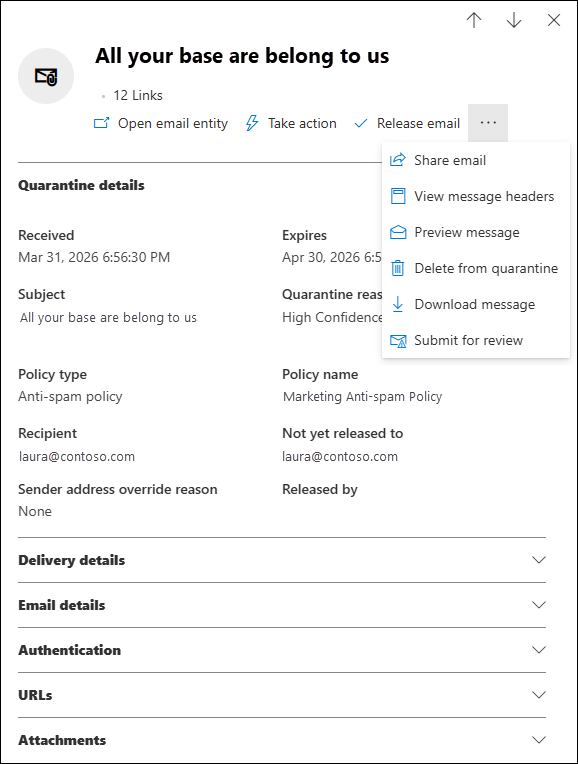
https://security.microsoft.com/quarantine. Filter, do not search: the search box only covers the 100 rows already loaded. - Select the message to open the details flyout. Release opens a flyout with Send a copy to other recipients, Submit to Microsoft (false positive) and Allow this message. For a Release requested status, Release approves and Deny rejects for all recipients.
- Preview before release if you are not sure. Preview renders the HTML with links disabled. Download needs a reason and a password and produces
Quarantined Messages.zip.
Quarantine policy assignment lives inside each threat policy: anti-spam Actions page per verdict, anti-phishing Actions page, anti-malware Protection settings, Safe Attachments Settings (two boxes, one for detections and one for encrypted attachments). Global notification settings (sender, logo, languages, disclaimer) are under Quarantine policies > Global settings. Changes only affect mail quarantined after the change.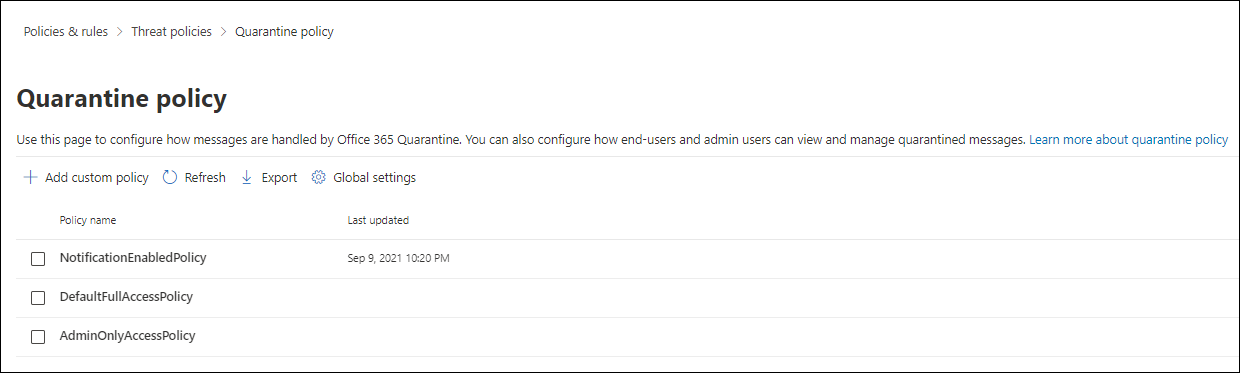
AIR pending actions: Actions and submissions > Action center > Pending tab, open the investigation ID, Pending actions tab, select the row by name, Approve or Reject. Same decision from Email and collaboration > Investigations with Status filtered to Pending action, or from the incident's Evidence and response tab filtered to Pending approval.
# Tested on: TODO
# Exchange Online PowerShell V3. Quarantine cmdlets honour the admin's permissions,
# so PermissionToRelease=True in output does not mean the end user can release.
Connect-ExchangeOnline

# Quarantine: what is held for a user in the last 7 days
Get-QuarantineMessage -RecipientAddress user@contoso.com `
  -StartReceivedDate (Get-Date).AddDays(-7) -EndReceivedDate (Get-Date) |
  Format-Table ReceivedTime, SenderAddress, Subject, Type, QuarantineTypes, Expires, ReleaseStatus

# Release one message to all original recipients and report the false positive
Release-QuarantineMessage -Identity '<Identity>' -ReleaseToAll -ReportFalsePositive

# Release a batch by subject. Dry run first: remove -WhatIf when happy.
Get-QuarantineMessage -Subject 'Invoice overdue' -Type Spam |
  Release-QuarantineMessage -ReleaseToAll -WhatIf

# Look before you release
Preview-QuarantineMessage -Identity '<Identity>'
Get-QuarantineMessageHeader -Identity '<Identity>'
Export-QuarantineMessage -Identity '<Identity>'

# Which quarantine policy does each verdict use
Get-HostedContentFilterPolicy | Format-List Name, *QuarantineTag
Get-AntiPhishPolicy | Format-List Name, *QuarantineTag
Get-MalwareFilterPolicy | Format-Table Name, QuarantineTag
Get-SafeAttachmentPolicy | Format-List Name, QuarantineTag

# What end users can actually do under a policy (bit mask, Limited access = 43)
Get-QuarantinePolicy | Format-Table Name, EndUserQuarantinePermissionsValue, ESNEnabled

# Custom policy: request release, delete, preview, allow sender, with notifications
New-QuarantinePolicy -Name 'LimitedAccessWithESN' -EndUserQuarantinePermissionsValue 43 -EsnEnabled $true

# Message trace. Get-MessageTrace / Get-MessageTraceDetail are being replaced by V2
# (module 3.7.0 or later). Both cover 10 days only; older needs Start-HistoricalSearch.
Get-MessageTraceV2 -RecipientAddress user@contoso.com `
  -StartDate (Get-Date).AddDays(-3) -EndDate (Get-Date) -ResultSize 500 |
  Format-Table Received, SenderAddress, Subject, Status, MessageTraceId

Get-MessageTraceV2 -MessageTraceId '<guid>' -RecipientAddress user@contoso.com `
  -StartDate (Get-Date).AddDays(-3) -EndDate (Get-Date) | Get-MessageTraceDetailV2

# Legacy form, still works today
Get-MessageTrace -SenderAddress john@contoso.com -StartDate 10/20/2026 -EndDate 10/22/2026 |
  Get-MessageTraceDetail
Submissions: Learn does not document a New-ReportSubmission cmdlet. The only ReportSubmission cmdlets that exist are Get/Set/New-ReportSubmissionPolicy and New-ReportSubmissionRule, which configure user reported settings (the reporting mailbox and the Report button), not submissions themselves. Admin submissions are portal or Graph only. TODO: re-check the ExchangePowerShell module reference; the cmdlet page could not be fetched at source check time.
Advanced Hunting through Graph, same tables as the portal. Permission ThreatHunting.Read.All, delegated or application. Default lookback is 30 days; Timespan is an ISO 8601 interval and the shorter of the query filter and the timespan wins.
POST https://graph.microsoft.com/v1.0/security/runHuntingQuery
Content-Type: application/json
{
  "Query": "EmailEvents | where Timestamp > ago(1d) | where ThreatTypes has 'Phish' and DeliveryLocation == 'Inbox/Folder' | project Timestamp, NetworkMessageId, SenderFromAddress, RecipientEmailAddress, Subject, DetectionMethods | take 200",
  "Timespan": "P1D"
}
The response carries a schema array and a results array. Add | take N yourself; the API does not document a row cap. Use Content-Type: application/json; charset=utf-8 if subjects contain lookalike characters.
Defender for Office 365 alerts through the unified alerts API. Permission SecurityAlert.Read.All; the signed-in user also needs Security Reader or higher.
GET https://graph.microsoft.com/v1.0/security/alerts_v2?$filter=serviceSource eq 'microsoftDefenderForOffice365'&$top=100
serviceSource is a documented filter property. detectionSource is not, so filter on the service and inspect detectionSource in the result. Each alert carries alertWebUrl, incidentId, evidence and mitreTechniques. The incident side is covered in incidents and alerts.
There is no Graph endpoint for quarantine release or admin submissions as of source check. TODO: confirm against the Graph changelog.
Verify
Tables: EmailEvents (one row per recipient per message, 53 columns, LatestDeliveryLocation and LatestDeliveryAction not in the Streaming API), EmailPostDeliveryEvents (ZAP and manual remediation, ActionType is Manual remediation, Phish ZAP or Malware ZAP), EmailUrlInfo (URLs per message, UrlLocation == "QRCode" for QR extraction), EmailAttachmentInfo (files per message), UrlClickEvents (Safe Links clicks, IsClickedThrough for Continue anyway). All are empty without a Defender for Office 365 licence. Join on NetworkMessageId, except clicks from Drafts and Sent Items which have no usable ID.
Phish that landed in the Inbox and is still there:
EmailEvents
| where Timestamp > ago(7d)
| where ThreatTypes has "Phish"
| where DeliveryLocation == "Inbox/Folder"
| where isempty(LatestDeliveryLocation) or LatestDeliveryLocation == "Inbox/Folder"
| project Timestamp, NetworkMessageId, SenderFromAddress, SenderMailFromDomain, RecipientEmailAddress, Subject, DetectionMethods, ConfidenceLevel, OrgLevelAction, UserLevelAction
| order by Timestamp desc
What ZAP and admins did after delivery:
EmailPostDeliveryEvents
| where Timestamp > ago(7d)
| summarize Count = count(), Recipients = dcount(RecipientEmailAddress) by ActionType, Action, ActionResult, DeliveryLocation
| order by Count desc
Top senders failing authentication that still got delivered:
EmailEvents
| where Timestamp > ago(7d)
| where EmailDirection == "Inbound"
| extend Auth = parse_json(AuthenticationDetails)
| extend SPF = tostring(Auth.SPF), DKIM = tostring(Auth.DKIM), DMARC = tostring(Auth.DMARC), CompAuth = tostring(Auth.CompAuth)
| where DMARC == "fail" or CompAuth == "fail"
| where DeliveryAction == "Delivered"
| summarize Messages = count(), Recipients = dcount(RecipientEmailAddress) by SenderFromDomain, SenderMailFromDomain, SPF, DKIM, DMARC, CompAuth
| top 20 by Messages
Clicks on URLs that Safe Links blocked, including click-through:
UrlClickEvents
| where Timestamp > ago(7d)
| where ActionType != "ClickAllowed" or IsClickedThrough == true
| join kind=leftouter (EmailEvents | project NetworkMessageId, SenderFromAddress, Subject) on NetworkMessageId
| project Timestamp, AccountUpn, Url, ActionType, IsClickedThrough, ThreatTypes, Workload, SenderFromAddress, Subject
| order by Timestamp desc
Mail from domains that have never written to the recipient before (first contact as a proxy for new domains; EmailEvents has no domain age column, that lives on the entity page):
EmailEvents
| where Timestamp > ago(1d)
| where EmailDirection == "Inbound" and IsFirstContact == 1
| where DeliveryAction == "Delivered"
| summarize Messages = count(), Recipients = dcount(RecipientEmailAddress), Urls = sum(UrlCount), Attachments = sum(AttachmentCount) by SenderFromDomain
| where Recipients >= 5
| order by Recipients desc
Bulk mail by BCL, to tune the bulk threshold in the anti-spam policy:
EmailEvents
| where Timestamp > ago(7d)
| where EmailDirection == "Inbound" and BulkComplaintLevel > 0
| summarize Messages = count(), Delivered = countif(DeliveryAction == "Delivered"), Junked = countif(DeliveryAction == "Junked") by BulkComplaintLevel
| order by BulkComplaintLevel asc
Portal checks: a remediation you submitted shows in the Action center History tab and as a new row on the entity page Timeline. A released quarantine message shows Released by on the quarantine row and a Quarantine Release row on the Timeline. A submission shows Pending then Completed on the Submissions page, with the result in the flyout. An AIR investigation shows on https://security.microsoft.com/airinvestigation with the status list above.
Troubleshoot
| Symptom | Likely cause | Fix |
|---|---|---|
| Message is in the mailbox but not in Explorer | Recipient has no Defender for Office 365 licence, or the message is older than 30 days | Assign the licence; use message trace (90 days) or Start-HistoricalSearch for older mail |
| Action taken in Explorer, Timeline still shows nothing | Actions take time to appear on related pages | Wait; the remediation itself is not delayed. Check Action center History |
| User cannot release a quarantined message | Verdict is malware, Safe Attachments or high confidence phishing (release is never honoured), or the policy is AdminOnlyAccessPolicy or Limited access | Admin releases it, or the user requests release. Check Get-QuarantinePolicy, not Get-QuarantineMessage |
| User never gets quarantine notifications | Policy has notifications off (DefaultFullAccessPolicy), or notifications exclude blocked sender and bulk | Assign DefaultFullAccessWithNotificationPolicy or a custom policy with ESN on |
| Submission result says Allowed due to a rule or Allowed due to user overrides | A transport rule, Tenant Allow/Block List entry, or the user's safe sender list bypassed the filter; Microsoft's verdict is irrelevant until that is removed | Find the override on the entity page under Primary override source and remove it. Do not resubmit |
| Submitted as clean, no allow entry created | Filters never judged that entity malicious, so there is nothing to allow | Normal. Check which entity actually triggered the block |
| Allow entry exists, mail still blocked | Allow only skips the matching filter; authentication failure or another entity still wins | Fix SPF, DKIM, DMARC at the sender, or submit the other entity |
| Impersonation false positive keeps coming back | Allow entries do not cover impersonation | Add the sender to trusted senders and domains in the anti-phishing policy |
| AIR stuck at Pending Action | Nobody approved; actions time out after one week and the investigation ends Terminated By System | Approve or reject from the Action center Pending tab. Rerun from Explorer if it expired |
| AIR Queued by Throttling or Terminated By Throttling | Too many open investigations with pending actions | Clear the pending backlog, then start the investigation manually from Explorer |
| Investigation name no longer shows the subject | Microsoft replaced subject and user identifiers with generic labels from mid 2026 | Open the investigation and read the Entities tab |
| Release succeeded, user does not have the message | Third-party AV, an outbound connector, or an inbox rule moved or re-quarantined it | Message trace on the release time, then Timeline on the entity page |
| Cannot preview a message from Explorer | Message was dropped, failed, soft or hard deleted, or ZAP moved it to quarantine | Preview from the Quarantine page if it is there |
| Submissions page says too many submissions | 150 per 15 minutes, same item 3 times in 24 hours | Wait, or dispute instead of resubmitting |
Gotchas and limits
- Explorer and Advanced Hunting both stop at 30 days. AIR investigation history lasts 72 days. Message trace goes to 90 days but only 10 days at a time for on-screen results; anything older is a CSV job that can take hours and skips the most recent 24 hours.
- Hard delete from the Take action wizard is a purge. Learn says admins can still use single item recovery, but the user cannot. Soft delete goes to Recoverable Items\Deletions and the user can get it back. Use soft delete unless you have a reason.
- Delete from Quarantine is permanent, and so is expiry. Download before the Expires date if you need a copy for a case.
- Release to all recipients re-delivers to everyone, including people who deleted it on purpose. The wizard lets you pick recipients through Move to Inbox; bulk quarantine release does not.
- Released messages carry the release time in Outlook. Users will say it "arrived late". The original date is in the headers.
- Submission window is 30 days and the message must still exist in the mailbox. Purged mail cannot be submitted by ID; upload the
.emlif you have one. - Allow expiry defaults differ: 1 day from the Take action wizard, 45 days after last used from the Submissions page or a quarantine release.
- The Search and Purge role gates move and delete. Security Administrator alone does not have it. Use Propose remediation and let someone with the role approve.
- Unified RBAC only governs the portal. Exchange Online PowerShell still answers to Exchange roles.
- Quarantine policy changes are not retroactive. Mail already in quarantine keeps the policy it came in under.
Get-QuarantineMessagereports what the admin running it could do, not what the user can.Get-QuarantinePolicyis the truth.- Teams message quarantine uses AdminOnlyAccess for everyone today, so users cannot see or release quarantined Teams messages.
- GCC, GCC High and DoD: submissions get authentication and policy checks only, Explorer action logs are at
/threatincidentsrather than the Action center, and Delete sender's copy is not available. - AIR data retention: Plan 2 data expires 7 days after a trial ends and 30 days after a paid licence lapses.
Further reading
- Microsoft Defender for Office 365: AIR Investigation Experience Improvements, João Ferreira, M365 Admin, July 2026. Explains the MC1431377 change that removed auto-refresh from the Investigations page and replaced subject-based investigation names with generic labels, which breaks SOC runbooks that search by subject.
- Microsoft Ignite 2025: Transforming Phishing Response with Agentic Innovation, Microsoft Defender for Office 365 Blog, November 2025. The announcement behind agentic grading of submissions and agent-driven triage of user reports; read it to understand why Plan 2 submission results now come back faster.
- Microsoft Defender for Office 365: Fine-Tuning, Microsoft Defender for Office 365 Blog, November 2025. Incident response view of why most BEC cases trace back to configuration and overrides rather than exotic threats, which is the same lesson the Allowed due to a rule submission result teaches.
- MC1171845: Enhancing the quarantine experience for administrators, Merill Fernando's Message Center archive, October 2025. Tracks the quarantine admin UI changes as they rolled out, with the version history Learn does not keep.
Four qualified in the October 2025 to October 2026 window. The Tech Community posts could only be checked by metadata date at source check time; confirm the publish month when you read them.
My notes
TODO: Sohail's notes after verification.
Changelog
| Date | Change | Source |
|---|---|---|
| 2026-10-22 | Drafted from Learn, with Learn images and diagrams | [1] |