Overview: EOP, Plan 1, Plan 2 and what each adds
What it is
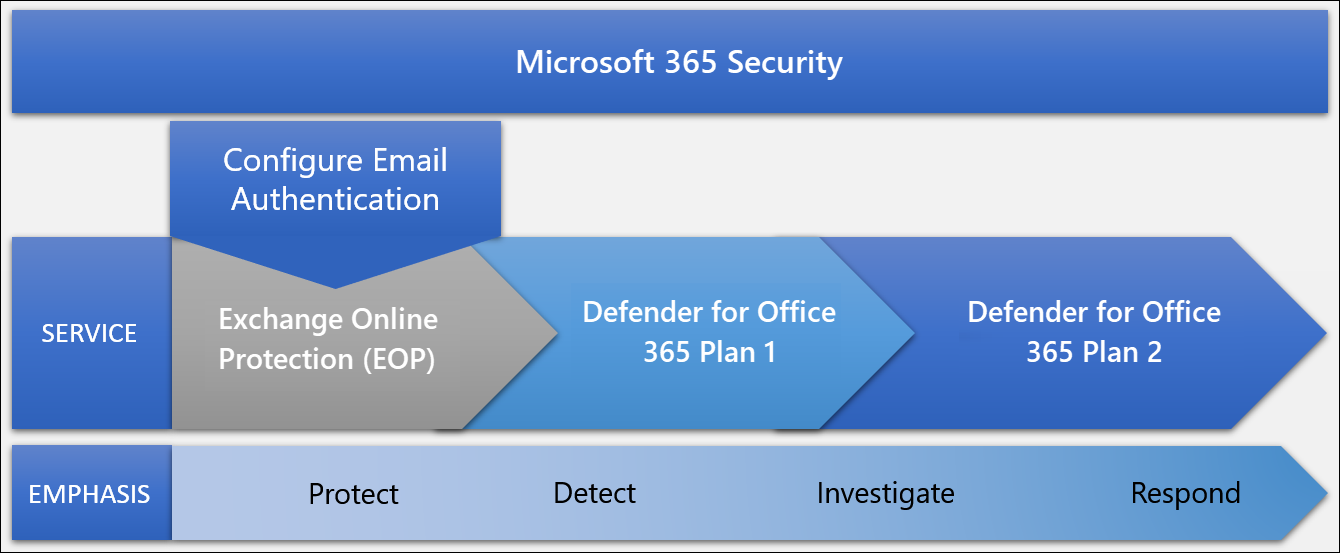
Email protection in Microsoft 365 is three layers. Learn calls it a protection ladder. The bottom rung is Exchange Online Protection, which Learn now labels "built-in security features for all cloud mailboxes". Every tenant with a cloud mailbox has it and cannot turn it off: connection filtering, anti-malware, anti-spam including bulk, spoof intelligence, outbound spam, quarantine and quarantine policies, the Tenant Allow/Block List, submissions, message trace and zero-hour auto purge for email. Its job is volume: known, broad attacks.
Defender for Office 365 Plan 1 is the zero-day and targeted layer. Safe Attachments detonates files for email and for SharePoint, OneDrive and Teams. Safe Links checks URLs at click time in email, Office clients and Teams. Anti-phishing gains user and domain impersonation, mailbox intelligence impersonation protection and the phishing email threshold. You also get Real-time detections, the email entity page, URL trace, user tags including Priority account, Email and collaboration alerts, Teams messages in quarantine and ZAP for Teams.
Plan 2 is the post-breach layer. It swaps Real-time detections for Threat Explorer and adds Automated Investigation and Response, attack simulation training, campaign views, threat trackers, priority account protection (the protection, not just the tag), advanced hunting on Teams messages and the Defender XDR APIs for incidents, hunting and streaming. Plan 1 is a strict subset of Plan 2.
The rest of this folder goes deeper: anti-phishing and preset policies, Safe Links and Safe Attachments, email authentication, investigation and quarantine and attack simulation and user reporting. Alerts and incidents from all of it surface through Defender XDR.
Licensing and prerequisites
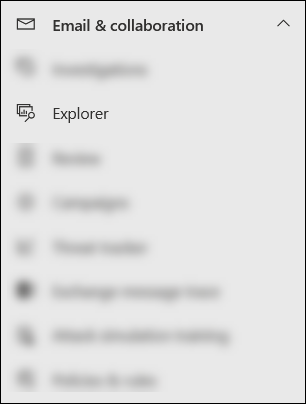
Fastest plan check in a tenant you did not build: Plan 1 shows Email and collaboration > Real-time detections, Plan 2 shows Explorer in its place.
| Layer | How you get it | Examples Learn gives |
|---|---|---|
| Built-in (EOP) | Any subscription with cloud mailboxes. Also sold standalone as the Built-in security add-on for on-premises mailboxes | Every Exchange Online plan |
| Defender for Office 365 Plan 1 | Included in some SMB and E3-tier subscriptions, or as an add-on | Microsoft 365 Business Premium, Microsoft 365 E3 and G3 |
| Defender for Office 365 Plan 2 | Included in top enterprise suites, or as an add-on | Microsoft 365 A5, E5, G5 |
Learn calls these examples and points to the Entra licensing service plan reference for the full SKU mapping. The E3 inclusion of Plan 1 is a 2026 change due to finish rolling out by autumn 2026; see Further reading. Safe Documents is separate: A5 or the Microsoft Defender Suite.
- Licence is per user. Built-in protection applies Safe Links and Safe Attachments to unlicensed users too. Learn's answer is to buy enough licences; the fallback is scoping the Defender part of a preset to licensed recipients.
- Email authentication first. Set up SPF, DKIM and DMARC for every domain, used and unused, including onmicrosoft.com, before tuning anything else.
- Roles: Organization Management or Security Administrator in Exchange Online, or Entra Security Administrator, to configure. Global Reader or Security Reader to read. Under Defender XDR unified RBAC the permission is Authorization and settings / Security settings / Core Security settings.
- A 90-day Plan 2 trial is in the Defender portal trials hub, maximum two per tenant with a 30-day gap, not in GCC, GCC High, DoD or Education tenants.
How it works
The pipeline
Connection filtering checks the sending IP's reputation first and rejects most spam there. Anti-malware runs next and quarantines anything malicious; by default only admins can see those. Mail flow rules run third. Then anti-spam and anti-phishing classify the message as bulk, spam, high confidence spam, phishing, high confidence phishing or spoof, and the policy action for that verdict applies. High confidence phishing always goes to quarantine. With Plan 1 or 2, Safe Attachments detonates unknown attachments before delivery and Safe Links rewrites or checks URLs so the real check happens at click time. After delivery, ZAP watches for 48 hours and moves or quarantines anything the service reclassifies.
If an on-premises server cannot accept mail, EOP queues it for one day and retries about every five minutes.
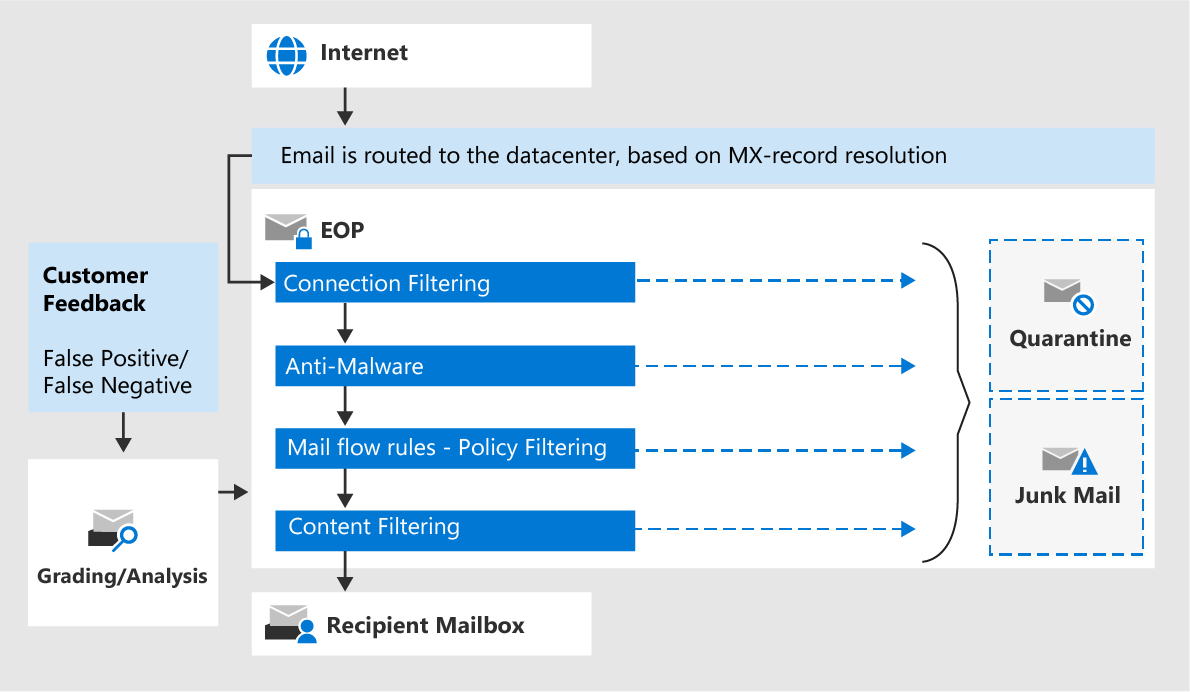
Processing order within the stack
Order of processing is fixed and is not policy priority. The first verdict in this list wins and is stamped in the X-Forefront-Antispam-Report header as CAT: malware, high confidence phishing, phishing, spoof with DMARC reject, spoof with DMARC quarantine, spoof by spoof intelligence, user impersonation, domain impersonation, mailbox intelligence, high confidence spam, spam, bulk. The impersonation rows exist only with Defender for Office 365. Learn's worked example: a message that is both spoofed and a user impersonation is categorised as spoof, so a custom anti-phishing policy with impersonation on but spoof protection off takes no action, and lower-priority policies never get a look.
Policy precedence
For each policy type, the first policy that matches the recipient wins and nothing merges. The order is:
- Strict preset security policy
- Standard preset security policy
- Defender for Office 365 evaluation policies
- Custom policies, by their priority number, lower is higher
- Built-in protection (Safe Links and Safe Attachments only) and the default anti-malware, anti-spam and anti-phishing policies
Learn's guidance: few users in high-priority policies, many in low, high ones stricter, custom policies only for people the presets do not fit. If overlaps are unavoidable, add Standard users as exceptions in Strict, custom-policy users as exceptions in Standard, and default-policy users as exceptions in the custom policies.
Preset versus custom
Standard and Strict are Microsoft-maintained bundles of anti-malware, anti-spam, anti-phishing, Safe Links and Safe Attachments settings. You cannot edit most values, only scope. The differences: Strict quarantines spam, bulk at BCL 5 and spoof detections where Standard moves them to Junk and uses BCL 6; Strict uses phishing threshold 4, Standard 3. Both turn on first contact safety tips, impersonation and mailbox intelligence protection, both quarantine high confidence spam and phishing, both keep quarantine 30 days against the default 15. Outbound spam and Teams protection are separate policies with recommended values, not part of a preset.
Built-in protection is the third preset. It exists only with Defender for Office 365, covers everyone not in Standard, Strict or a custom Safe Links or Safe Attachments policy, and is softer: Safe Links does not rewrite URLs, users can click through, internal mail is not scanned. It is also what turns on the global Safe Attachments switches for SharePoint, OneDrive, Teams and Safe Documents.
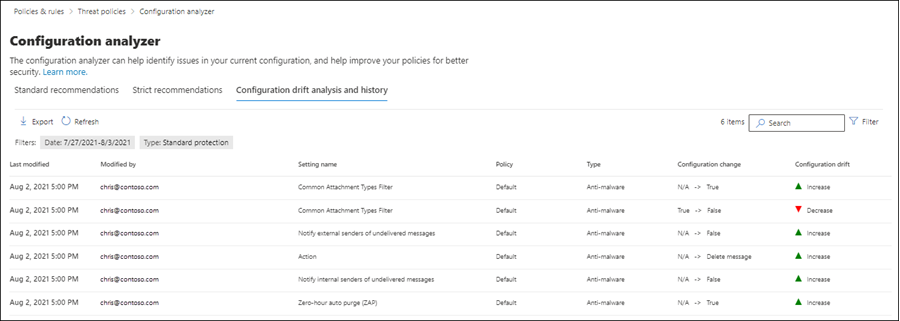
Custom policies give you every setting and you own the drift. The configuration analyzer compares the five policy types, plus DKIM and the Outlook external sender tag, against Standard and Strict and applies fixes one row at a time. With unified auditing on, its drift tab keeps 90 days of who changed what and which direction.
Trying Plan 2
The trial and the evaluation are the same machinery with different licensing. Audit mode creates evaluation anti-phishing, Safe Links and Safe Attachments policies that report but do not act; Safe Links in Teams, SharePoint and OneDrive and ZAP for Teams still act. Blocking mode is the Standard preset applied to the users you pick. Behind a third-party gateway you only get audit mode, and the wizard sets Enhanced Filtering for Connectors on the inbound connector so spoof intelligence and Explorer see real source IPs. E3 and Plan 1 tenants get 90 days of auto-provisioned Plan 2 licences; E5 tenants get an unlimited evaluation. Converting to blocking copies the scope into Standard. Reverting is manual.

Configure
Everything lives in Defender portal > Email and collaboration > Policies and rules > Threat policies. Presets and the configuration analyzer sit under Templated policies; the five policy types under Policies; Tenant Allow/Block List, advanced delivery, quarantine policies and user reported settings under Rules and Others.
- Portal
- PowerShell
- Graph API
Turn on a preset:
- Go to
https://security.microsoft.com/presetSecurityPolicies. - Toggle Standard protection or Strict protection on, then Manage protection settings.
- Apply Exchange Online Protection: All recipients, or specific users, groups and domains, with optional exclusions. Tenants without Defender for Office 365 skip to Review.
- Apply Defender for Office 365 protection: same picker, or Previously selected recipients. In partly licensed tenants, limit this part to licensed users.
- Impersonation protection: up to 350 addresses, up to 50 custom domains, plus trusted senders and domains. Accepted domains and mailbox intelligence are covered automatically; subdomains are not.
- Review, Confirm, Done.
Recipient logic: values in one condition are OR, different condition types are AND, different exception types are OR, each condition type once. Turning the toggle off keeps the scope for next time. Built-in protection exclusions are on the same page under Add exclusions, labelled not recommended; the valid case is unlicensed users.
Run the configuration analyzer:
https://security.microsoft.com/configurationAnalyzer, Standard recommendations tab opens by default.- Each row is one setting in one policy weaker than the profile. Select the row for the Why flyout, or tick it for Apply recommendation, View policy or Export.
- Refresh to clear completed rows. Strict recommendations is the harder bar.
- Configuration drift analysis and history needs unified auditing and shows 90 days of changes marked Increase or Decrease.
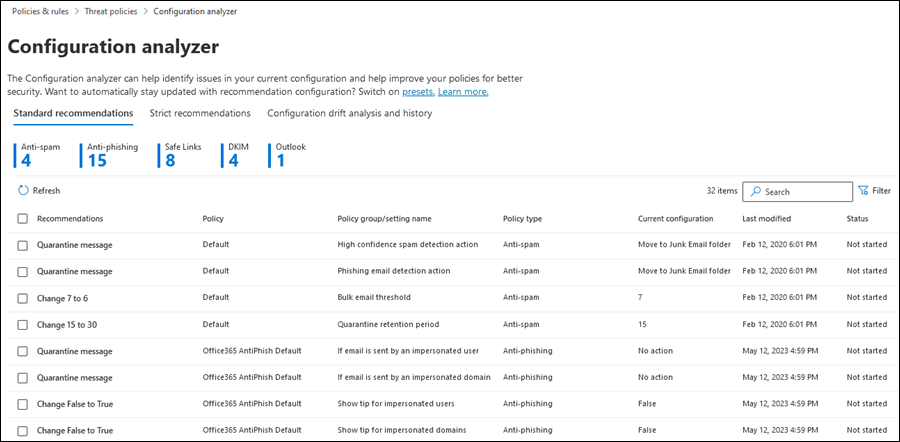
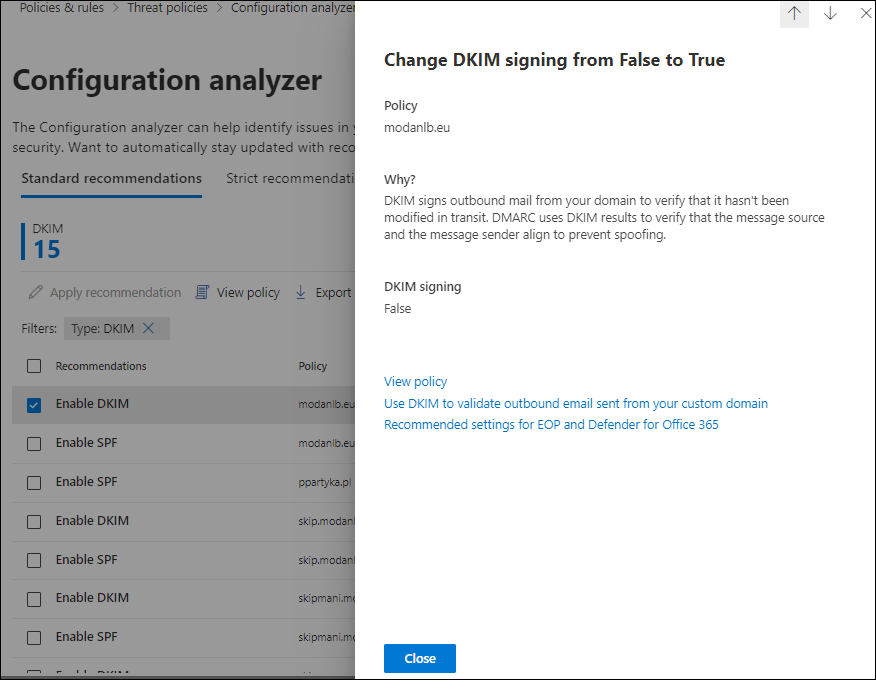
Plan 2 evaluation in audit mode: https://security.microsoft.com/atpEvaluation, Turn on protection > No, I only want reporting, pick users, confirm the mail flow source, Finish. Manage evaluation settings toggles each detection, edits scope, adds impersonation settings and offers Convert to standard protection.
# Tested on: TODO
# Module: ExchangeOnlineManagement
Install-Module -Name ExchangeOnlineManagement
Connect-ExchangeOnline -UserPrincipalName admin@contoso.onmicrosoft.com
# Unattended: Connect-ExchangeOnline -CertificateThumbPrint "<thumb>" -AppID "<appId>" -Organization "contoso.onmicrosoft.com"

# Which plan? Safe Links cmdlets only exist with Defender for Office 365.
Get-SafeLinksPolicy -ErrorAction SilentlyContinue | Select-Object Name, RecommendedPolicyType

# Inventory every policy type and tag presets vs custom vs default
Get-HostedContentFilterPolicy | Select-Object Name, IsDefault, RecommendedPolicyType, SpamAction, HighConfidencePhishAction, BulkThreshold, PhishZapEnabled, SpamZapEnabled
Get-MalwareFilterPolicy       | Select-Object Name, IsDefault, RecommendedPolicyType, ZapEnabled, EnableFileFilter
Get-AntiPhishPolicy           | Select-Object Name, IsDefault, RecommendedPolicyType, PhishThresholdLevel, EnableMailboxIntelligenceProtection, EnableSpoofIntelligence, HonorDmarcPolicy
Get-SafeLinksPolicy           | Select-Object Name, RecommendedPolicyType, DisableUrlRewrite, AllowClickThrough, EnableForInternalSenders
Get-SafeAttachmentPolicy      | Select-Object Name, RecommendedPolicyType, Enable, Action

# Preset state. Rules only exist once the preset has been turned on at least once.
Get-EOPProtectionPolicyRule | Format-Table Name, State, Priority, SentTo, SentToMemberOf, RecipientDomainIs
Get-ATPProtectionPolicyRule | Format-Table Name, State, Priority, SentTo, SentToMemberOf, RecipientDomainIs
Get-ATPBuiltInProtectionRule | Format-List Name, ExceptIfSentTo, ExceptIfSentToMemberOf, ExceptIfRecipientDomainIs

# Turn Standard on for a Defender for Office 365 tenant: both rules
Enable-EOPProtectionPolicyRule -Identity "Standard Preset Security Policy"
Enable-ATPProtectionPolicyRule -Identity "Standard Preset Security Policy"

# Scope the Defender part of Standard to licensed users only
Set-ATPProtectionPolicyRule -Identity "Standard Preset Security Policy" -SentToMemberOf "MDO-Licensed"

# Global Safe Attachments switches, set by Built-in protection
Get-AtpPolicyForO365 | Format-List EnableATPForSPOTeamsODB, EnableSafeDocs, AllowSafeDocsOpen

# Evaluation rule, if an audit-mode evaluation exists
Get-ATPEvaluationRule -ErrorAction SilentlyContinue | Format-Table Name, State

Disconnect-ExchangeOnline -Confirm:$false
The configuration analyzer has no cmdlet. Learn points at the community ORCA module (Get-ORCAReport) as the PowerShell equivalent.
Threat policies are not in Microsoft Graph; policy work is Exchange Online PowerShell or the portal. Graph gives you the Defender XDR side: alerts and incidents under /security/alerts_v2 and /security/incidents, and advanced hunting through runHuntingQuery against the email and collaboration tables (EmailEvents, EmailAttachmentInfo, EmailUrlInfo, EmailPostDeliveryEvents, UrlClickEvents, and for Teams MessageEvents, MessageUrlInfo, MessagePostDeliveryEvents). Permission is ThreatHunting.Read.All. Advanced hunting on email needs Plan 2.
POST https://graph.microsoft.com/v1.0/security/runHuntingQuery
Content-Type: application/json
{
  "Query": "EmailEvents | where Timestamp > ago(1d) | summarize count() by ThreatTypes, DeliveryAction | order by count_ desc",
  "Timespan": "P1D"
}
Verify
- Configuration analyzer shows no rows under Standard recommendations. A policy type absent from the summary is fully compliant.
- Preset state:
Get-EOPProtectionPolicyRuleandGet-ATPProtectionPolicyRulereturnState : Enabledwith the expected recipient conditions. - Who is covered: Learn's test is a message that hits a setting that differs between profiles. Non-high-confidence spam goes to Junk for a Standard user and quarantine for a Strict user. Bulk at BCL 6 is Junk under Standard; BCL 5 is quarantine under Strict.
- Header check:
X-Forefront-Antispam-ReportcarriesCAT:with the verdict and the policy that handled it. - ZAP activity: Mailflow status report > Mailflow view for counts, or Threat Explorer > All email filtered on Additional action = ZAP (Plan 2).
- Sample files: Learn's Safe Links and Safe Attachments pages document no test URL or attachment. TODO: confirm in the dev tenant. Until then use the Threat protection status report filtered to Protected by = MDO with File detonation and URL detonation.
// Plan 2 only. What is each verdict doing, and is anything high confidence reaching the inbox
EmailEvents
| where Timestamp > ago(7d)
| where isnotempty(ThreatTypes)
| summarize Messages = count() by ThreatTypes, DeliveryAction, DeliveryLocation
| order by Messages desc
// ZAP after delivery in the last 48 hours
EmailPostDeliveryEvents
| where Timestamp > ago(2d)
| where ActionType startswith "ZAP"
| project Timestamp, NetworkMessageId, RecipientEmailAddress, ActionType, ActionResult, ThreatTypes
Troubleshoot
| Symptom | Likely cause | Fix |
|---|---|---|
| Custom anti-spam policy settings never apply to a user | User is also in Standard or Strict; presets always win | Remove the user from the preset or add them as an exception in the preset rule, Set-EOPProtectionPolicyRule -ExceptIfSentTo |
| Two custom policies of the same type, second one ignored | First match wins per policy type, nothing merges | Make the higher priority policy carry every setting the user needs, or split recipients cleanly |
| Impersonation protection on but spoofed impersonation mail still delivered | Spoof is evaluated before impersonation; the matching policy had spoof action off | Turn on spoof intelligence and set a spoof action in the policy that matches first |
| Safe Links not rewriting URLs for some users | They fall to Built-in protection, where DisableUrlRewrite is true and click-through is allowed | Add them to Standard or Strict, or a custom Safe Links policy |
| Unlicensed user getting Safe Attachments and Safe Links | Built-in protection applies to all recipients by default | Buy licences, or scope the Defender section of the preset and add an exclusion to Built-in protection |
| Enable-ATPProtectionPolicyRule fails, rule not found | Preset never turned on, so rules do not exist | Turn it on once in the portal; that is the only supported way to create the policies |
| Standard turned on in PowerShell but Plan 1 features missing | Only the EOP rule was enabled | Enable both the EOP and the ATP rule with the same identity |
| Evaluation shows blocking mode greyed out | MX points at a third-party gateway | Audit mode only; the wizard sets Enhanced Filtering on the inbound connector |
| Plan 2 features stopped after three months | Auto-provisioned trial licences ran out | Threat policies keep working; AIR, Explorer automation and simulations stop. Buy Plan 2 or wait 30 days for a second trial |
| Legitimate mail quarantined after enabling Strict | Strict quarantines spam, bulk at 5 and spoof; DMARC is honoured | Fix SPF, DKIM and DMARC for the sender, use TABL allows through submissions, or move the user to Standard |
| Drift tab empty in the configuration analyzer | Unified auditing off | Enable auditing in Purview; history goes back 90 days from then |
Gotchas and limits
- Presets beat custom policies for overlapping recipients. Someone in Strict and in your tuned custom anti-phishing policy gets Strict. Check
Get-EOPProtectionPolicyRuleconditions before debugging a custom policy. - Default policies cannot be turned off and take no exceptions. Built-in protection can have exceptions.
- Preset settings cannot be edited, only scope, exceptions and the impersonation lists. Microsoft can change the values underneath you, which is the point and the risk.
- Do not create or edit the Standard, Strict or Built-In Protection policy objects directly in PowerShell. The only supported creation path is the first portal toggle.
- Licence is per user, enforcement is per recipient. Built-in protection and the presets cover unlicensed mailboxes too.
- Teams protection is its own policy (
Set-TeamsProtectionPolicy), not part of any preset, custom or default policy. ZAP for Teams, Safe Links for Teams and Teams quarantine need Plan 1 or 2 and are not in GCC, GCC High or DoD. ZAP for Teams skips private channels and external chats. - Priority accounts: the user tag is Plan 1; differentiated priority account protection is Plan 2. Tagging in Plan 1 gives filters and reports, not extra protection.
- ZAP looks back 48 hours, acts on spam only if unread, follows the anti-spam policy action (Delete or Redirect means ZAP does nothing), is overridden by Safe Senders and mail flow rule bypasses, and leaves no mailbox audit entry.
- Malware and high confidence phishing cannot be allowed with a direct TABL entry. Submit, confirm clean, then Allow. Those entries last 45 days after last use.
DisableUrlRewriteandAllowClickThroughdefault on for Safe Links policies created in the portal, off forNew-SafeLinksPolicy.- Trial blocking mode is the Standard preset. Converting from audit copies the scope into Standard and leaves the evaluation rule below it. Going back is manual.
- The mdo-security-comparison page could not be fetched at source check time. TODO: re-read it and reconcile with the mdo-about feature list used here.
Further reading
- Microsoft Defender for Office 365 Plan 1 is now rolling out to Microsoft 365 E3 and Office 365 E3, Microsoft Defender for Office 365 blog, June 2026. The licensing change behind the E3 row in the table above, and a warning that some protections turn on automatically so existing configurations need a review first.
- Tuning Safe Links and Safe Attachments in Defender for Office 365 Without Breaking Your Tenant, CIAOPS, May 2026. Field sequence for an MSP: start at Standard, stage the rollout, audit legacy custom policies and domain allow lists, then run the analyzer on a schedule.
- Safe Links and Safe Attachments: Your First Line of Defense, Mirko Peters, M365.fm, August 2026. Walks the Plan 1 to Plan 2 hand-off from detection to Threat Explorer and AIR with worked scenarios.
Three qualified in the October 2025 to October 2026 window. The Practical 365 and AdminDroid pieces on the configuration analyzer are older.
My notes
TODO: Sohail's notes after verification.
Changelog
| Date | Change | Source |
|---|---|---|
| 2026-10-22 | Drafted from Learn, with Learn images and diagrams | [1] |