Safe Links, Safe Attachments and Teams protection
What it is
Safe Links and Safe Attachments act after EOP has already passed a message. Safe Links wraps or checks URLs so the verdict is taken when the user clicks, not when the mail arrived. Safe Attachments opens the attachment in a sandbox (detonation) before it reaches the mailbox. Both exist because a link or file that was clean at delivery can be weaponised an hour later.
Both are policy driven with no default policy. The Built-in protection preset covers every recipient not in Standard, Strict or a custom policy. Two switches sit outside policies: Safe Attachments for SharePoint, OneDrive and Teams, and Safe Documents. Those are tenant-wide, set in the Global settings flyout on the Safe Attachments page.
Teams protection is the third surface. Safe Links in Teams checks links at click time without rewriting. Safe Attachments for Teams covers files. ZAP for Teams pulls back malware and high-confidence phishing after delivery, controlled by a Teams protection policy that is separate from presets and custom policies.
See the overview for where this sits, anti-phishing and presets for presets, and investigation and quarantine for quarantine and Explorer.
Licensing and prerequisites
- Everything here except Safe Documents needs Defender for Office 365 Plan 1 or Plan 2. Plan 1 is the cheapest SKU and ships inside Microsoft 365 Business Premium.
- Plan 2 adds Advanced Hunting on Teams messages (
MessageEvents,MessagePostDeliveryEvents,MessageURLInfo) and the Remove user from chat action. - Safe Documents needs the
SAFEDOCSservice plan from Microsoft 365 A5, E5, G5 or the Microsoft Defender Suite, plus Microsoft 365 Apps for enterprise version 2004 or later. - Built-in protection applies as soon as the tenant has one Defender for Office 365 licence.
- Roles: Organization Management or Security Administrator in Email and collaboration RBAC, or Core Security settings (manage) in unified RBAC. SharePoint Administrator for the
Set-SPOTenantdownload block. - ZAP for Teams is not available in GCC, GCC High or DoD. Dynamic Delivery works only for Exchange Online mailboxes.
- Safe Links in Office apps needs Microsoft 365 Apps or Business Premium, modern auth and a work or school sign-in. Covered: Word, Excel, PowerPoint on all platforms, Visio on Windows, OneNote on the web, Outlook for Windows opening saved EML or MSG files.
How it works
Safe Links
Mail flow first. For a recipient covered by a policy with email protection on, URLs are rewritten to https://<region>.safelinks.protection.outlook.com/.... Hovering in Outlook shows the original. With Apply real-time URL scanning on, suspicious links and links to files are detonated during mail flow, and with Wait for URL scanning on, the message is held until that finishes.
Click time second. The wrapped URL goes to the Safe Links service for a reputation check. Known malicious gives the warning page. A link to a downloadable file gets the file checked if real-time scanning is on. Clean opens the destination. The outcome lands in UrlClickEvents when Track user clicks is on.
Rewriting is optional. Do not rewrite URLs, do checks via SafeLinks API only leaves the original URL in the body and relies on the client calling the Safe Links API at click. That works in Outlook on Windows, Mac, iOS, Android and the web. Any other client gets no click-time check. Native rendering looks nicer; rewriting protects every client. Built-in protection has API-only on; Standard and Strict rewrite.
Internal mail is a separate toggle, off in Built-in protection and on in Standard, Strict and new custom policies. Without it a compromised internal mailbox is a clean delivery path.
Teams and Office apps never rewrite. The client asks Safe Links at click and shows the warning if needed. In a Teams chat the warning opens in the browser; in a pinned tab it opens inside Teams with open-in-browser disabled. Teams changes take up to 24 hours.
Click-through is the user bypass: a continue option on the warning page, recorded as IsClickedThrough. Built-in protection allows it. Standard and Strict do not.
Safe Attachments
An attachment that passed EOP anti-malware is opened in a virtual machine in the tenant's data region. Learn says this usually completes within 15 minutes but can take longer. The policy action decides what happens to the message meanwhile:
| Action | Behaviour | Where Learn puts it |
|---|---|---|
| Off | No detonation. Anti-malware only. ZAP will not quarantine if no threat signal arrives. | Trusted-sender-only recipients, not recommended |
| Monitor | Deliver, then record detections. Delivery can still be delayed. Redirect to an address is available only here. | Visibility |
| Block | Hold until verdict. Malicious goes to quarantine under the policy's quarantine tag. Future copies of the same message and file are blocked automatically. | Default, Standard, Strict |
| Dynamic Delivery | Deliver the body now with a placeholder attachment. Swap in the real file when clean, quarantine when malicious. PDFs and Office files can be previewed in safe mode while waiting. | Avoid latency on Exchange Online mailboxes |
Block adds a second decision for password-protected files. Block messages containing encrypted attachments that could not be scanned quarantines messages where detonation could not open the file, reason Password protected item. A user with a full-access quarantine policy can enter the attachment password once, Safe Attachments runs a just-in-time detonation, and the message is released if clean. PDF, archive, Office or all other types can be excluded.
Safe Attachments for SharePoint, OneDrive and Teams
One tenant switch, EnableATPForSPOTeamsODB. It runs after the built-in virus engine and detonates files asynchronously. Learn is explicit that not every file is scanned; sharing events, guest activity, heuristics and threat signals decide. A malicious file is locked in place: still visible, cannot be opened, copied, moved or shared, but by default can still be downloaded and deleted. Set-SPOTenant -DisallowInfectedFileDownload $true removes the download. Detections appear under Content, Malware in the Threat protection status report and Explorer.
Safe Documents is the client-side relative. When Office opens a file in Protected View, file information goes to the Defender for Endpoint cloud for a verdict before the user can leave Protected View. No MDE sensor is needed, except for auditing. The second toggle decides whether users can leave Protected View on a malicious verdict.
Teams protection
All Teams licences get near real-time URL warnings on known malicious links, including messages found bad up to 48 hours later. Plan 1 adds Safe Links in Teams, Safe Attachments for Teams files, Tenant Allow/Block List enforcement in Teams, ZAP for Teams, Teams message quarantine and the Teams message entity panel. ZAP for Teams acts on malware and high-confidence phishing only, in internal chats, internal standard channels, and all messages in shared channels. Private channels are out. Everyone in a chat sees the same copy, so a ZAP block hits all participants. Exclusions are evaluated against recipients, and ZAP still acts if any one recipient is not excluded.
Global versus policy
| Setting | Lives in | Cmdlet |
|---|---|---|
| URL rewriting, internal mail, real-time scan, click tracking, click-through, do-not-rewrite list, Teams and Office app checks | Safe Links policy | *-SafeLinksPolicy |
| Action, quarantine tag, redirect, encrypted attachment blocking | Safe Attachments policy | *-SafeAttachmentPolicy |
| SharePoint, OneDrive and Teams file protection | Global settings | Set-AtpPolicyForO365 -EnableATPForSPOTeamsODB |
| Safe Documents on, Protected View click-through | Global settings | Set-AtpPolicyForO365 -EnableSafeDocs -AllowSafeDocsOpen |
| ZAP for Teams, Teams quarantine policies, recipient exclusions | Teams protection policy | *-TeamsProtectionPolicy, *-TeamsProtectionPolicyRule |
Policy precedence: Strict, Standard, custom by priority with 0 highest, Built-in protection last. Processing stops at the first match. Global settings and the Teams protection policy sit outside this order.
Configure
- Portal
- PowerShell
- Graph API
Safe Links policy, Email and collaboration > Policies and rules > Threat policies > Safe Links, or https://security.microsoft.com/safelinksv2:
- Create. Name it. Users and domains: users, groups or accepted domains. Condition types are ANDed, exclusions ORed. Dynamic groups are not supported.
- URL and click protection settings, recommended values matching Standard and Strict:
- Email: On. Leave Do not rewrite URLs, do checks via SafeLinks API only clear unless every client is Outlook.
- Apply Safe Links to email messages sent within the organization: on.
- Apply real-time URL scanning for suspicious links and links that point to files: on. Wait for URL scanning to complete before delivering the message: on.
- Do not rewrite the following URLs in email: empty. See gotchas.
- Teams: On. Office 365 apps: On.
- Track user clicks: on. Let users click through to the original URL: off. Organization branding: optional, needs a logo first.
- Notification: default text, or custom up to 200 characters.
- Review, Submit. Allow up to 6 hours, 24 for Teams.
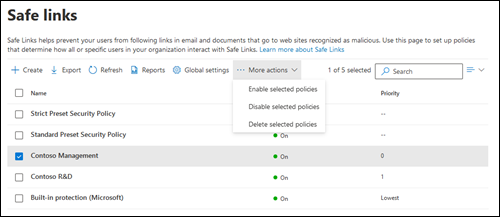
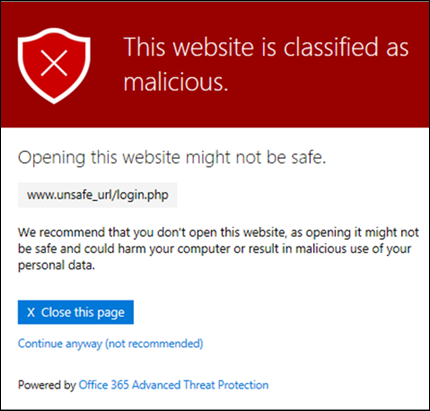
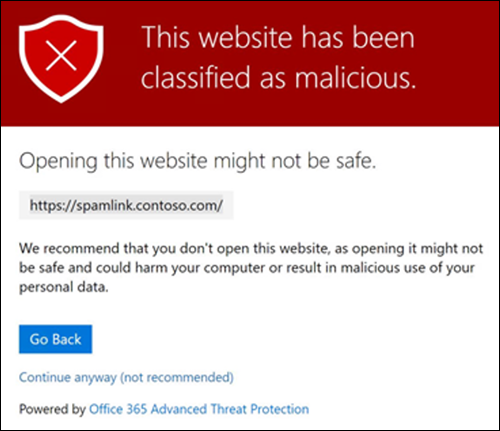
Safe Attachments policy, Threat policies > Safe Attachments, or https://security.microsoft.com/safeattachmentv2:
- Create. Name, then recipients as above.
- Settings:
- Safe Attachments unknown malware response: Block. Dynamic Delivery where latency complaints outweigh the placeholder experience.
- Quarantine policy: AdminOnlyAccessPolicy, the default and what presets use. Users can request release only.
- Redirect messages with detected attachments: Monitor only.
- Block messages containing encrypted attachments that could not be scanned: shown only with Block. Pick exclusions and the quarantine policy, default DefaultFullAccessWithNotificationPolicy so users can supply the password.
- Review, Submit. Allow about 30 minutes.

Global settings, gear icon on the Safe Attachments page:
- Protect files in SharePoint, OneDrive, and Microsoft Teams: toggle Turn on Defender for Office 365 for SharePoint, OneDrive, and Microsoft Teams to On. Built-in protection already sets this on.
- Turn on Safe Documents for Office clients: On if licensed. Allow people to click through Protected View even if Safe Documents identified the file as malicious: Off.
- Save. Allow 30 minutes.


Teams protection, Settings > Email and collaboration > Microsoft Teams protection, or https://security.microsoft.com/securitysettings/teamsProtectionPolicy:
- Zero-hour auto purge (ZAP): On.
- Quarantine policies for Malware and High confidence phishing. Teams quarantine is admin-only today, so AdminOnlyAccessPolicy applies and users get no notification.
- Exclude these participants: users, groups or domains. These are recipient exclusions. For a channel use the recipient address from the Teams message entity panel, not the channel email address.
- Save.
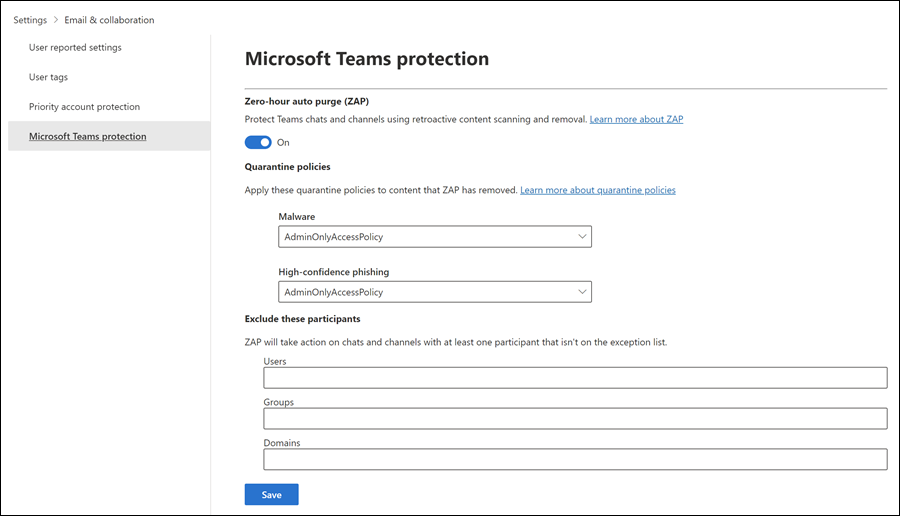
Learn also recommends an alert policy on Detected malware in file so SharePoint and OneDrive detections email someone.
# Tested on: TODO
# Exchange Online PowerShell. Policy holds settings, rule holds recipients and priority.
Connect-ExchangeOnline

# Safe Links, values match the Standard and Strict presets
New-SafeLinksPolicy -Name "SL Standard Custom" `
  -EnableSafeLinksForEmail $true `
  -EnableForInternalSenders $true `
  -ScanUrls $true `
  -DeliverMessageAfterScan $true `
  -DisableUrlRewrite $false `
  -EnableSafeLinksForTeams $true `
  -EnableSafeLinksForOffice $true `
  -TrackClicks $true `
  -AllowClickThrough $false
# Note: the configure page writes the click tracking parameter as -TrackUserClicks,
# the recommended settings page writes -TrackClicks. TODO: confirm with Get-Help New-SafeLinksPolicy.

New-SafeLinksRule -Name "SL Standard Custom" -SafeLinksPolicy "SL Standard Custom" `
  -RecipientDomainIs (Get-AcceptedDomain).Name -Priority 0

# Safe Attachments. Action defaults to Block, quarantine tag to AdminOnlyAccessPolicy.
New-SafeAttachmentPolicy -Name "SA Block" -Enable $true -Action Block `
  -QuarantineTag AdminOnlyAccessPolicy `
  -EnableBlockingEncryptedAttachments $true `
  -QuarantineTagForBlockingEncryptedAttachments DefaultFullAccessWithNotificationPolicy

New-SafeAttachmentRule -Name "SA Block" -SafeAttachmentPolicy "SA Block" `
  -RecipientDomainIs (Get-AcceptedDomain).Name -Priority 0

# Dynamic Delivery variant for a latency-sensitive group
New-SafeAttachmentPolicy -Name "SA Dynamic" -Enable $true -Action DynamicDelivery
New-SafeAttachmentRule -Name "SA Dynamic" -SafeAttachmentPolicy "SA Dynamic" `
  -SentToMemberOf "sales@contoso.com" -Priority 0

# Global settings: SharePoint, OneDrive, Teams files and Safe Documents
Set-AtpPolicyForO365 -EnableATPForSPOTeamsODB $true -EnableSafeDocs $true -AllowSafeDocsOpen $false

# Teams protection: one policy per tenant, cannot be removed
Set-TeamsProtectionPolicy -Identity "Teams Protection Policy" -ZapEnabled $true
New-TeamsProtectionPolicyRule -Name "Teams Protection Policy Rule" `
  -TeamsProtectionPolicy "Teams Protection Policy" `
  -ExceptIfSentToMemberOf "research@contoso.onmicrosoft.com"

# Do-not-rewrite list edits replace the whole list unless you use Add/Remove
Set-SafeLinksPolicy -Identity "SL Standard Custom" -DoNotRewriteUrls @{Add="*.intranet.contoso.com/*"}

# Reporting, last 90 days, yesterday is the latest allowed date, a date range is required
Get-SafeLinksAggregateReport -StartDate (Get-Date).AddDays(-30) -EndDate (Get-Date).AddDays(-1) `
  -SummarizeBy App -AppNameList "Email Client","Teams","OfficeDocs"
# SharePoint Online Management Shell: stop downloads of files Safe Attachments locked
Connect-SPOService -Url https://contoso-admin.sharepoint.com
Set-SPOTenant -DisallowInfectedFileDownload $true
There is no Graph endpoint for Safe Links or Safe Attachments policies. Policy work is Exchange Online PowerShell. Graph gives you the telemetry through Advanced Hunting. Permission ThreatHunting.Read.All, delegated or application. Timespan is optional, default 30 days.
POST https://graph.microsoft.com/v1.0/security/runHuntingQuery
Content-Type: application/json
Blocked clicks where the user continued anyway, last 7 days:
{
  "Query": "UrlClickEvents | where ActionType == 'ClickBlocked' and IsClickedThrough == true | project Timestamp, AccountUpn, Url, Workload, AppName, ThreatTypes, NetworkMessageId | order by Timestamp desc",
  "Timespan": "P7D"
}
Click volume and verdicts by workload, to prove Teams and Office coverage is live:
{
  "Query": "UrlClickEvents | summarize Clicks = count(), Blocked = countif(ActionType == 'ClickBlocked'), ClickedThrough = countif(IsClickedThrough == true) by Workload, AppName | order by Clicks desc",
  "Timespan": "P30D"
}
Attachments caught by detonation, with the recipient and file:
{
  "Query": "EmailAttachmentInfo | where DetectionMethods has 'File detonation' or AdditionalFields contains 'IsPasswordProtectedItem' | join kind=inner (EmailEvents | project NetworkMessageId, Subject, SenderFromAddress, DeliveryAction, DeliveryLocation) on NetworkMessageId | project Timestamp, RecipientEmailAddress, SenderFromAddress, Subject, FileName, FileType, ThreatTypes, DetectionMethods, DeliveryAction, DeliveryLocation",
  "Timespan": "P30D"
}
The response is a huntingQueryResults object with schema and results. UrlClickEvents and EmailAttachmentInfo return nothing if Defender for Office 365 is not in the tenant.
Verify
- Safe Links: send yourself
http://spamlink.contoso.com. Learn documents it as a harmless URL that triggers a Safe Links response, like GTUBE. Hover in Outlook for thesafelinks.protection.outlook.comwrapper, click for the warning page. - Safe Documents: Learn lists SafeDocsDemo.docx, SafeDocsDemo.pptx and SafeDocsDemo.xlsx as harmless trigger files. Open one from an untrusted location so Protected View engages.
- Safe Attachments email: Learn documents no EICAR equivalent for detonation. TODO: test with a benign macro document in the dev tenant. Detections show in Explorer as detection technology File detonation or File detonation reputation; Dynamic Delivery shows as Delivery action Replaced plus Additional action Dynamic Delivery.
- URL protection report at
https://security.microsoft.com/URLProtectionActionReport, by click protection action or by application (Email client, Teams, Office document). No data means Track user clicks is off. - Teams: Explorer has a URL clicks view including Teams clicks and a Content malware view for SharePoint, OneDrive and Teams files. Teams quarantine is the Teams message tab in Quarantine. ZAP for email shows as Additional action = ZAP and is not in mailbox audit.

// Who clicked through a Safe Links block in the last 30 days, with the mail it came from
UrlClickEvents
| where IsClickedThrough == true
| join kind=leftouter (EmailEvents | project NetworkMessageId, Subject, SenderFromAddress) on NetworkMessageId
| project Timestamp, AccountUpn, Workload, AppName, Url, ThreatTypes, Subject, SenderFromAddress
| order by Timestamp desc
Get-SafeLinksPolicy | Format-Table Name, EnableSafeLinksForEmail, EnableForInternalSenders, DisableUrlRewrite, AllowClickThrough
Get-SafeAttachmentPolicy | Format-Table Name, Enable, Action, QuarantineTag, EnableBlockingEncryptedAttachments
Get-AtpPolicyForO365 | Format-List EnableATPForSPOTeamsODB, EnableSafeDocs, AllowSafeDocsOpen
Get-TeamsProtectionPolicy | Format-List Name, ZapEnabled, HighConfidencePhishQuarantineTag, MalwareQuarantineTag
Get-SPOTenant | Format-List DisallowInfectedFileDownload
Troubleshoot
| Symptom | Likely cause | Fix |
|---|---|---|
| Links not rewritten in email | Recipient is in a policy with API-only mode, or Built-in protection applies (it has API-only on), or a third-party gateway wrapped the links first, or the message is RTF, S/MIME signed or in a mail-enabled public folder | Check which policy wins with Get-SafeLinksRule, clear DisableUrlRewrite, route mail so Defender for Office 365 sees it before any other wrapper |
| Links rewritten but no click data | Track user clicks off in the effective policy | Set -TrackClicks $true; the URL protection report and UrlClickEvents depend on it |
| SharePoint and OneDrive URLs are no longer wrapped | By design. Learn says these are processed without wrapping to improve load time | Nothing to fix |
| Users can continue past the warning page | Built-in protection allows click-through | Put users in Standard or Strict, or set -AllowClickThrough $false in the custom policy |
| Users complain of delays, attachment shows as a placeholder | Dynamic Delivery is working as designed, detonation can take 15 minutes or more | Switch to Block if the preview is confusing, or accept it. Placeholders are never replaced in public folders, archived messages, messages moved by inbox rules, S/MIME messages or on-prem mailboxes |
| Attachment never arrives, message in quarantine as Password protected item | Block unscanned attachments is on and the file is password protected | User releases with the password once from the quarantine notification, or admin releases. Exclude types if this is routine |
| File in SharePoint or OneDrive is locked, user cannot open it | Safe Attachments for SharePoint, OneDrive and Teams detonated it and found it malicious | Review in quarantine and the Content malware view. If a false positive, submit the file to Microsoft. Users can delete it |
| Users can still download a locked SharePoint file | DisallowInfectedFileDownload is false by default | Set-SPOTenant -DisallowInfectedFileDownload $true, affects admins too |
| Teams links not checked | Teams toggle off in the policy covering the sender, or the policy changed less than 24 hours ago | Turn on Teams protection in the policy. Learn says the sender needs to be covered too, otherwise the recipient can click through to the original |
| Teams warning page forces re-login on the destination site | Site needs SameSite=Strict cookies and the Safe Links redirect is cross-site | Known behaviour, no fix in the policy |
| ZAP for Teams did nothing on an external chat | ZAP covers internal chats and standard channels only, plus shared channels | Expected. Tenant Allow/Block List block entries and user reporting still apply |
| Safe Documents does nothing | No SAFEDOCS service plan, Office older than 2004, or global toggle off | Check licence, Get-AtpPolicyForO365, and the Office build |
Policy save returns 403 or CmdletAccessDeniedException | Exchange Online RBAC cache | Open a support case and ask for an RBAC configuration refresh |
Gotchas and limits
- The Do not rewrite list only affects mail flow. Those URLs are not scanned or wrapped at delivery but can still be blocked at click, and Teams and Office web apps ignore the list. Each policy has its own list and only the first matching policy applies. Learn's direction: use it for internal on-prem URLs, and allow anything else by reporting the URL as clean and choosing Allow this URL, which adds a Tenant Allow/Block List entry covering mail flow and click time.
- The reverse holds too. A plain URL allow entry in the Tenant Allow/Block List does not stop Safe Links rewriting it. Only the Report as clean plus Allow this URL path does.
- API-only mode is a client bet. Only Outlook on Windows, Mac, iOS, Android and the web call the Safe Links API. Anything else, including automatic forwards to unprotected recipients, gets no click check.
- Built-in protection is weaker than it looks: API-only on, click-through allowed, internal mail skipped. Standard and Strict fix all three. A custom policy must too.
- Safe Links handles HTTP, HTTPS and FTP only. RTF (TNEF) bodies and S/MIME signed mail are not processed.
- Archives: files are identified by true type, not extension. Learn only documents archive handling for the password-protected case: zip, gzip, 7z, rar and tar can be excluded from Block unscanned attachments, and an archive with items under different passwords is not supported for self-release. TODO: Learn gives no nesting depth or size limits for detonation. Test in the dev tenant.
- Block creates a reputation entry: future copies of a quarantined message plus attachment are blocked automatically.
- Safe Documents is an E5 or Defender Suite service plan, not a Defender for Office 365 feature. The toggle exists in every tenant and does nothing without
SAFEDOCS. - Safe Attachments for SharePoint, OneDrive and Teams does not scan every file and Learn gives no timing. Do not sell it as full library scanning.
- Monitor and Redirect: MC918563 announced their retirement between February and May 2025, with Monitor policies switching to Block. Learn pages checked on 2026-10-22 still list both. TODO: check what the dev tenant portal offers.
- Encrypted attachment blocking rolled out worldwide in August 2026 per MC1440701; GCC High and DoD through late October 2026.
- ZAP for Teams quarantine is admin-only with no user notification.
- A policy created in PowerShell is invisible in the portal until a rule references it. Renaming in the portal renames the rule, not the policy.
Further reading
- Tuning Safe Links and Safe Attachments in Defender for Office 365 Without Breaking Your Tenant, CIAOPS, May 2026. MSP rollout order, third-party gateways that stop rewriting, and a quarterly Configuration analyzer habit.
- Safe Links and Safe Attachments: Your First Line of Defense, Mirko Peters, M365.fm, August 2026. Walks the user-facing behaviour across email, Teams and Office apps and how to split policies for high-risk users.
- MC1440701: MDO Encrypted email attachment protection, Message center via merill.net, July 2026. Rollout dates for the password-protected attachment quarantine and self-release flow described above.
Only three qualified in the October 2025 to October 2026 window. The Copilot Chat Safe Links coverage write-ups are from May 2025.
My notes
TODO: Sohail's notes after verification.
Changelog
| Date | Change | Source |
|---|---|---|
| 2026-10-22 | Drafted from Learn, with Learn images and diagrams | [1] |