Onboarding Windows Server directly (no Defender for Cloud)
What it is
Direct onboarding here means putting the Defender for Endpoint sensor on a Windows Server and connecting it to the tenant without Azure, Azure Arc or Defender for Cloud in the path. You download an onboarding package or the Defender deployment tool from the Defender portal and run it through whatever already reaches the box: local script, Group Policy scheduled task, Configuration Manager, or the tool itself. The server lands in the device inventory like any other endpoint. ./overview covers how this fits the Defender for Servers plans.
It is not the Defender for Cloud route. Learn's method table: Azure VM or Arc-enabled server in an enabled subscription, automatic onboarding from Defender for Servers; server managed by an endpoint deployment tool, manual deployment; server already reporting to MDE, no change. This article is the second row. The first row is ./onboarding-defender-for-cloud. Learn's phrase "Direct onboarding" in the Defender for Cloud pages means something else: a tenant-wide setting that attaches already-onboarded MDE servers to a subscription. It cannot be piloted. Do not confuse the two.
Three agent generations matter. Windows Server 2019 and later ship the sensor and Defender Antivirus in the OS, so onboarding is only configuration. Windows Server 2012 R2 and 2016 need the modern unified solution, an MSI that installs the EDR sensor and, on 2012 R2, Defender Antivirus too. The legacy Microsoft Monitoring Agent route for those two is what you migrate away from. Intune is not an option: the MDM onboarding page covers Windows 10 and 11 only. Server policy comes through security settings management.
Licensing and prerequisites
- MDE P1 and P2 do not include server licences. Learn lists three choices: Defender for Servers Plan 1 or Plan 2 through Defender for Cloud, Microsoft Defender for Endpoint Server, or Defender for Business servers for SMB. The onboarding method does not change this.
- Package downloads need full MDE access. Entra Security Administrator grants it. ConfigMgr also needs the Endpoint Protection Manager role.
- Supported: Windows Server 2012 R2 and later including Server Core, Semi-Annual Channel 1803 and later, Azure Stack HCI OS 23H2 and later. The compatibility table names 2025, 2022, 2019, 1803+, 2016 and 2012 R2. Server 2008 R2 SP1 only through the Defender deployment tool.
- Hardware: 2 cores minimum, 4 preferred; 1 GB RAM minimum, 4 GB preferred. Same as the OS requirements.
- IPv4 required. IPv6-only networks need DNS64/NAT64.
- Windows Server 2012 R2 and 2016 unified solution prerequisites:
- Latest SSU and LCU. SSU dated 2021-09-14 or later, LCU dated 2018-09-20 or later. On 2012 R2 the October 2021 rollup KB5006714 or later means no further prerequisites; otherwise the installer checks for KB3080149 and the Universal C Runtime update.
- Defender Antivirus enabled and updated. On 2016 it must be installed as a feature and fully updated before the MSI runs. Platform update via Windows Update, the Update Catalog (KB4052623) or MMPC.
- KB5005292 applied or approved so the EDR sensor gets component updates. WSUS and ConfigMgr show it as Microsoft Defender for Endpoint update for EDR Sensor.
- Fresh installer package before each rollout; it is refreshed monthly. Do not rerun it to update an installed server. Rerunning asks you to offboard first.
- Configuration Manager current branch. 2207 or later for automatic deployment to 2012 R2 and 2016. 2107 with the hotfix rollup manages policy but needs extra steps.
How it works
Onboarding writes the onboarding blob into the registry and starts the Sense service. On 2019 and later the service already exists. On 2012 R2 and 2016 the MSI installs it first. Sense runs as LocalSystem over WinHTTP, so browser proxy settings do nothing for it. Defender Antivirus has its own proxy and update paths, separate from the sensor.
Component layout by OS:
| Server version | Defender Antivirus | EDR sensor |
|---|---|---|
| Windows Server 2012 R2 | Installed by the unified solution MSI | Installed by the MSI |
| Windows Server 2016 | Built in as a Windows feature | Installed by the MSI |
| Windows Server 2019 and later | Built in | Built in |
Passive mode is decided before onboarding, not after. On every supported server version Defender Antivirus does not drop into passive mode on its own when a third-party AV is present. You set ForceDefenderPassiveMode to 1 under HKLM\SOFTWARE\Policies\Microsoft\Windows Advanced Threat Protection, and Learn says the key must exist before the device is onboarded. On 2012 R2 and 2016 passive mode only works with the unified solution, not MMA. It can only be confirmed once Sense is running. Platform 4.18.2208.0 changed the Turn off Windows Defender Group Policy setting: on an onboarded server it now means passive, not disabled. Set before onboarding, Defender stays disabled.
Tamper protection changes the rules once onboarded. It allows passive to active, but not back to passive, even with the key at 1.
Onboarding configures nothing else. The Group Policy, ConfigMgr and local script pages all say so: no AV settings, no ASR, no network protection. For servers with no MDM the control plane is security settings management, ConfigMgr, or Group Policy. Group Policy needs current ADMX files in the central store; for 2012 R2 and 2016 Learn says to use the Windows 10 ADMX set.
Configure
- Portal
- PowerShell
- MDE API
Settings > Endpoints > Onboarding, at https://security.microsoft.com/securitysettings/endpoints/onboarding. Step 1 is the operating system dropdown. Step 2 is deployment method and download buttons.
- Choose the OS group. Three options matter for servers:
- Windows 10 and 11. The ConfigMgr page says this package also covers supported up-level Windows Server versions, so it is the one for 2019, 2022 and 2025 with ConfigMgr, Group Policy or local script.
- Windows Server 2008 R2 SP1, 2012 R2 and 2016. The ConfigMgr page names it for the legacy workspace ID and key, and the installer repository says
md4ws.msicomes from the onboarding page for 2012 R2 and 2016. TODO: confirm in the dev tenant which buttons this option exposes today (installation package versus onboarding package). - Windows. Starts the Defender deployment tool flow. The local script, Group Policy and ConfigMgr pages all say not to pick it for their methods.
- If Connectivity type shows, pick Standard (full URL set) or Streamlined (consolidated set). Streamlined needs the matching proxy allow list.
- Pick the deployment method: Local script (for up to 10 devices), Group Policy, or Microsoft Endpoint Configuration Manager current branch and later. Download the onboarding package.
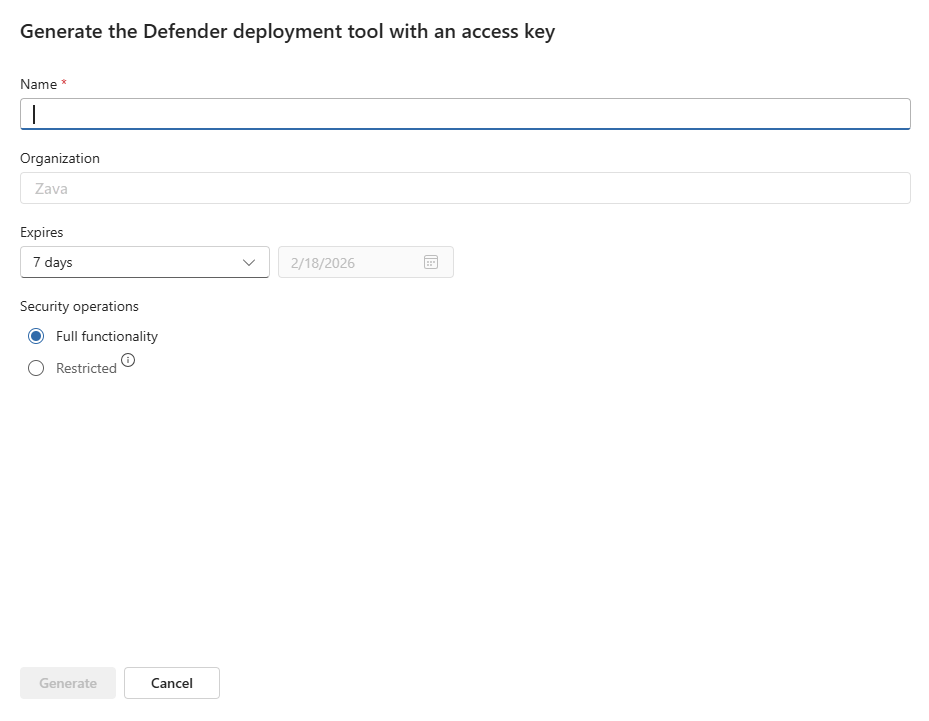
- Deployment tool instead: Step 1 Windows, Step 2 Onboard under Defender deployment tool. Name, organisation, Expires (7 days default, 30 days, or custom up to a year), Generate, copy the access key, Download deployment tool. It supports 2012 R2, 2016 and later, and 2008 R2 SP1, and
-Passiveapplies to Windows Server.

- Group Policy: extract the zip to a read-only share. New GPO. Computer Configuration > Preferences > Control Panel Settings > Scheduled Tasks > New > Immediate Task (At least Windows 7). Run as
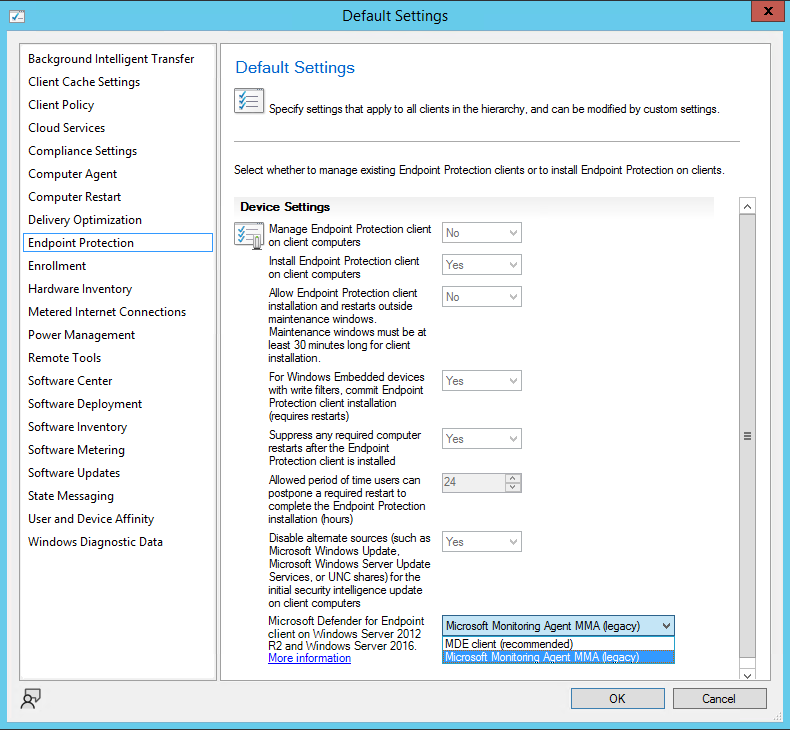
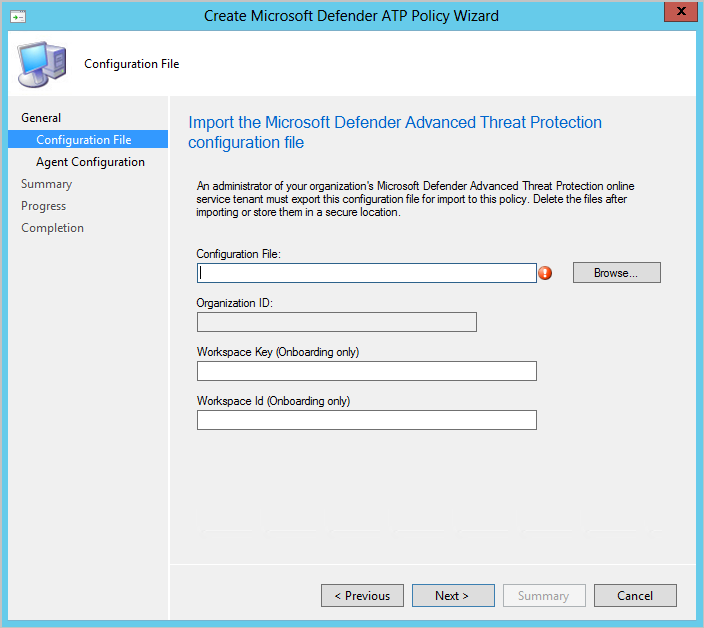
NT AUTHORITY\SYSTEM, Run whether user is logged on or not, Run with highest privileges. Action: Start a program, UNC path toWindowsDefenderATPOnboardingScript.cmdusing the file server FQDN. On 2019 and later, if the preference XML containsNT AUTHORITY\Well-Known-System-Account, replace it withNT AUTHORITY\SYSTEM. Link to a test OU first. Group Policy reports nothing to the portal; use GPResult. - Configuration Manager: Assets and Compliance > Endpoint Protection > Microsoft Defender ATP Policies > Create Microsoft Defender ATP Policy. Name, Onboarding, browse to the configuration file, sample collection None or All file types, finish, Deploy to the collection. For 2012 R2 and 2016, Administration > Client Settings > Endpoint Protection > Microsoft Defender for Endpoint Client on Windows Server 2012 R2 and Windows Server 2016, set to MDE Client (recommended). Default is Microsoft Monitoring Agent (legacy). A mixed collection where you only follow the MDE Client steps leaves the MMA servers unonboarded.
- Sample collection:
AllowSampleCollectionDWORD under the Windows Advanced Threat Protection policy key. 0 blocks analyst file collection, 1 allows all file types and is the default when absent. Group Policy exposes it throughAtpConfiguration.admxfrom the package, under Windows Components > Windows Defender ATP > Enable or disable Sample collection. - Intune: no supported method for Windows Server on the MDM page. Use security settings management for policy.
# Tested on: TODO
# --- Windows Server 2016: make sure Defender AV is a feature and present before the MSI ---
Install-WindowsFeature -Name Windows-Defender
# Optional GUI, Desktop Experience only, not on Server Core
Install-WindowsFeature -Name Windows-Defender-GUI
Get-Service -Name windefend

# --- Passive mode decision. Set BEFORE onboarding if a third-party AV stays ---
New-Item -Path 'HKLM:\SOFTWARE\Policies\Microsoft\Windows Advanced Threat Protection' -Force | Out-Null
Set-ItemProperty -Path 'HKLM:\SOFTWARE\Policies\Microsoft\Windows Advanced Threat Protection' `
  -Name ForceDefenderPassiveMode -Type DWord -Value 1

# --- Windows Server 2012 R2 / 2016: unified solution via install.ps1 from github.com/microsoft/mdefordownlevelserver ---
# Put install.ps1, md4ws.msi and the GROUP POLICY onboarding script in one folder.
# The local-script flavour fails here because install.ps1 is non-interactive.
# Recommended execution policy is AllSigned; import the script's signing cert to Trusted Publishers if run as SYSTEM.
Get-Help .\install.ps1

# Plain install, MSI in the same folder
.\install.ps1

# Install, remove the legacy MMA workspace, onboard
.\install.ps1 -RemoveMMA <YOUR_WORKSPACE_ID> -OnboardingScript ".\WindowsDefenderATPOnboardingScript.cmd"

# Same, but keep Defender AV passive from the first second
.\install.ps1 -RemoveMMA <YOUR_WORKSPACE_ID> -OnboardingScript ".\WindowsDefenderATPOnboardingScript.cmd" -Passive

# Other documented switches: -UI, -NoMSILog, -NoEtl, -Uninstall, -OffboardingScript
.\install.ps1 -Uninstall -OffboardingScript ".\WindowsDefenderATPOffboardingScript.cmd"

# --- Windows Server 2019 and later: just the onboarding script, elevated ---
# Local script flavour
.\WindowsDefenderATPLocalOnboardingScript.cmd
# Group Policy flavour, non-interactive, fine for remoting or ConfigMgr packages
.\WindowsDefenderATPOnboardingScript.cmd

# --- Defender deployment tool, any supported server ---
.\DefenderDT.exe -Precheck -Verbose -Quiet
.\DefenderDT.exe -Key:<access-key> -Passive -Proxy:https://proxy.contoso.com:8080 -AllowReboot -Quiet
.\DefenderDT.exe -File:\\server.contoso.com\share\WindowsDefenderATP.onboarding -Quiet

# --- Sensor proxy (WinHTTP, not WinINet). GP registry location, not MDM ---
Set-ItemProperty -Path 'HKLM:\Software\Policies\Microsoft\Windows\DataCollection' -Name TelemetryProxyServer -Type String -Value '10.0.0.6:8080'
Set-ItemProperty -Path 'HKLM:\Software\Policies\Microsoft\Windows\DataCollection' -Name DisableEnterpriseAuthProxy -Type DWord -Value 1
# Or system-wide
netsh winhttp set proxy 10.0.0.6:8080

# --- Defender AV proxy, separate from the sensor ---
Set-MpPreference -ProxyServer "http://10.0.0.6:8080"
Get-MpPreference | Select-Object ProxyServer, ProxyPacUrl, ProxyBypass

# --- State checks ---
Get-Service Sense, WinDefend, diagtrack | Select-Object Name, Status, StartType
Get-ItemProperty 'HKLM:\SOFTWARE\Microsoft\Windows Advanced Threat Protection\Status' | Select-Object OnboardingState
Get-MpComputerStatus | Select-Object AMRunningMode, AMServiceEnabled, AntivirusEnabled, AMProductVersion, AMEngineVersion
# AMRunningMode should read Normal, Passive or EDR Block Mode

# --- Detection test, elevated cmd.exe, alert in roughly 10 minutes ---
powershell.exe -NoExit -ExecutionPolicy Bypass -WindowStyle Hidden $ErrorActionPreference = 'silentlycontinue';(New-Object System.Net.WebClient).DownloadFile('http://127.0.0.1/1.exe', 'C:\\test-MDATP-test\\invoice.exe');Start-Process 'C:\\test-MDATP-test\\invoice.exe'

# --- Connectivity test with the Client Analyzer, aka.ms/mdeanalyzer ---
.\MDEClientAnalyzer.cmd
# Pre-onboarding with streamlined connectivity, use the onboarding script's geo
.\MDEClientAnalyzer.cmd -o C:\Packages\WindowsDefenderATPOnboardingScript.cmd

# --- Back to active after removing third-party AV ---
Set-ItemProperty -Path 'HKLM:\SOFTWARE\Policies\Microsoft\Windows Advanced Threat Protection' -Name ForceDefenderPassiveMode -Type DWord -Value 0
Restart-Computer
Learn also gives the sc.exe query sense and sc.exe query windefend pair for the same checks from cmd.exe.
The onboarding itself has no API. Inventory does. The machines endpoint is on the MDE API, not Graph.
GET https://api.security.microsoft.com/api/machines?$filter=onboardingStatus eq 'Onboarded' and healthStatus eq 'Active'&$top=1000
GET https://api.security.microsoft.com/api/machines?$filter=healthStatus ne 'Active'&$top=100
Permissions: application Machine.Read.All or Machine.ReadWrite.All; delegated Machine.Read or Machine.ReadWrite with at least View Data. Filterable: computerDnsName, id, version, deviceValue, aadDeviceId, machineTags, lastSeen, exposureLevel, onboardingStatus, lastIpAddress, healthStatus, osPlatform, riskScore, rbacGroupId. Page size max 10,000. Rate limit 100 calls per minute, 1,500 per hour. 404 means no recent machines.
osPlatform is filterable but Learn does not enumerate the server values. The documented sample response only shows Windows10. TODO: pull one server record from the dev tenant and copy the exact osPlatform string for 2016, 2019, 2022 and 2025 before filtering on it. The filter shape will be the same as the risk score example on the OData page:
GET https://api.security.microsoft.com/api/machines?$filter=osPlatform eq '<value from dev tenant>'
{
  "@odata.context": "https://api.security.microsoft.com/api/$metadata#Machines",
  "value": [
    {
      "id": "1e5bc9d7e413ddd7902c2932e418702b84d0cc07",
      "computerDnsName": "mymachine1.contoso.com",
      "osPlatform": "Windows10",
      "healthStatus": "Active",
      "onboardingStatus": "Onboarded",
      "rbacGroupName": "The-A-Team",
      "machineTags": [ "test tag 1" ]
    }
  ]
}
Offboarding by API exists as POST /api/machines/{id}/offboard on the offboard-machine-api page. Not fetched for this article.
Verify
- Portal: Device inventory at
https://security.microsoft.com/machines?category=all-devices. Sensor health state Active. Usually within minutes; connectivity and policy refresh can delay it. sc.exe query senseRUNNING.sc.exe query windefendRUNNING where Defender Antivirus should be active. Service missing means AV not installed.HKLM\SOFTWARE\Microsoft\Windows Advanced Threat Protection\Status,OnboardingState= 1. ConfigMgr uses this as a non-remediating compliance rule.Get-MpComputerStatus,AMRunningMode: Normal, Passive or EDR Block Mode.- Detection test from elevated cmd. Window closes on its own, alert in about 10 minutes.
- Deployment tool:
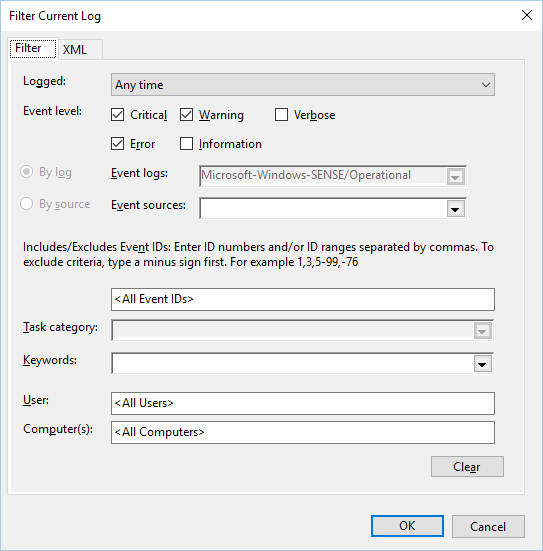
C:\ProgramData\Microsoft\DefenderDeploymentTool\DefenderDeploymentTool-<COMPUTERNAME>.log, Application log sourcesWDATPOnboardingandWDATPOffboarding, exit code 0, or 2 if already onboarded. - SENSE > Operational log filtered to Critical, Warning and Error. Clean is good.
Advanced Hunting sanity check for a fresh server fleet:
DeviceInfo
| where OSPlatform startswith "WindowsServer"
| summarize arg_max(Timestamp, OnboardingStatus, SensorHealthState, OSVersion) by DeviceName
| where OnboardingStatus != "Onboarded" or SensorHealthState != "Active"
TODO: confirm the OSPlatform string prefix in DeviceInfo in the dev tenant; the query assumes the WindowsServer form.
Troubleshoot
| Symptom | Likely cause | Fix |
|---|---|---|
| SENSE event 5 or 15, failed to connect or cannot start command channel | Sensor cannot reach service URLs. WinHTTP proxy not set, TLS inspection on *.endpoint.security.microsoft.com, or IPv6 only | Set TelemetryProxyServer via GP registry or netsh winhttp set proxy. Run the Client Analyzer and look for a 200 on each URL. Exclude MDE URLs from inspection. |
| SENSE event 6 or 7, no onboarding parameters | Script did not run elevated, or the policy key HKLM\SOFTWARE\Policies\Microsoft\Windows Advanced Threat Protection is missing or not writable | Rerun the onboarding script as administrator. Event 5 or 10 also point at this key. |
| SENSE event 9, 10 or 17 | Service start type or telemetry service location could not be changed | Reboot and rerun the script. Contact support if it persists. |
| SENSE event 35 or 40 | Status key not found or OnboardingState not 1 after first start | Confirm the Status key exists, rerun onboarding, check for a stuck Pending_Stopped or Pending_Running Sense state. |
| Sense fails to start with error 577 or 1058 | Defender AV ELAM driver blocked by DisableAntiSpyware or DisableAntiVirus under HKLM\SOFTWARE\Policies\Microsoft\Windows Defender. Pre August 2020 platform | Clear both values, update the platform, reboot. |
| Sense FoD missing on 2019 or later | Capability Microsoft.Windows.Sense.Client~~~~ not installed | DISM /Online /Get-CapabilityInfo /CapabilityName:Microsoft.Windows.Sense.Client~~~~ then install the FoD. |
Unified solution install fails, Couldn't find c:\program files\windows defender\mpasdesc.dll, - 310 WinDefend | Service install timeout on slow disk after an OS update | Latest installer package plus latest install.ps1 from the repository to clear the failed install. |
| Installer asks to offboard on a 2012 R2 or 2016 box | Rerunning the MSI on an onboarded server | Do not rerun it to update. Updates arrive via KB5005292. Offboard first if you really need a reinstall. |
| 2016 server: Defender AV stays passive or disabled after third-party AV removal | Known behaviour on 2016. Passive key left at 1, or feature disabled | Set ForceDefenderPassiveMode to 0 and reboot. If disabled, MpCmdRun.exe -WdEnable from the platform folder. If uninstalled, Dism /Online /Enable-Feature /FeatureName:Windows-Defender-Features, then Windows-Defender, then reboot. |
AMRunningMode is Passive on a server with no other AV | Registry key left behind by a migration | Set the key to 0, reboot. Tamper protection will then keep it active. |
| Server will not go back to passive after you set the key to 1 | Tamper protection on, platform 4.18.2208.0 or later | Expected. Turn tamper protection off for that device first, or accept active mode. |
| Deployment tool exit 710, EnableFeatureFailed on 2016 or later | Defender AV feature was removed and cannot be re-enabled, log shows 14081 or 0x3701 | Open a Windows Server support case per Learn. |
| ConfigMgr collection: some 2012 R2 or 2016 servers never onboard | Client setting still Microsoft Monitoring Agent (legacy), or CM older than 2207 | Set the down-level client setting to MDE Client (recommended). Upgrade CM. |
| Mixed collection, MMA servers not onboarded | Only the MDE Client steps were followed | Follow the MMA workspace ID and key steps too, or split the collection. |
| New 2016 or 2012 R2 build, Sense never starts until someone logs on | Older builds need the first logon after OOBE to complete | Log on once. 2019 and later do not need this. |
| McAfee ENS or VSE removes or disables Defender AV | McAfee platform too old | Update McAfee per Trellix KB88214 before onboarding. |
| Device shows in inventory with no data after offboarding | Expected. Profile stays up to 180 days | Filter inventory by sensor health state, tag or group. |
Device-side problems not specific to servers are in ../defender-for-endpoint/troubleshooting.

Gotchas and limits
- Passive mode is manual on every server version. Key first, onboard second. Onboard first and you depend on tamper protection being off.
- Turn off Windows Defender via Group Policy depends on timing. Before onboarding: Defender stays disabled, and the minimum requirements page says onboarded devices must be excluded from that GPO. After onboarding on platform 4.18.2208.0 or later: passive mode. Group Policy does not touch tamper protection, and AV setting changes are ignored while it is on.
- Unified solution versus MMA on 2012 R2 and 2016: MMA is legacy and Learn's proxy page says to use the newer agent.
-RemoveMMAonly removes the OMS workspace. If the server still needs MMA for Log Analytics, leave it; the old sensor stops anyway. - The 2012 R2 and 2016 local UI supports basic operations only. Learn says disable it or do not require interaction. Use PowerShell, WMI or
MpCmdRun.exe. - No in-place OS upgrade with the unified solution on 2016 or earlier. Offboard, uninstall, upgrade, reinstall. 2019 and later upgrade in place.
- Server Core: supported from 2012 R2 up. No Defender GUI on Core. On 2019 and later the Windows Security app cannot be added or removed as a feature. For MDE-attach policy, Core 2019 needs the App Compatibility FoD and Core 2016 and earlier are unsupported on that channel.
- No Intune for servers. Do not deploy
TelemetryProxyServerthrough MDM either; the sensor reads the Group Policy registry location. - Domain controllers: none of the onboarding pages fetched for this article carry DC-specific caveats. Learn's documented constraints sit on the policy side in security settings management: Windows Server must be in enforcement scope before DCs are targeted, firewall policy is unsupported on DCs, and configuration persists after unenrolment. TODO: check Defender for Identity coexistence before onboarding a client DC.
- Network List Service or NLA: not documented on any fetched Learn page. TODO: lab-test on a freshly promoted DC.
- VDI scripts in the method table are for non-persistent client images. Not applicable here.
- The onboarding file contains organisation-specific data. Read-only, scoped share.
- Offboarding packages expire: 7 days for local script and Group Policy, 30 for ConfigMgr. Never apply onboarding and offboarding to the same device at once; unlink or remove the onboarding deployment first.
- Offboarding does not uninstall. On 2012 R2 and 2016 uninstall afterwards, and only after offboarding. The device goes inactive after 7 days, leaves the exposure score after 30, and the empty profile lingers up to 180 days.
- Defender for Cloud "Direct onboarding", if enabled later, is tenant-wide and sweeps in these servers. The plan toggle, not deleting the environment connection, offboards a subscription, and Plan 2 to Plan 1 does not trigger offboarding.
- Data location is fixed at tenant provisioning. Moving it is a support ticket.
- Deployment tool access keys can run up to a year. A key on a GPO share is a credential. Shortest practical expiry.
Further reading
- Simplified onboarding of Microsoft Defender for Endpoint using the Defender deployment tool, Jeffrey Appel, May 2026. Per-OS install step tables for 2012 R2, 2016 and 2025, passive mode on servers, and where the tool's logs land.
- Defender deployment tool: Easy and simple onboarding for Defender for Endpoint, Modern Security (Farid Kalaidji), June 2026. Walks the tool through Group Policy for on-premises servers and covers the 2016-and-later feature-enable error and 2008 R2 handling.
- Transparent and customizable onboarding for modern and legacy Windows devices, Microsoft Tech Community, March 2026. Microsoft's own framing of why the single-executable tool replaces the per-OS package juggling for legacy servers.
- Common mistakes during Microsoft Defender for Endpoint deployments, Jeffrey Appel, updated February 2026. Names the leftover passive mode key on servers and deploying to unpatched 2012 R2 and 2016 boxes as recurring failures, with hunting queries to find them.
My notes
TODO: Sohail's notes after verification.
Changelog
| Date | Change | Source |
|---|---|---|
| 2026-10-22 | Drafted from Learn, with Learn images and diagrams | [1] |